
# Managing Local Documents in AI desk Pro
# Overview
This guide provides detailed instructions for managing local documents within AI desk Pro's knowledge base through the admin portal. Local documents are files that you upload directly from your device to AI desk Pro.
# Prerequisites
- Administrator access to admin.aidesk-pro.com.
- Documents in PDF, DOCX or PPTX format ready for upload.
- Each file must be 10 MB or less and contain no more than 300 pages (slides count as pages for PPTX). Files that exceed either limit are rejected or skipped during indexing.
# Accessing the Local Documents Interface
- 1
Navigate to admin.aidesk-pro.com.
- 2
Enter your administrator credentials to log in.
- 3
Select Documents from the sidebar to open the document management interface.
- 4
Choose local documents.
# Viewing Documents
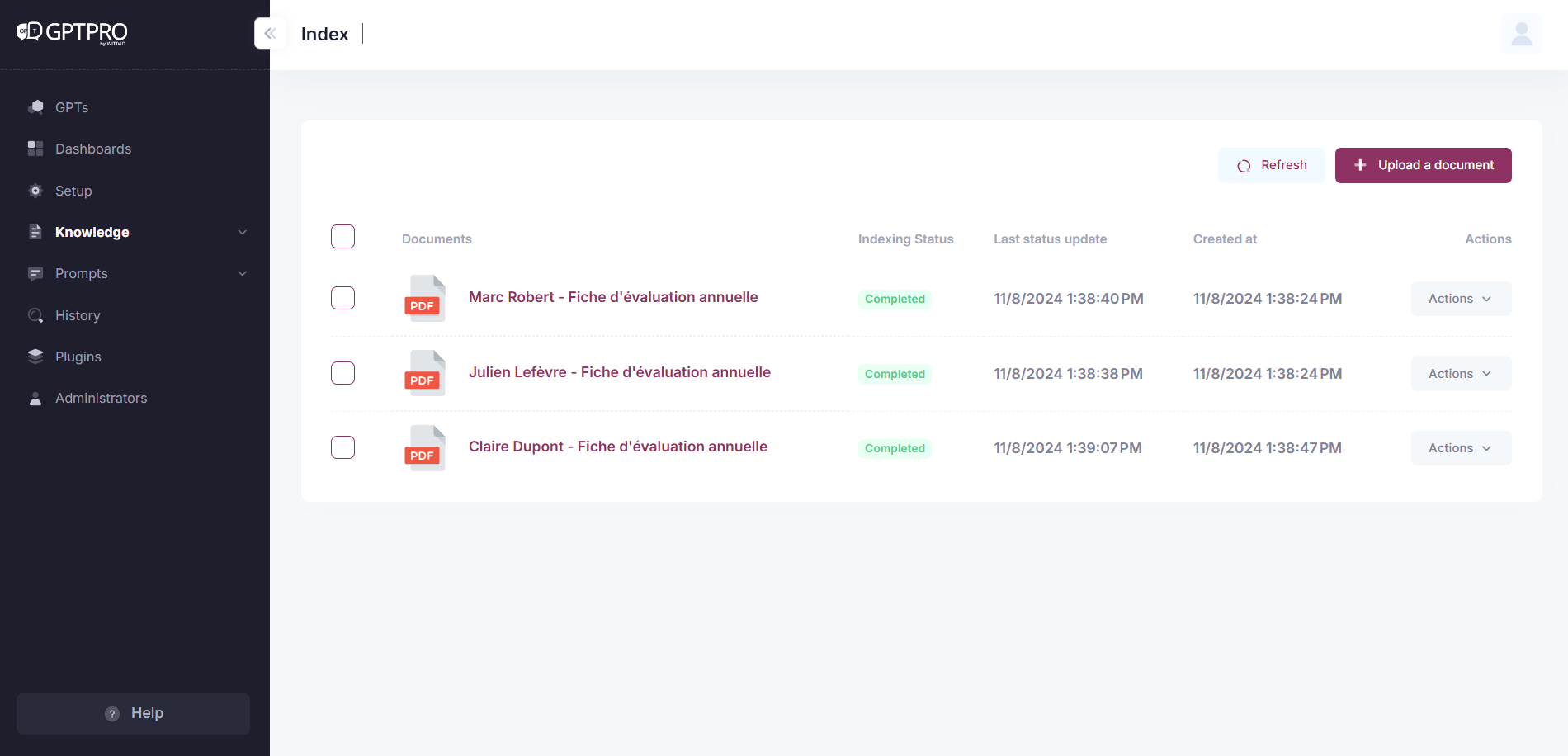
The interface lists all documents with details such as title, format, and the date they were added.
# Credits Column
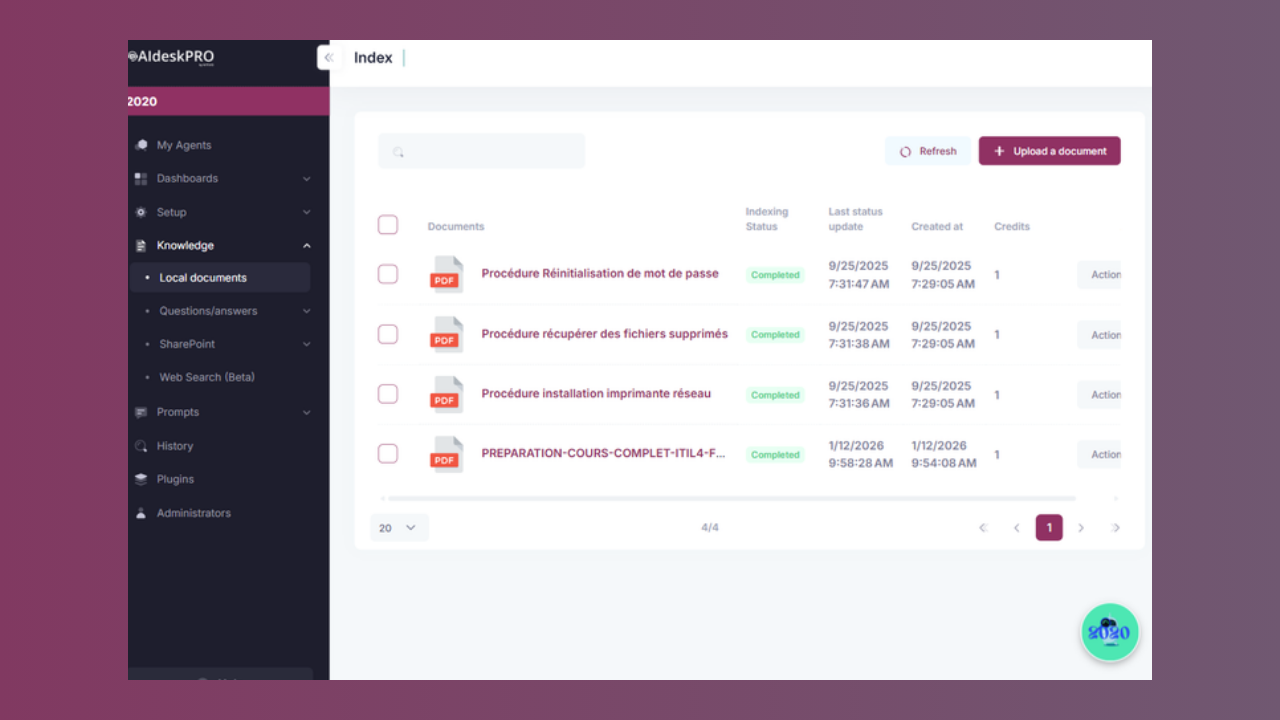
The list also includes a Credits column showing the credit cost of each individual document, so you can see how much each file counts against your document quota. For how credit costs are calculated, see What counts as a document credit.
# Searching for a Document
A search bar above the document list helps you find a document quickly in a large set:
- Type one or more words from the document's name in the search field.
- Press Enter to filter the list.
Keep in mind:
- The search matches document names and is not case sensitive.
- When you type several words, only documents whose name contains all of them are shown.
- To show the full list again, clear the search field and press Enter.
- The refresh button keeps your current search, so you can check processing status without retyping it.
# Browsing with Pagination
The document list is split into pages of 20 documents. Use the page controls below the list to move between pages. A counter next to the controls shows how many documents match your current search out of the total number of local documents.
# Uploading a Document
- 1
Click + Upload a document.
- 2
Drag and drop your document(s) inside the box, or manually choose the PDF or PPT file from your device by clicking the Attach Files button.
- 3
The document uploads and is listed with the existing documents.
# Checking Document Status
For updates on your uploaded documents:
- Click
Check my documents status. - A detailed status of each document's upload and processing will be displayed.
# Performing Actions on Documents
- To view the document, simply click on the document's title to view the content.
- Use the
Actionsdropdown next to each document to:- Download: Download the document uploaded in the list.
- Delete: Remove the document from AI desk Pro.
# Best Practices
- Update and review documents regularly.
- Remove outdated content to maintain AI desk Pro's performance.