
# How to Add a Prompt in AI desk Pro
Adding a prompt in AI desk Pro lets you customize the interaction experience by predefining inputs that guide the AI in generating specific types of content. Here's how to add a prompt to AI desk Pro.
# Add a prompt
- 1
Access the admin interface
- Sign in to the AI desk Pro admin interface at admin.aidesk-pro.com. You need administrative privileges to add or edit prompts.
- 2
Navigate to Prompts
- In the sidebar, locate the Prompts option.
- Click the Add Prompt sub navigation bar to open the section where you manage your prompts.
- 3
Create a new prompt
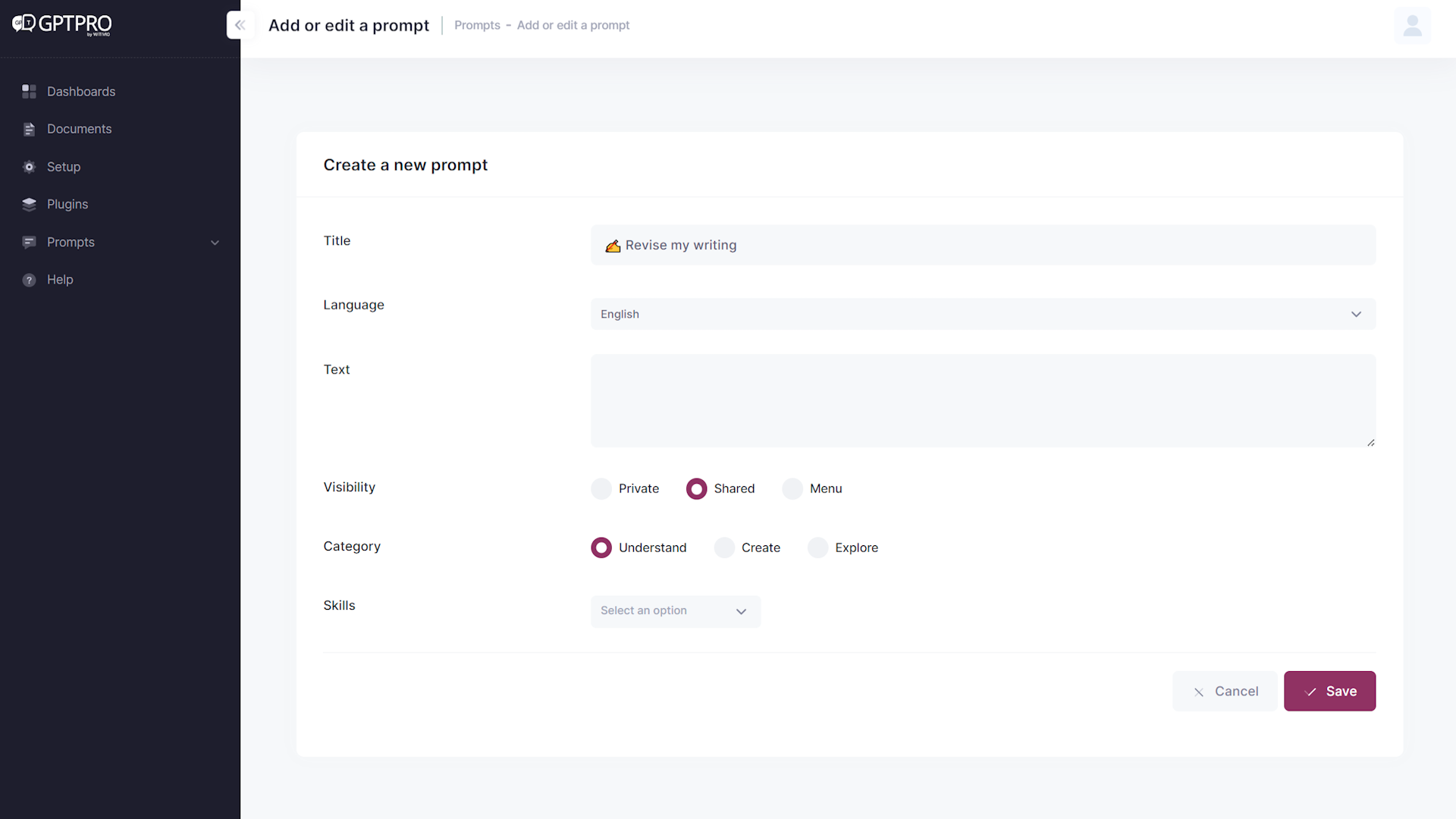
- Click the Create a New Prompt button to open a form where you define the details of your new prompt.
- 4
Fill in the prompt details
- Title: give your prompt a descriptive title.
- Language: choose the language for your prompt.
- Text: enter the text of the prompt. This is what guides the AI.
- Visibility: set the visibility to Private, Shared, or Menu.
- Category: select a category to help organize your prompt within the system.
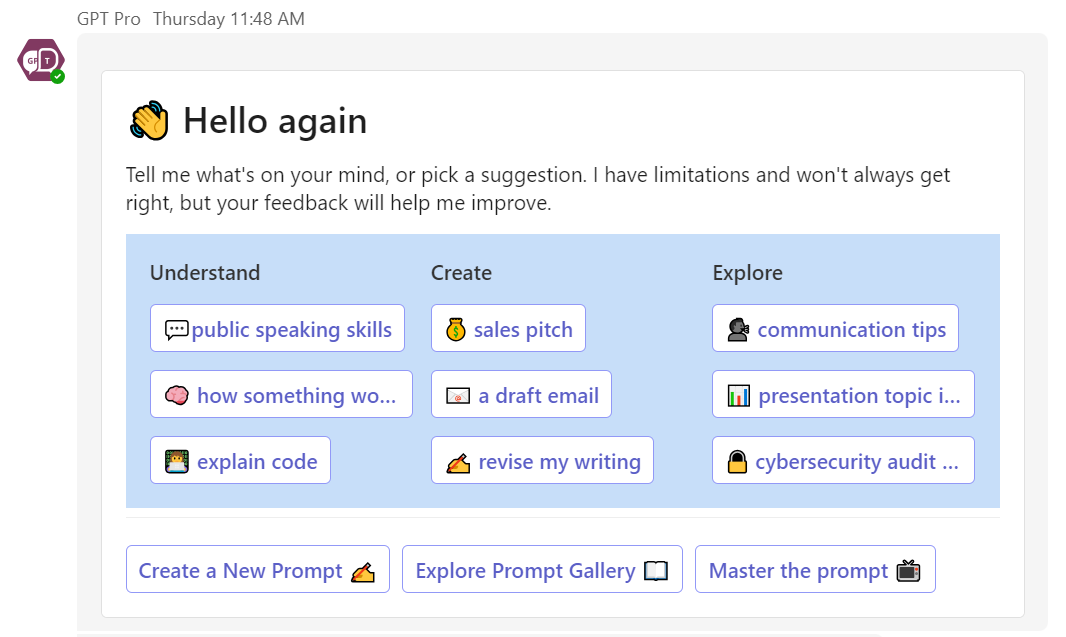
The Menu option puts your prompt in the welcome card menu.
- 5
Save your prompt
- After filling out all the details, click the Save button. Your new prompt is added to AI desk Pro and available for use.
- 6
Verify the prompt
- To verify that your prompt was added, type I start with AI desk Pro on the welcome card. Your new prompt should be visible among the available options.
The welcome card shows your new prompt among the available options.
By following these steps, you can add a variety of prompts to your AI desk Pro system, tailoring the AI's responses to better suit your needs or those of your users.
# Set up a welcome card
# What is a welcome card?
A welcome card is an intuitive, interactive prompt shortcut that greets users when they access the AI desk Pro chatbox. It provides an array of quick-start options designed to help users navigate the service, whether they want to understand a concept, create content, or explore resources. It streamlines the user experience by offering suggestions that help users immediately leverage the capabilities of AI desk Pro.
# How does a welcome card work?
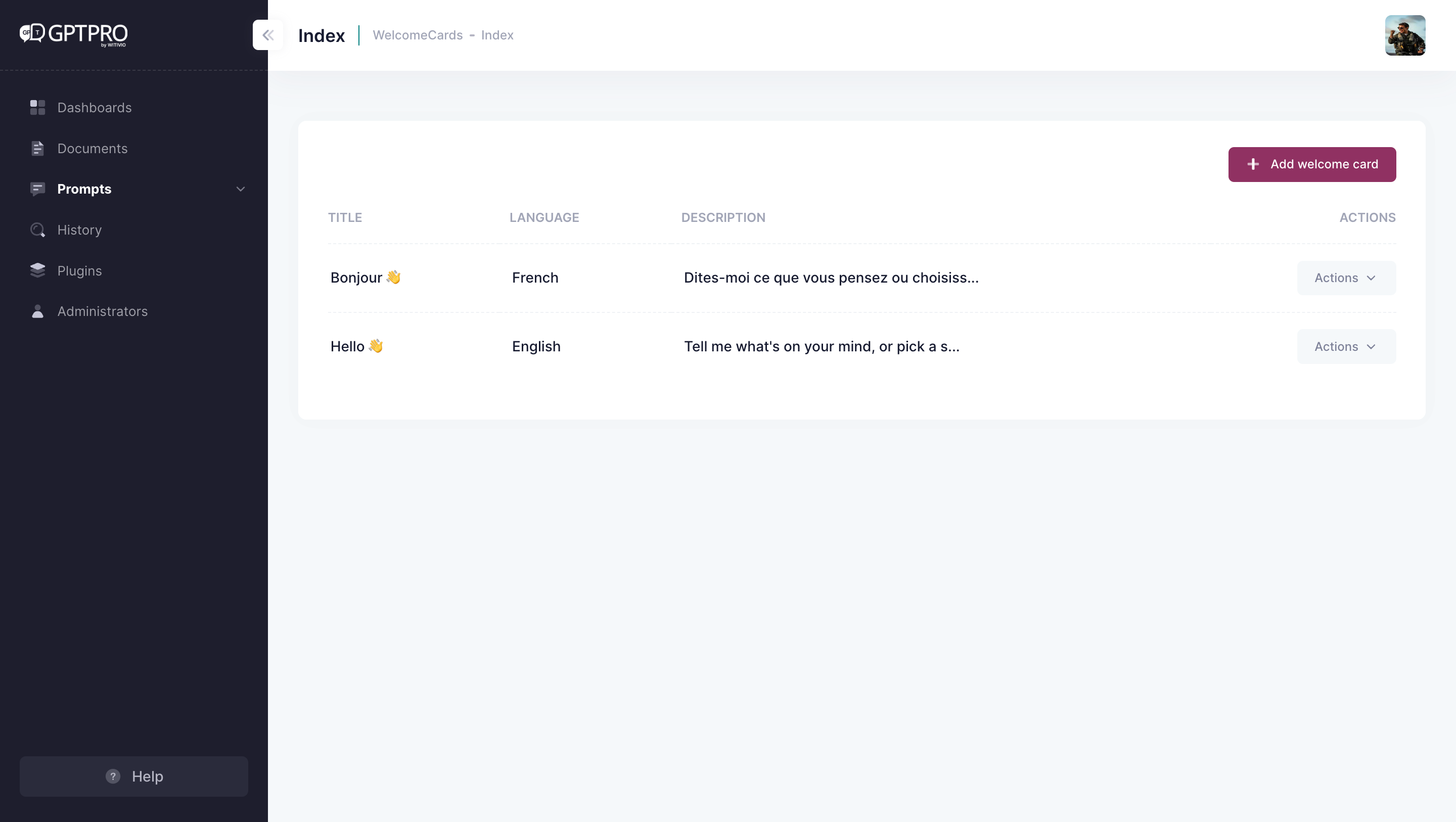
To manage your welcome card, click Prompt in your admin center navigation bar, then Welcome Card in its sub navigation bar. When you register to AI desk Pro, two welcome cards are set up automatically as a default model. Both versions are in French and English. The welcome card's language follows the language set on the user's Microsoft Teams.
# How to set up a new language for the welcome card?
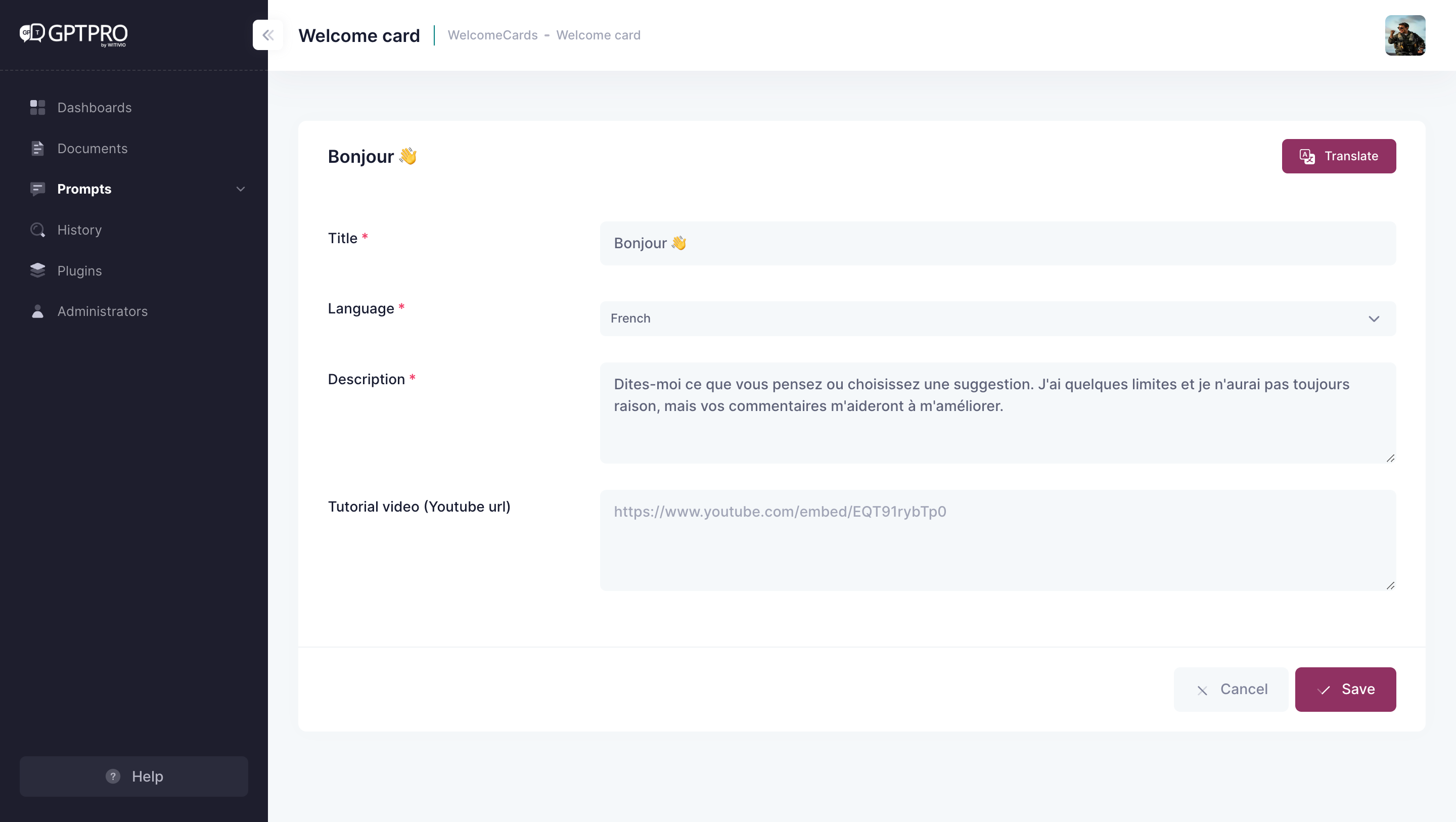
To set up a new language for a pre-existing welcome card, click the translate button, or create a new welcome card by clicking the Add Welcome Card button and set it up in another language.
# Define the AI chatbot's personality
# Advanced personalization through the system prompt
Better craft your AI chatbot's personality by giving it instructions about how it should behave and by explaining the contexts it should reference when generating a response. To do this, access Prompt in the admin center navigation bar, then head to System Prompt on the sub navigation bar.
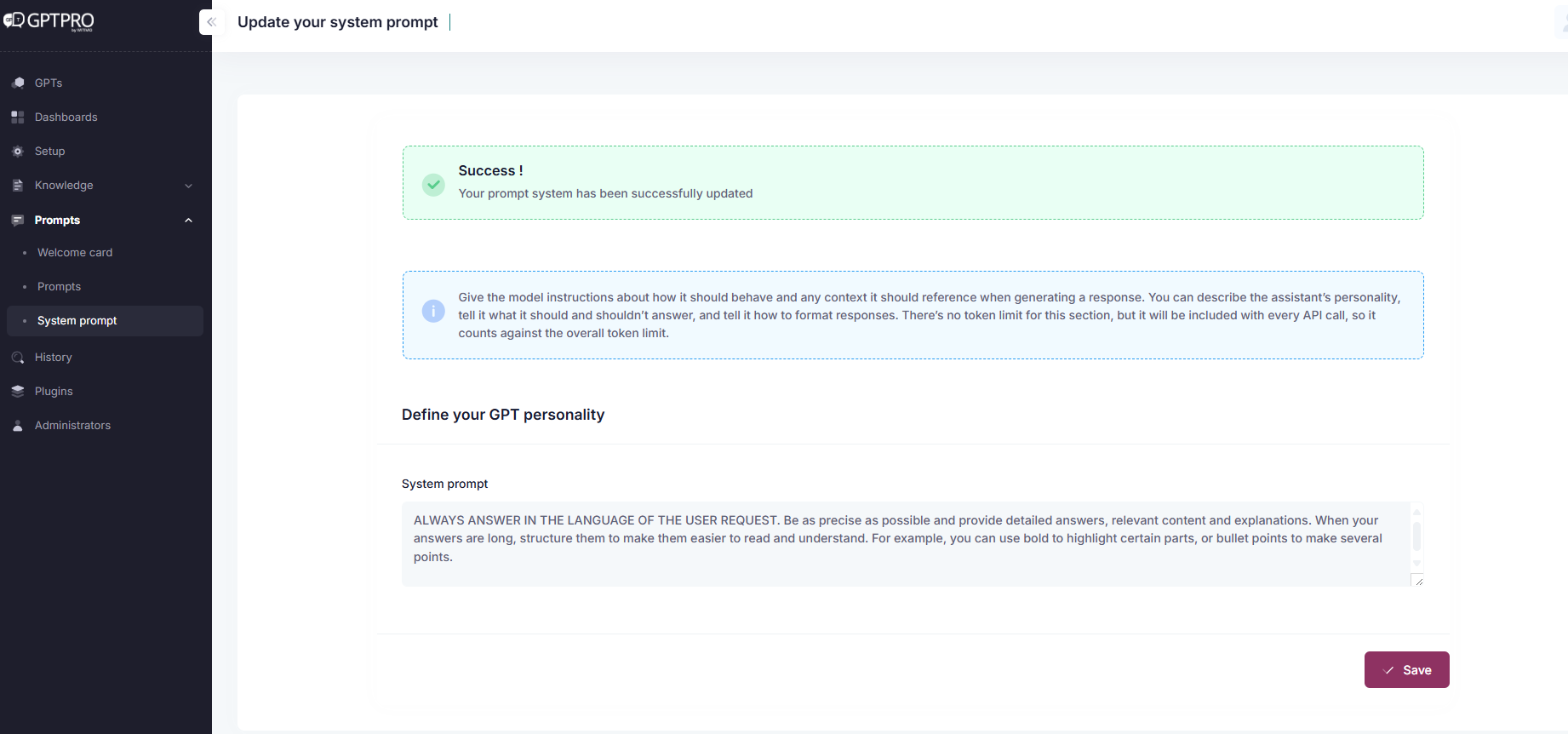
In the system prompt section you can describe the assistant's personality, tell it what it should and shouldn't answer, and tell it how to format responses. There's no token limit for this section, but it is included with every API call, so it counts against the overall token limit.
← History Instructions →