
# Subscription Management
Your subscription defines what you can do with AI Desk Pro. This page is where you see your plan details, track how much you've used, and understand when your license expires.
Quick Navigation
Access this from Admin Center > Subscription management
# Your Subscription at a Glance
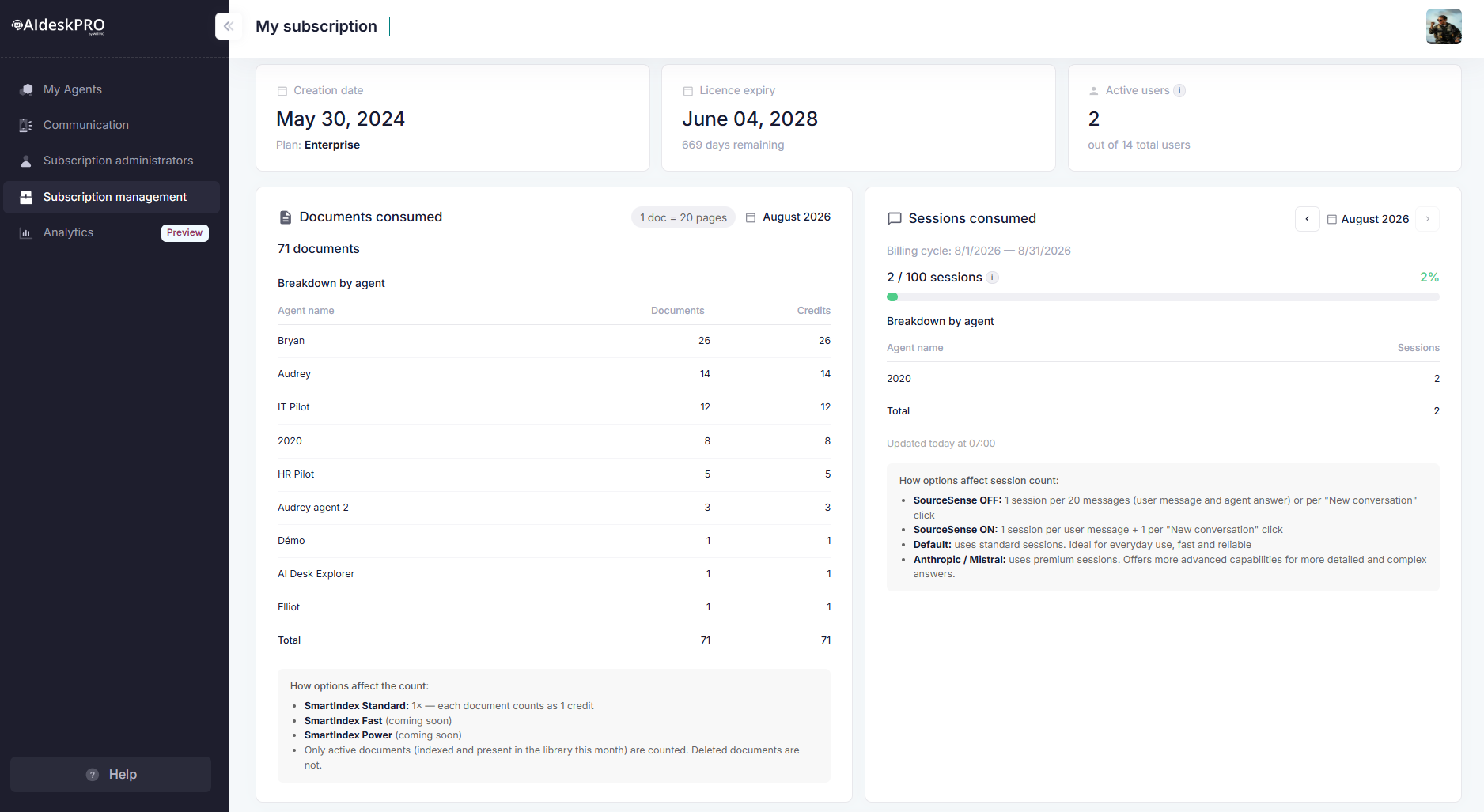
The top row shows three cards:
Creation date: When your subscription was first created (e.g., "May 30, 2024"), with your Plan tier right underneath (e.g., "Enterprise").
Licence expiry: When your subscription runs out (e.g., "June 04, 2028"), with either the number of days remaining or a red Expired badge if the date has passed.
Active users: Two numbers, not one — Active users is the count of distinct people who have ever talked to any of your agents since the subscription was created (a lifetime count, not a monthly one), out of the total users who have the Teams app installed across all your agents. A small i icon next to the label spells this out if you hover it.
Example: "4 active users, out of 16 total users" means 16 people have installed an agent, but only 4 have actually sent it a message so far — a gap worth investigating if it's wide.
# Documents Consumed
What it shows: A single documents consumed count for the subscription, with a breakdown by agent table underneath (agent name, number of documents, and the credits they cost). Table rows beyond the first few collapse under a "Show N more agents" link.
How the count actually works — this trips people up, so it's worth being precise:
- A "document" isn't a file — it's pages ÷ 20, rounded. A pill next to the count ("1 doc = 20 pages") is your reminder. A 45-page file counts as roughly 2.25 documents' worth of credits, not 1.
- Only active documents count — ones currently indexed and present in your knowledge library this month. Delete a document and it stops counting, immediately.
- SmartIndex Standard documents cost 1× (each counts as its page-based credit value, as above). SmartIndex Fast and SmartIndex Power are coming soon and will have their own cost multipliers.
No visible cap here
Unlike Sessions below, this card intentionally does not show a maximum or a percentage — only how many you've actually used. If you need to know your plan's document ceiling, check your contract or ask your account team; showing a number without also showing what counts toward it (only active documents, at their page-based cost) was judged more confusing than helpful.
# Sessions Consumed
What it shows: Usage for one calendar month at a time — a month picker (with left/right arrows) lets you check the current billing cycle or look back at previous ones. Under it: "X / Y sessions" with a percentage and a colored progress bar, or an Unlimited badge if your plan has no session cap at all. A breakdown by agent table follows the same "show more" pattern as Documents, and a small note at the bottom shows when the figures were last refreshed (with a warning if that's more than 48 hours ago).
How sessions work:
- One conversation thread = one session.
- SourceSense OFF (the default for most agents): 1 session per 20 exchanges, or every time a user clicks "New conversation" — so one long back-and-forth is cheap.
- SourceSense ON: 1 session per exchange, plus 1 per "New conversation" click — pricier, but each agent has its own SourceSense setting, so this only applies to the agents where it's enabled.
Color-coded progress bar:
| Usage | Color |
|---|---|
| Under 70% | Green |
| 70–89% | Amber |
| 90% and above | Red |
What to watch: if you're at amber or red before the billing cycle's midpoint, you're on pace to exceed your monthly allowance — plan an upgrade or talk to your account team before it happens, rather than after.
# Premium Sessions
If your plan or an add-on includes premium AI models (Anthropic, Mistral), a second progress bar appears below the standard one: "X / Y premium sessions". Every exchange answered by a premium model consumes one premium session, separately from your standard session count. Its thresholds are slightly more generous — green under 80%, amber 80–89%, red from 90%. If you're inside a trial rather than a purchased pack, a badge shows "Trial — ends [date]".
Default vs. premium models, in plain terms:
- Default models use standard sessions — fast, reliable, ideal for everyday use.
- Anthropic / Mistral (premium) models use premium sessions — more advanced capabilities for detailed or complex answers, at a separate cost.
# Included Features, Add-Ons, and Preview Features
Below the usage cards, three more sections describe what your subscription can actually do — separate from usage quotas entirely.
# Included Features
A grid of pills: green ones are features included in your plan by default; grey ones are features that exist in the product but aren't available on your current plan (upgrading unlocks them).
# Active and Available Add-Ons
This is the one to check if you're wondering which add-ons are turned on:
- Active add-ons (green pills, with a count badge) are extras currently switched on for your subscription — for example, a premium-model pack. The tooltip is direct about how they get there: "Add-ons are activated by contract (set by your account team)" — you can't self-serve enable one from this page.
- Available add-ons (grey pills) are extras that exist in the product catalogue but aren't active for you yet. Want one? The tooltip says it plainly: contact your account team.
If either list is empty, the card says so explicitly ("No active add-ons" / "No add-ons available for your current plan") rather than showing a blank space.
# Preview Features
Experimental features (blue pills) available on your plan ahead of general availability — behavior and pricing may still change. Unlike add-ons, these you can turn on yourself: go to Setup → Agent Customization → Features tab on the specific agent where you want it, and toggle it there. Preview features are enabled per agent, not subscription-wide.
# Practical Workflows
# Monthly Check-In (5 minutes)
- Open Subscription Management.
- Check Active Users: is the gap between active and total users closing (people are trying the agent) or widening (they installed it and never came back)?
- Check Documents: any agent's breakdown grown a lot? Worth a quick audit of what got added — and whether anything unused should be deleted, since only active documents count anyway.
- Check Sessions: green, amber, or red for the month so far? If amber or red before the midpoint of the billing cycle, flag it now.
- Check Add-ons: still just the ones you expect active? If you were promised something by your account team that isn't showing up here yet, that's worth a follow-up.
- Note it down: track month-to-month so you can predict when you'll need to upgrade or add an add-on.
# Quarterly Capacity Planning (15 minutes)
- Compare the last 3 monthly session snapshots (the month picker lets you look back).
- Project forward: at the current growth rate, how many months until you're consistently in the red zone?
- Plan ahead: if you'll hit it in 2 months, start the conversation with your account team now — add-ons and plan upgrades go through them, not through self-service.
- Revisit with leadership: "We've grown 50% in usage; we need to plan for a plan or add-on upgrade in Q4."
# Real-World Scenarios
| Situation | What to do |
|---|---|
| Sessions bar in the red mid-month | You're on track to exceed your monthly allowance. Contact your account team about upgrading or an add-on before the cycle ends |
| Premium Sessions bar climbing fast during a trial | Decide before the trial end date shown on the badge whether to convert it to a purchased pack |
| Active users far below total users | People installed the agent but aren't using it — an adoption problem, not a capacity one; see General Statistics for the "Drive adoption" action plan |
| A feature you need shows up in "Available add-ons" | It exists in the catalogue but isn't active for you — contact your account team, not a settings toggle |
| A feature you want shows up in "Preview features" | You can turn it on yourself, per agent, in Setup → Agent Customization → Features — no need to contact anyone |
| One agent's document/session breakdown dwarfs the others | That agent is popular — good sign, but make sure its knowledge base stays accurate since it's absorbing most of the load |
# Understanding Your Plan Tiers
Your plan determines your limits. Common tiers include:
- Enterprise: Highest limits, custom configuration, dedicated support
- Professional: 10 agents, 5,000 users, OCR enabled, full customization
- Business: 5 agents, 1,000 users, 4 customizable agents
- Starter: 1 agent, 100 users, basic features
Check your subscription page to see exactly what your plan allows.
# When to Upgrade — or Just Ask for an Add-On
- Sessions consistently amber or red: people are chatting a lot; talk to your account team about a plan upgrade or a session add-on.
- Premium sessions running out: if the premium model is working well for you, ask about converting a trial or buying a bigger premium pack before you're throttled back to standard models.
- A feature sits in "Available add-ons": it's not a plan tier change — it's a specific extra your account team can switch on by contract.
- A feature sits in "Preview features": no upgrade needed at all — enable it yourself per agent in Setup → Agent Customization → Features.
- Need more agents or users than your plan allows: that's a plan tier change (see below), not an add-on.