
# AI desk Pro Support Tickets in Microsoft Teams
# Overview
AI desk Pro includes its own support ticketing system, built directly into the agent and the Admin Center. It lets your users open a ticket and follow its replies without leaving the conversation, and gives your administrators a dedicated Tickets page to process every ticket, reply, and track resolution.
Support ticketing is in Preview, and the Tickets entry in the Admin Center sidebar carries a Preview badge. The interface and the ticket workflow may evolve. See Preview Features for the supplemental Preview terms that apply.
This ticketing system works out of the box, as soon as your subscription includes it. There is no external system to connect.
Every ticket gets a short, sequential reference (for example T-000042), per bot. The same reference is shown everywhere: the confirmation the user sees, the Cockpit widget, and the administration dashboard.
# Three ways a ticket gets opened
# 1. Directly from the Cockpit
From the My Tickets widget on the Cockpit home page, the user selects Create ticket. The form opens in a full-height panel on the right side of the Cockpit, the same panel a ticket is read in, and asks for:
- A title (the ticket's subject).
- A description.
- A priority: Low, Normal, High, or Urgent (defaults to Normal).
The ticket is created immediately, with no conversation involved.
# 2. By asking for one in the conversation
A user can simply write what they want in plain language (for example "I want to create a ticket", "open a ticket", "contact support", or a handful of similar phrasings) in Teams, Webchat, or the Cockpit's own chat. The bot recognizes the request and starts a short guided exchange:
- The bot asks what the request is about, and stores the reply as the ticket's subject.
- The bot then asks the user to describe their request in more detail, and stores the reply as the ticket's description.
- The ticket is created, and the bot confirms it with its reference (for example "Your support ticket #T-000042 has been created").
The user can back out at any point by writing cancel, stop, abort, or quit.
# 3. Escalated from a negative feedback
When a user gives a thumbs-down on an answer, the feedback card can carry an Open a ticket action next to Send (this appears once escalation is set to Cockpit ticket, or to External ticket for the legacy flow). Unlike Send, which requires a comment, Open a ticket works even if the comment box was left empty.
Selecting it starts the same guided exchange as above, but shortened: the question the feedback was given on is already known, so it becomes the ticket's subject directly, and the bot only asks the user to describe what they actually need from support. The description the user types becomes the ticket's description; the original feedback comment (if any) and the question/answer exchange the feedback was about are attached underneath it, so support can see both what the user asked for and the exchange that prompted it.
# Following tickets in the Cockpit (end users)
The My Tickets widget on the Cockpit home page shows the user's 3 most recent tickets, each with its priority and status. A See more action, shown once more than 3 tickets exist, opens the 10 most recent. The widget refreshes automatically every 30 seconds while the Cockpit is open, and immediately when the browser tab regains focus, so a new reply from support shows up without the user having to refresh anything.
- Unread replies: a badge on the widget counts unread support replies across the user's entire ticket list, not only the 3 shown, so a reply on an older ticket is never missed. Opening a ticket clears its own unread flag.
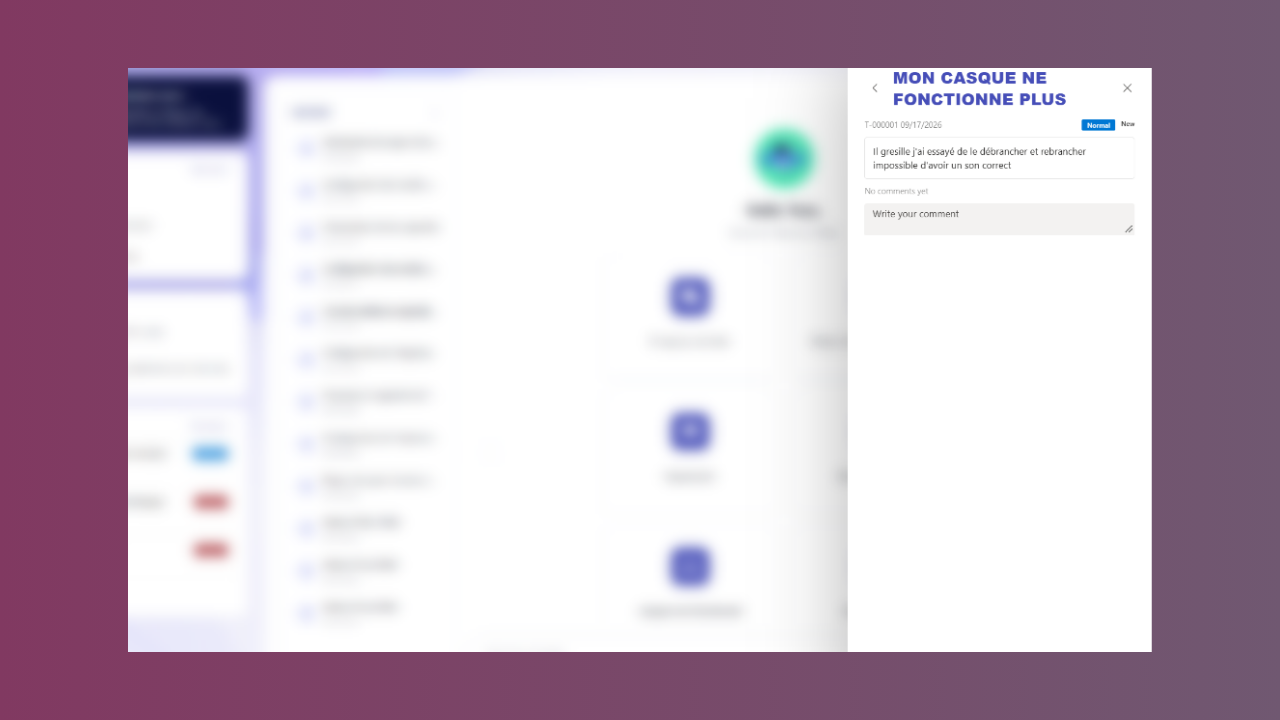
- Ticket detail: selecting a ticket opens its full thread in a full-height panel on the right side of the Cockpit, next to the page the user was on. The panel shows the original description, followed by every reply, with the support team's replies visually distinguished from the user's own messages. The thread has its own scroll region, so a long description or a long exchange stays reachable instead of being squeezed into the space available.
- Moving between the list and a ticket: opening a ticket from the See more list hands the panel over. The list steps aside, the ticket takes its place, and a back arrow in the panel header returns to the list. A ticket opened straight from the widget shows no back arrow, because there's no list behind it.
- Replying: the user can add a message from the same panel while the ticket is open. Replying on a ticket support had marked Resolved automatically puts it back to Open, since an answer would otherwise sit on a ticket nobody looks at again.
- Closing and reopening: the user can close a ticket once it's resolved; a closed ticket can no longer be commented on. The Reopen ticket action is offered instead of a reply box, and brings the ticket back to Open (not New, since support has already looked at it).
# Processing tickets in the Admin Center (administrators)
Once your subscription includes ticketing, a standalone Tickets page appears in the Admin Center sidebar, alongside History and Plugins.
# Dashboard
The top of the page summarizes the bot's tickets at a glance:
- Total: every ticket ever created for the bot.
- Active: tickets that are New, Open, or Pending, meaning everything not yet settled.
- Resolution rate: the share of tickets that are Resolved or Closed, as a percentage of the total.
- Needs attention: tickets marked High or Urgent priority.
- A creation trend chart of new tickets over the last 14 days.
- Two donut charts breaking tickets down by status and by priority.
# Filtering and the ticket list
Filter buttons for status (New, Open, Pending, Resolved, Closed) and priority (Low, Normal, High, Urgent) each show a live count, and combine together. A Reset filters action appears once a filter is active.
The list itself shows, per ticket: the subject and its reference, the requester's name and email, priority, status, and how long ago it was created, with a View action opening the ticket.
# Ticket detail and replying
Opening a ticket shows its description and the full conversation thread with the requester, oldest first, with administrator replies visually distinguished from the requester's own messages. A reply box (up to 4,000 characters) lets the administrator add a message to the thread.
From the same page, administrators can also change the ticket's:
- Status: New, Open, Pending, Resolved, or Closed.
- Priority: Low, Normal, High, or Urgent.
A sidebar on the ticket also shows the requester's name and email, and when the ticket was created and last updated.
# Configuring the escalation on negative feedback
To have negative feedback create Cockpit tickets automatically, go to Feedbacks > Feedbacks Configuration and, under Negative Feedback, set the Escalation Type to Cockpit ticket. The other available escalation types are:
| Escalation type | What happens |
|---|---|
| None | No escalation. |
| External ticket | Hands the request over to your knowledge base or your ticketing plugin, as before. Requires a plugin configured beforehand in the Plugins tab. |
| Cockpit ticket | Creates a support ticket the user follows from the Cockpit, and your administrators process in the Tickets page. |
| Sends the feedback by email. | |
| Dialog | Starts a guided conversational flow. |
# Availability
Support ticketing depends on two separate features of your AI desk Pro subscription, which can be purchased independently:
- Ticketing gates the admin Tickets page: the dashboard, the list, and ticket processing.
- Cockpit ticketing gates every way a Cockpit ticket actually gets opened: the My Tickets widget and manual ticket creation in the Cockpit, the conversational "open a ticket" request in the chat, and the Cockpit ticket escalation option on negative feedback.
A subscription can hold either without the other: for example, the admin Tickets page without exposing ticket creation to end users.
See Subscription Management for details about your plan.
← Plugins Agent Maker →