
# Action Bar
# Overview
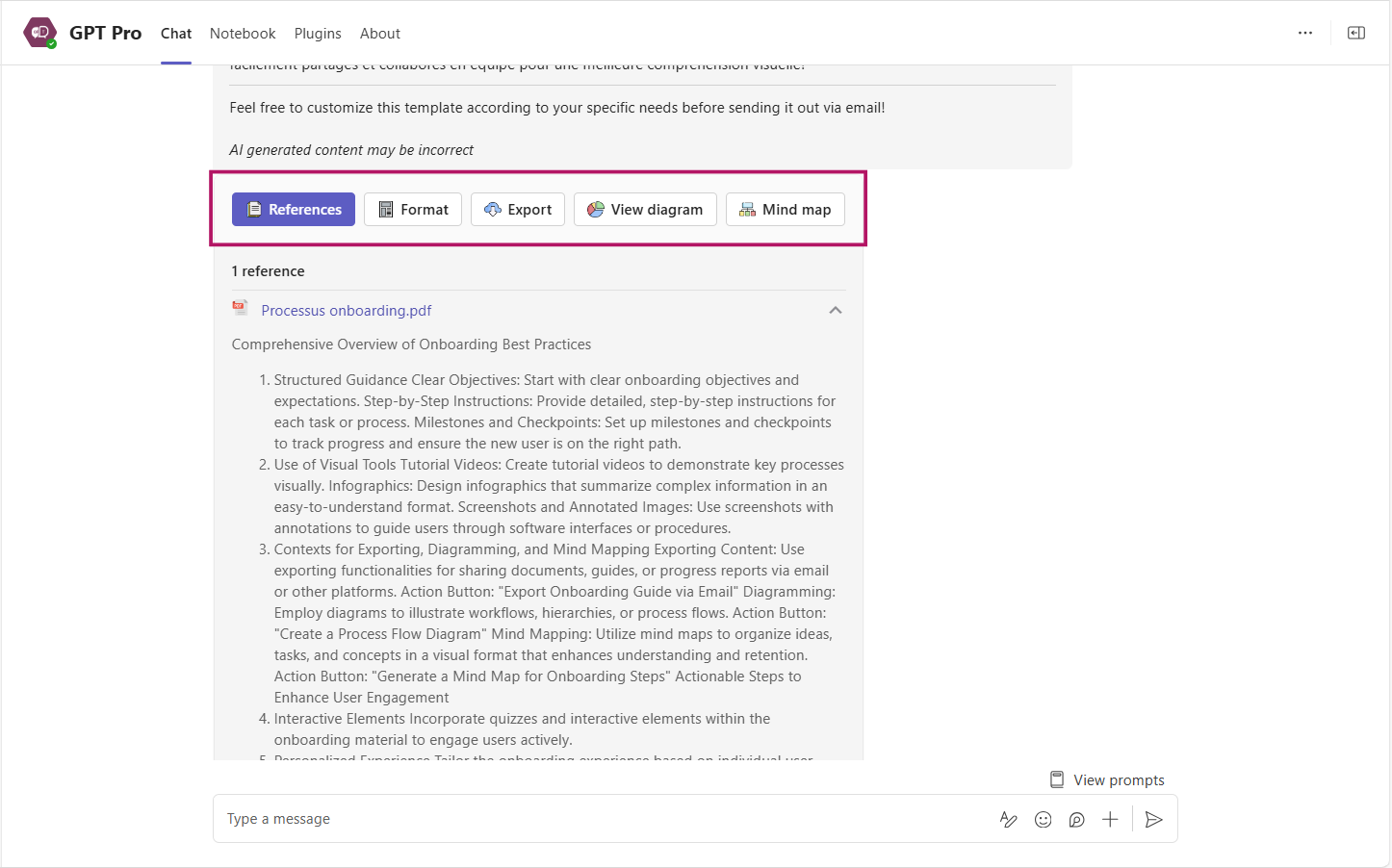
The Action Bar in AI desk Pro is a set of advanced and intelligent shortcuts integrated directly into the Microsoft Teams interface. These shortcuts provide users with greater control over how they interact with AI-generated content, enhancing productivity and efficiency.
# Accessing the Action Bar
To access the Action Bar, open a conversation where AI desk Pro is active. The Action Bar is available as a set of options for customizing and managing the content generated by AI desk Pro.
# Access to references
- Click References: the reference(s) are displayed.
- Click the chevron to see the reference details: the text used for the answer appears.
- To open the reference document, click the document title.
If it is a document on SharePoint, a tab in the web browser displays the document on SharePoint.
# Reformatting
The reformat feature allows AI desk Pro users to customize the layout of text generated by the AI chatbot. With just a few clicks, users can adjust the way they prefer to visualize the answer.
- Choose the reformat option: click the reformat icon in the Action Bar.
- Customize the layout: adjust the settings as needed to customize the text layout, either table or list.
# Exporting to Word, PDF, or Excel
- Click the export icon in the Action Bar.
- Choose the format: Word, PDF, or Excel.
- Download the document that contains your generated content.
- Edit and refine the document as needed in Microsoft Word.
# Visualizing with diagrams and mindmaps
- Click the diagram or mindmap icon in the Action Bar.
- View the generated content in the selected visualization format.
- Use the visual representation for better understanding and presentation.
# Sending emails via Outlook
- Click the edit in Outlook icon in the Action Bar.
- Compose your email with the generated content.
- Send the email directly from the AI desk Pro interface without switching applications.
# Conclusion
The Action Bar in AI desk Pro enhances the way users interact with AI-generated content, providing tools for customization, visualization, and efficient communication. By leveraging these features, users can improve productivity, maintain consistent formatting, and streamline their workflows within the Microsoft Teams environment.
← Welcome Card Plugins →