
# AI desk Pro Push Communication for Microsoft Teams
# Overview
Company Communicator is a feature integrated into AI desk Pro that sends proactive, targeted notifications through Microsoft Teams to improve internal communication and responsiveness.
# Key features
# Step-by-step user guide
# Connecting to the application
- 1
Access Agents, then select the Communication tab.
- 2
Sign in using your Windows credentials.
- 3
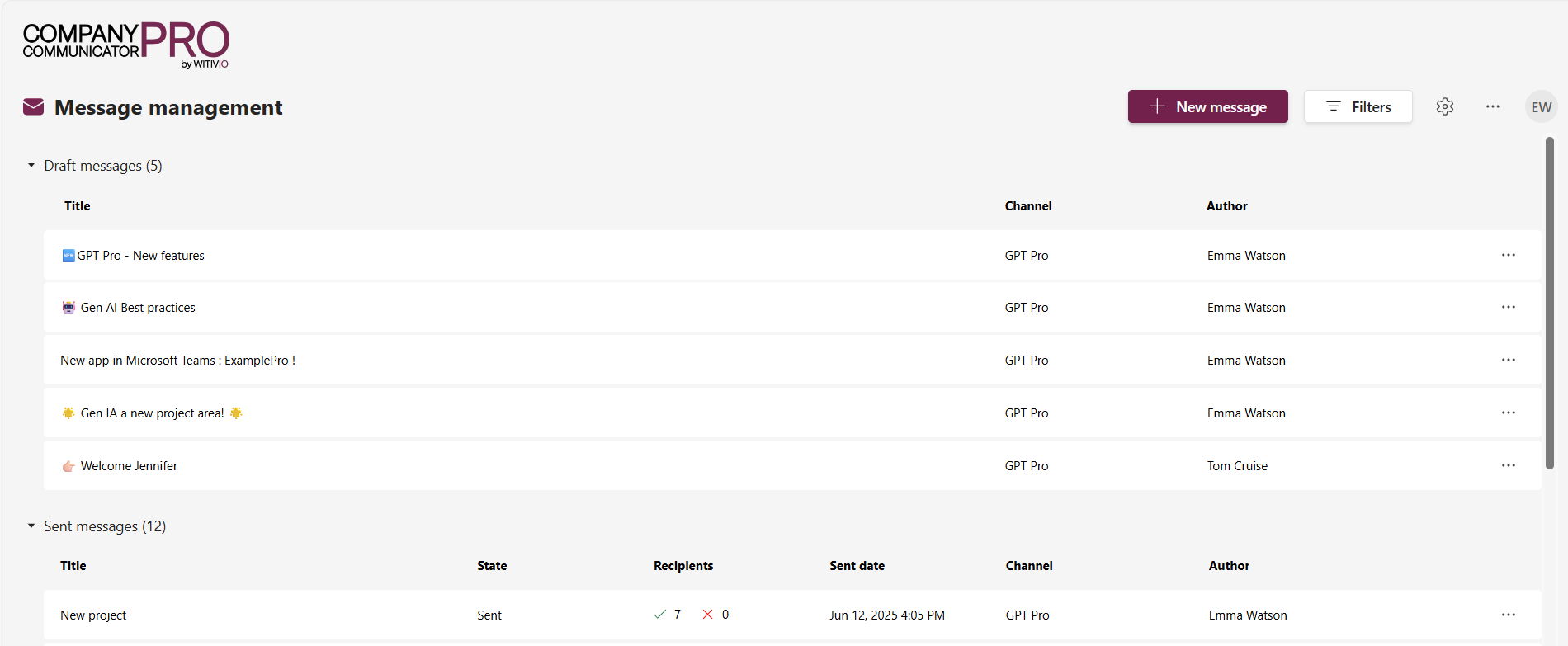
The application opens on the Message Management interface.
# Initial configuration
# Configuring topics
- 1
Go to settings and select Topic.
- 2
Click Add a topic.
- 3
Enter a title and description.
- 4
Click Save.
# Managing images (Gallery)
- 1
Navigate to settings and select Gallery.
- 2
Click Add to upload an image or create a folder.
- 3
Select a parent folder if necessary.
- 4
Name your image or folder, then confirm.
- 5
Edit, crop, move, or add an image directly during sending by following these same steps.
# Creating distribution lists
- 1
Select Import a list.
- 2
Download and complete the template with user UPNs specific to your company. Note that the UPN may not always be identical to the email address.
- 3
Upload your completed file.
# Message Management
# Creating a new message
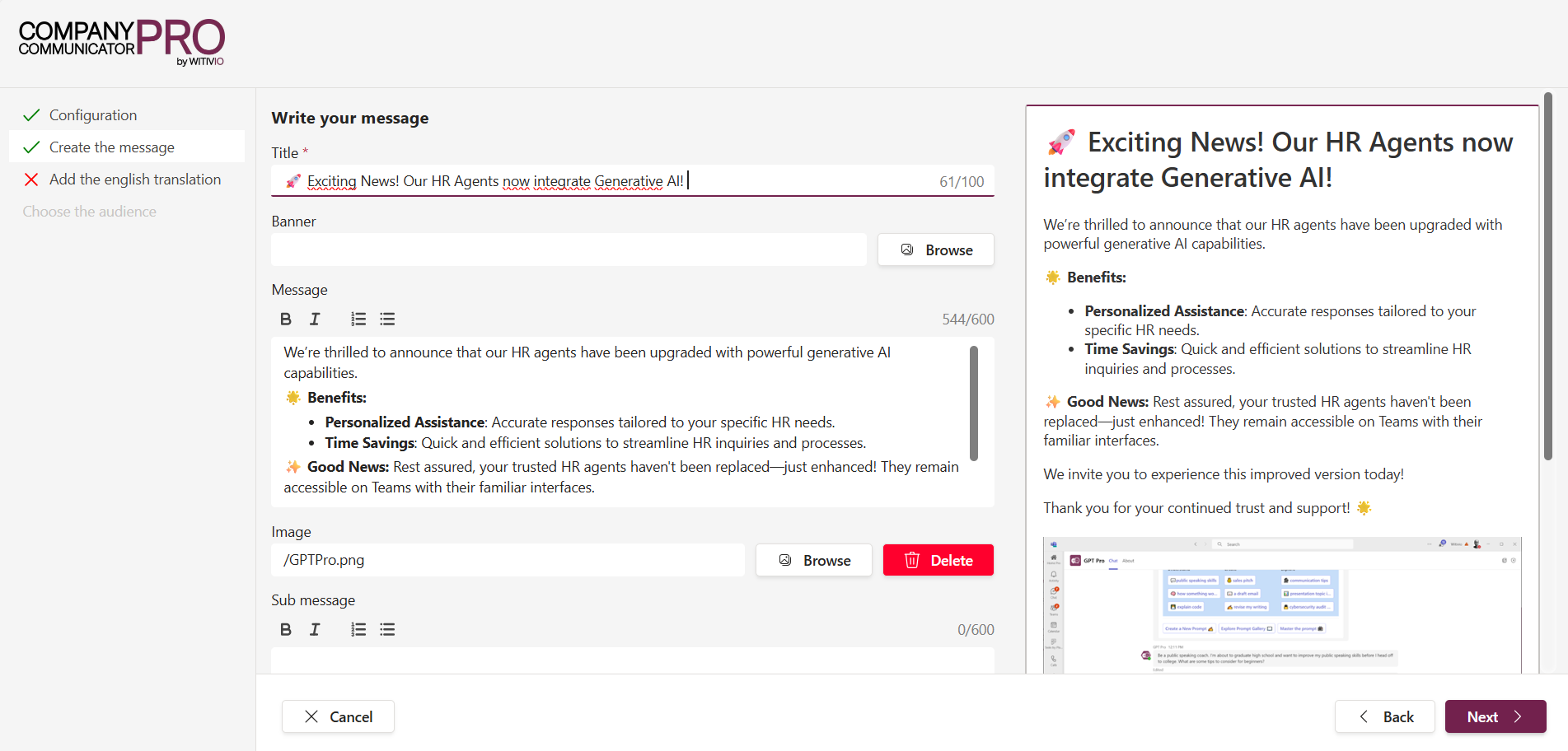
- Click "New message."
- Before configuring your message, you must first select the topic and one or more languages.
Then, configure your message by completing the following fields:
- Title: Enter a clear and concise title.
- Text: Write the message you want to send.
- Images: Select or upload an image from your gallery.
- Author: Specify the author of the message.
- Interactive buttons: Optionally add buttons to drive user interaction.
- User feedback option: Turn this on if you want to collect feedback.
- After configuring the message, click "Next" to proceed.
- Review your message configuration, then click on the "..." icon and select "Send". A summary appears, where you can either click "Send" to deliver immediately or select "Schedule" to set a future date and time for delivery.
# Multilingual management
- Select the desired languages.
- Create a separate message for each language.
# Audience selection
- Send to everyone or select a specific preconfigured distribution list.
# Scheduling a message
- At sending time, click "..." then "Send."
- Choose a future date and time to schedule the message.
# Campaign dashboard
# Drafts
- Send, edit, duplicate, or delete your message drafts.
# Sent campaigns
- Check the status of sent campaigns, number of recipients, failures, and send date.
- Access detailed reports and statistics.
# Where your messages appear
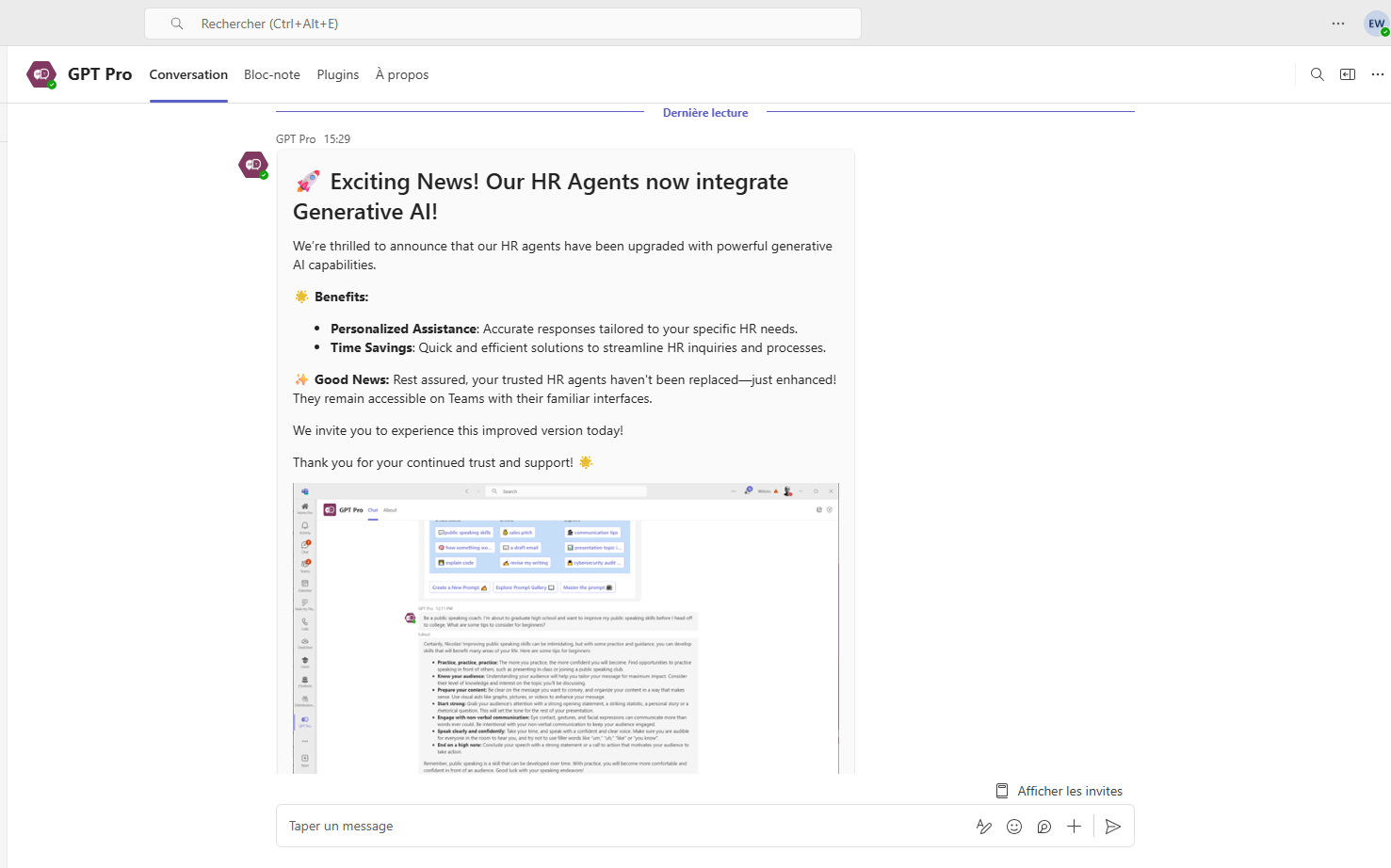
A sent campaign reaches your users in two places:
- Microsoft Teams: each recipient receives the message from the agent as a notification in the Teams chat.
- The Cockpit: the same messages also appear in the Communications widget on the Cockpit home page, where users open them in a dialog, see the 10 latest ones, and find an announcement again after dismissing the Teams notification. See AI desk Pro Cockpit for details.
Read tracking is shared between both surfaces, so the open rates in your campaign reports also count the messages opened from the Cockpit.
# Detailed statistics and analytics
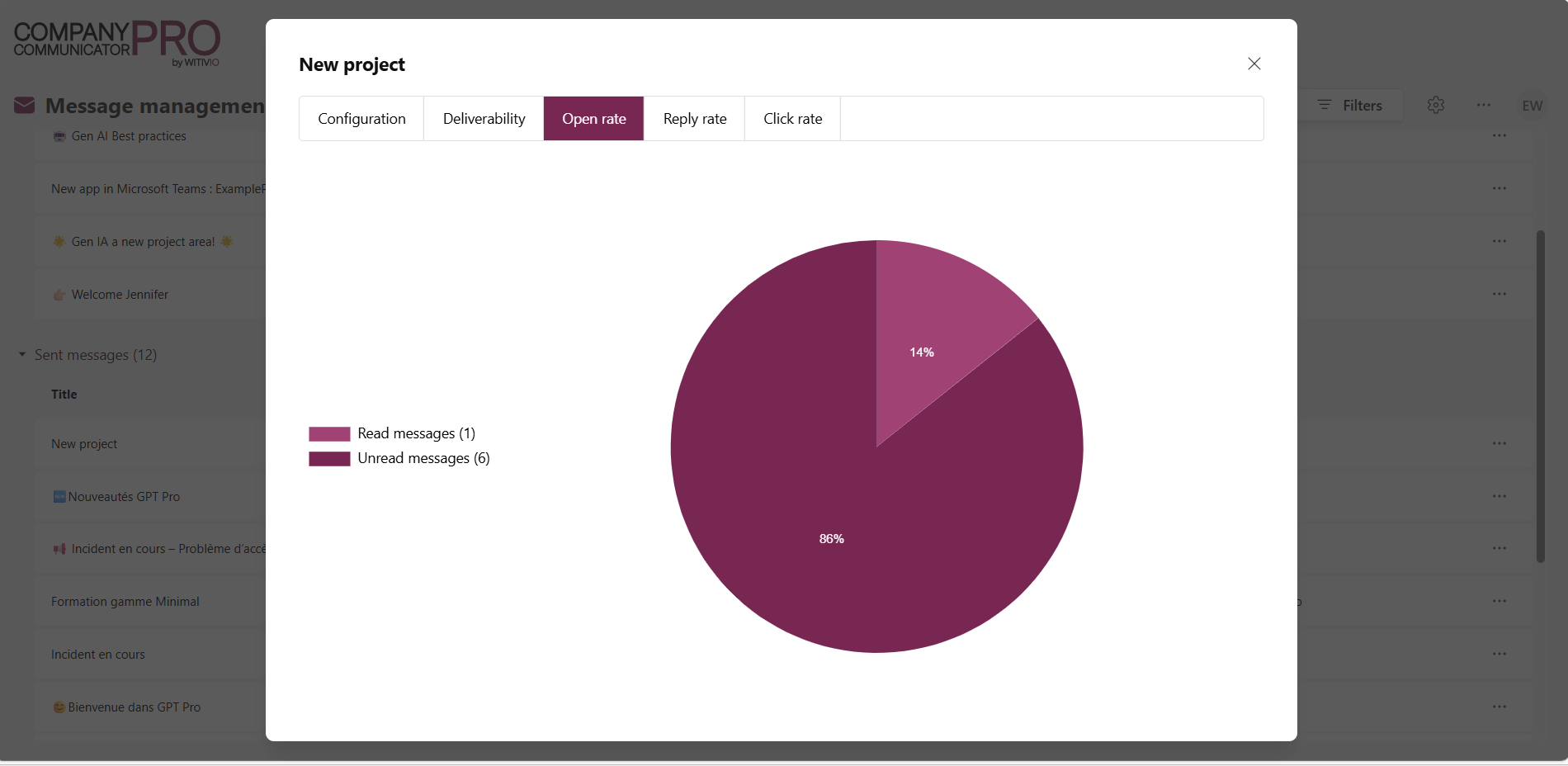
# Campaign reports
- Filters: filter campaigns by Agent or author.
- General Information: quick overview of essential data.
- Deliverability:
- View the status of sent messages.
- Resend to recipients who have not opened (beware of potential spam).
- Export data via the "Export" button.
- Open Rate: clear distinction between read and unread messages.
- User Feedback: detailed, exportable distribution of user feedback.
- Click Rate: detailed analysis of interactions with buttons included in messages.
# Best practices
- Always set up your topics and images before creating messages.
- Always use distribution lists for optimal targeting.
- Regularly review statistics to adjust campaigns based on user feedback.
- Avoid spamming your users: resend sparingly.
# Security and privacy
- Secure authentication via Windows ID.
- Full compliance with access rules defined by your organization.