
# AI desk Pro Cockpit
The Cockpit is an end-user portal for your agent, delivered as a personal tab in Microsoft Teams. It brings together, in a single screen, everything your users need for day-to-day support:
The Cockpit is in Preview, and the Cockpit entry in the Admin Center sidebar carries a Preview badge. The interface may evolve. See Preview Features for the supplemental Preview terms that apply.
Administrators configure the entire portal, including its content, starter questions, colors, and logo, from a dedicated Cockpit section in the AI desk Pro Admin Center, with a live preview, a draft-then-publish workflow, and content managed per language.
# What end users see
# Greeting and starter questions
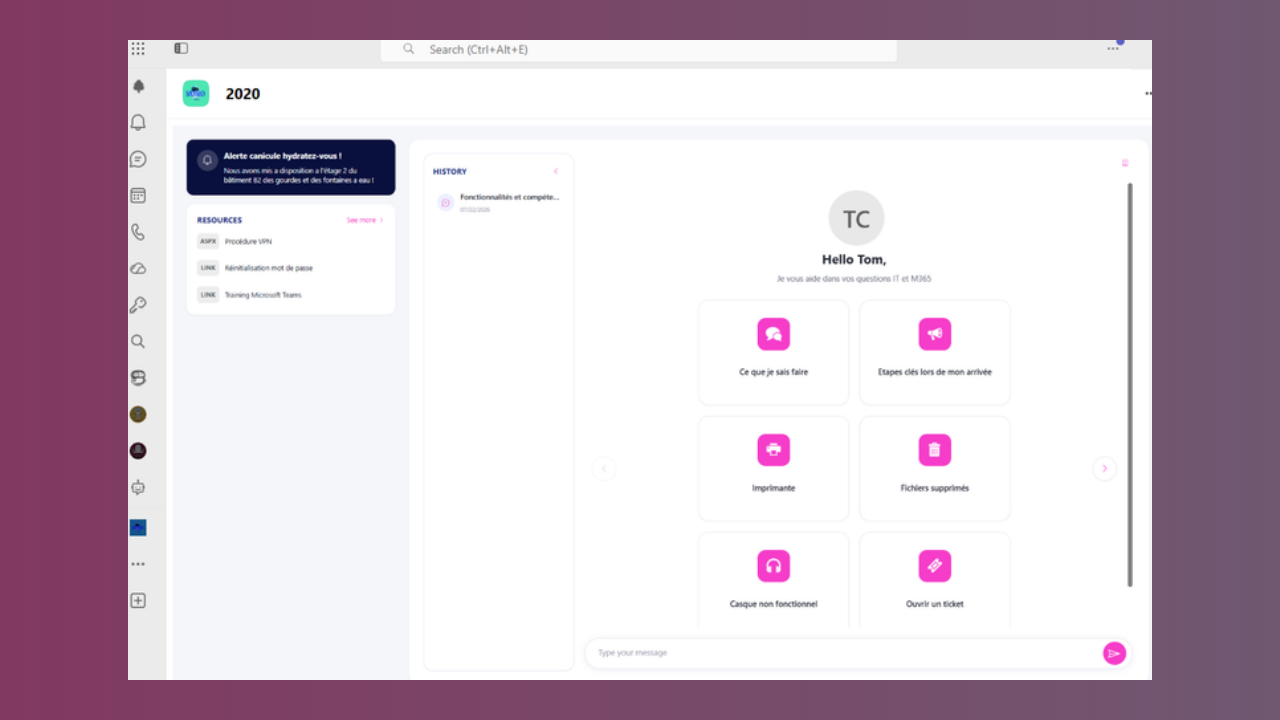
When users open the Cockpit, they are welcomed with a greeting and a customizable catch phrase, followed by starter question cards. Selecting a card sends that question to the agent immediately, which is a fast way to guide users toward the topics your agent handles best.
Starter questions are particularly useful for:
- Accelerating user onboarding: New users instantly see what your bot can help with.
- Steering conversations: Questions can highlight high-value capabilities or common tasks.
- Reducing support load: Pre-drafted questions often address the most frequent requests, reducing back-and-forth clarification.
On the first visit, a short guided tour walks users through each area of the portal, helping them discover the Cockpit's full capabilities.
# AI chat
The chat panel is connected to the same agent your users already know from Microsoft Teams, ensuring consistent answers and behavior across all conversation channels. You get the same answer quality and AI capabilities in the Cockpit as in Teams.
Key features:
- Smart references: Answers automatically link to relevant knowledge base documents, giving users instant access to supporting information.
- User actions: Familiar buttons let users export conversations, ask for clarification, and provide feedback on answer quality.
- Session continuity: If the connection expires after a long idle period, the Cockpit prompts the user to resume from history or start a fresh conversation.
This makes the Cockpit ideal for in-depth support conversations that benefit from a focused, dedicated interface.
# Conversation history
Users can reopen and continue past conversations from the History panel, making it easy to reference earlier answers or ask follow-up questions without repeating context. The history shows only conversations that took place in the Cockpit during the last 30 days. Conversations held with the agent in the Teams chat or in the website Webchat do not appear there.
This separation is intentional:
- Focused interface: Each channel (Teams, Cockpit, Webchat) maintains its own conversation thread, reducing clutter.
- Privacy: Users can keep separate conversation streams for different purposes: quick questions in Teams, detailed support in the Cockpit.
- Audit trail: For administrators, Cockpit sessions appear in the Chat History under a dedicated Cockpit channel, making it easy to review and analyze Cockpit usage independently.
# Information banner, resources, and news
These widgets help users discover and stay informed about important information beyond the chatbot:
Information banner: Displays a single urgent or important message at the top of the portal, with a title, custom icon, and colored banner. Use this to announce system outages, policy updates, or critical information that requires immediate attention. Only one message is active at a time.
Resources: Lists up to 10 pinned links for your users: HR portals, knowledge base articles, policy documents, expense forms, or any URL you want to keep within arm's reach. Users appreciate having common tasks just one click away.
News: Surfaces the latest organizational news items, keeping users informed about company updates, events, and announcements without leaving the Cockpit.
# Communications
If your organization sends notifications with Company Communicator, those pushes also reach the Cockpit home page in a Communications widget, so a user who missed the Teams notification still finds the announcement in the portal.
- A short list, then the full one: The widget shows the three most recent communications published for that user, each with its author and publication date. When more are available, a see more action opens the list of the 10 latest communications Company Communicator keeps.
- Opened in a dialog: Selecting a communication opens its full content, including the image, summary, message body, and any call-to-action buttons, in a dialog on top of the Cockpit instead of navigating the user away from the portal. Buttons in the message open their target in a new tab.
- Read and unread: Unread communications are marked with a dot and a bolder title. A message counts as read once the user actually opens it, not when it merely appears in the list, so the read statistics in your campaign reports reflect real reads.
- Never-opened pushes come to the user: When the Cockpit opens, communications the user has never read are presented one after the other in the dialog. Closing one reveals the next.
- Quietly hidden when unused: The widget only appears when your subscription includes Company Communicator pushes and at least one communication is published for that user. Otherwise the home page simply does not show it.
Communications follow the Cockpit language: each user sees the translation matching their language when the campaign carries one, and the campaign's default translation otherwise.
# My Tickets (Support Tickets)
AI desk Pro ships a built-in ticketing system, available out of the box once your subscription includes it. From the My Tickets widget, users can select Create ticket to open one directly, simply ask for one in the conversation (for example "open a ticket"), or have one created automatically when they give negative feedback on an answer. Either way, they follow every reply from the same widget.
For administrators: every ticket is processed from a standalone Tickets page in the Admin Center sidebar, with a dashboard (volume, resolution rate, and a breakdown by status and priority), filters, and a detail view to reply, change status, and change priority. To have negative feedback create Cockpit tickets automatically instead of just collecting the feedback, set the Escalation Type to Cockpit ticket on the Feedbacks Configuration page.
See Support Tickets for the full end-user experience, the admin Tickets page, and how to configure the escalation.
# My Tickets (ServiceNow)
If your organization has connected ServiceNow, the My Tickets widget brings your IT Service Management directly into the Cockpit:
- Unified view: Users see all their own incidents and service requests in one place, without switching between Microsoft 365 and ServiceNow.
- Rich details: Each ticket includes a full detail view with comments, attachments, status, priority, and other relevant information.
- Identity-aware: User identity automatically comes from their Microsoft 365 sign-in, ensuring each person sees only their own tickets, with no manual configuration needed.
- Empty state handling: When a user has no open tickets, the widget gracefully shows an empty state instead of clutter.
This feature requires a specific implementation to connect your ServiceNow instance to AI desk Pro. Contact the Witivio team for setup, configuration details, and testing before deployment.
# Theming
The Cockpit respects user accessibility and brand preferences:
- System themes: The Cockpit automatically adapts to the user's Microsoft Teams theme, including dark mode and high contrast mode for users with visual accessibility needs.
- Brand colors: On top of system theming, your administrators can customize the primary color and information banner color in the Design tab, allowing the Cockpit to reflect your organization's brand identity while maintaining accessibility standards.
- Company logo and background: Administrators can also upload a company logo, which appears at the bottom left of the Cockpit as an overlay, and a background image with an adjustable opacity, so the portal looks like part of your intranet rather than a generic tool.
- Agent icon in the chat: The chat shows your agent's own icon as the assistant avatar, falling back to plain initials when the icon cannot be loaded.
# Use cases and common scenarios
The Cockpit is designed for employees who need focused, in-depth support beyond quick Teams chats:
- Employee onboarding: New hires use starter questions to quickly learn what your bot can help with, and access HR resources they'll need throughout their first weeks.
- IT helpdesk support: Employees open the Cockpit to get detailed AI-powered answers to common IT issues, review their open tickets in ServiceNow, and access internal knowledge base articles.
- HR and benefits: HR teams configure the Cockpit as a first-line support portal for payroll, benefits, and policy questions, with resources pinned to HR guides and benefits systems.
- Change management: When rolling out new policies or systems, use the information banner to notify users and pin relevant resources for easy access.
- Crisis communication: Announce critical updates (system outages, security alerts) via the information banner so users see them immediately when they open the Cockpit.
# Configuring the Cockpit (administrators)
In the AI desk Pro Admin Center (opens new window), select your agent, then open the Cockpit menu. The configuration is organized in five tabs: Information, Resources, Starter questions, Design, and Installation.
Above the tabs, the header of the section holds two controls that apply to the whole configuration:
- The content language selector, which chooses the language whose content you are editing. See Multilingual content.
- Restore published version, which discards every pending draft. See Restoring the published version.
# Information
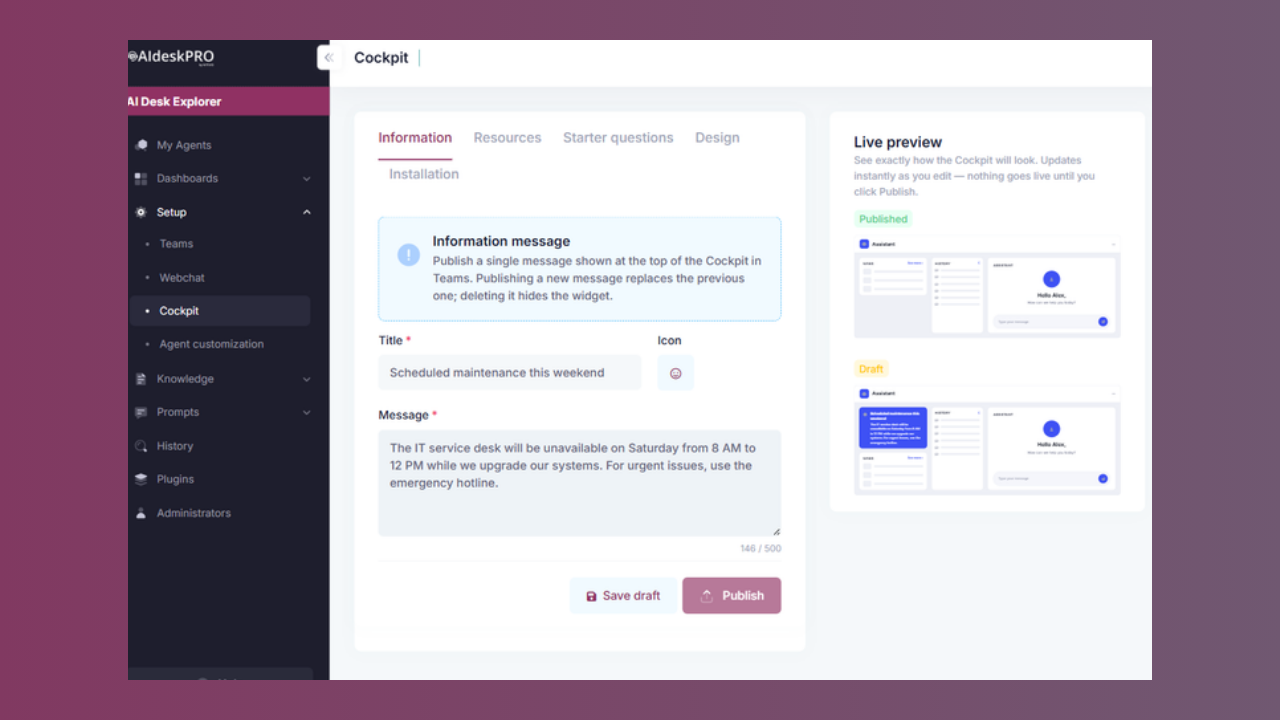
Publish a single message shown at the top of the Cockpit, with a title (up to 200 characters), an optional icon (chosen from the built-in icon picker), and the message text (up to 500 characters, with a live character counter). Publishing a new message replaces the previous one. Deleting the message hides the banner from your users after a confirmation prompt.
# Resources
Pin up to 10 links for your users. Each resource needs a title and a URL, and you can reorder the list with the arrows. Removing a resource asks for confirmation before the change is applied. A counter badge in the tab header shows how many resources are configured out of the maximum of 10.
The first 3 resources are the ones the Cockpit actually displays. They are highlighted in the list and carry a Shown in the app label, which stays in sync as you reorder, add, or remove links, so you can see at a glance what your users will get.
# Starter questions
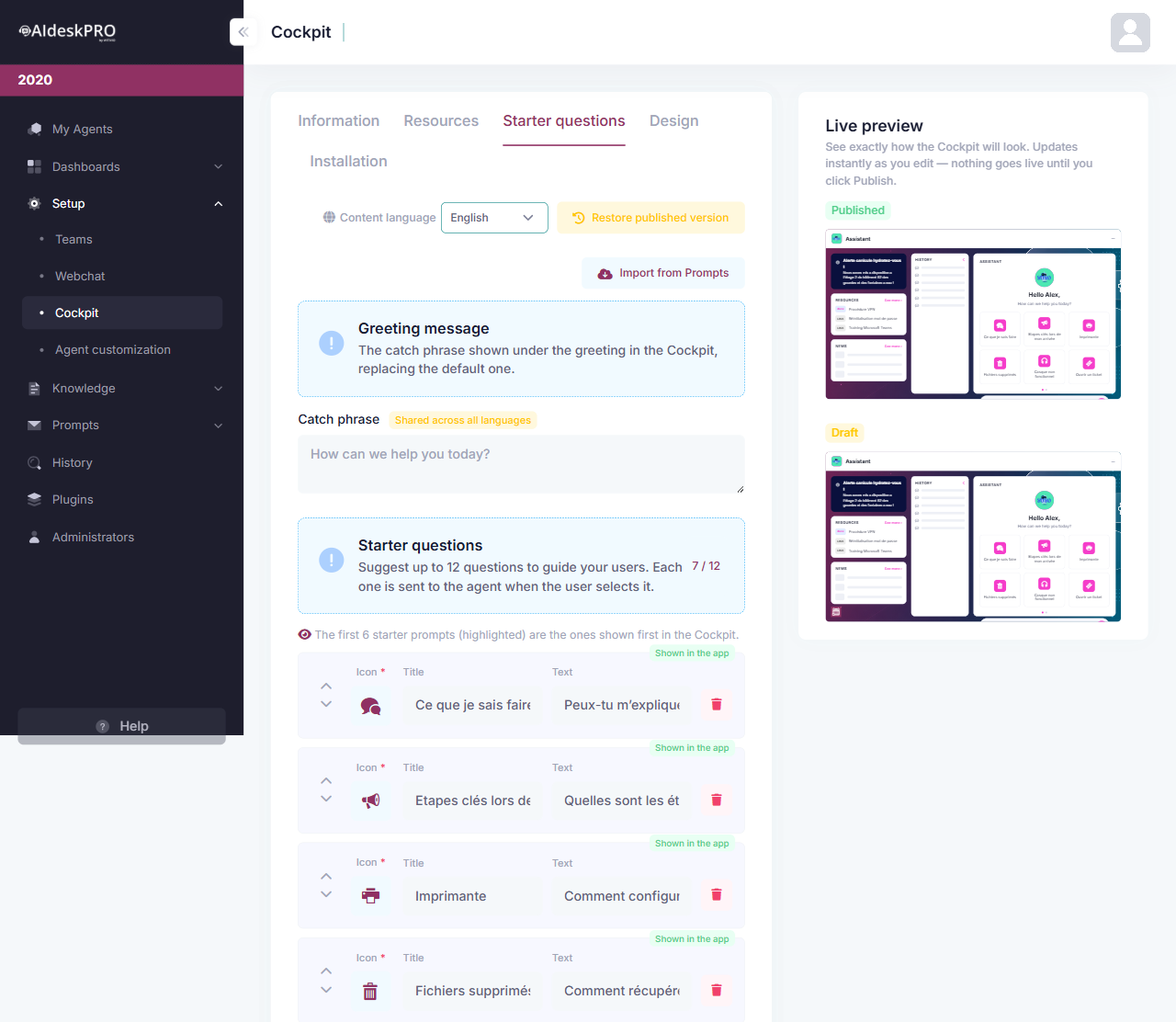
Suggest up to 12 questions to guide your users. Each starter question card has a title (up to 200 characters), the question text sent to the agent (up to 500 characters), and a mandatory icon chosen from the built-in picker. This tab also holds the catch phrase shown under the greeting in the Cockpit (up to 300 characters), replacing the default one.
Cards can be reordered with the up/down arrows, and removing one asks for confirmation first. If any card is missing its icon when you click Save, a validation message highlights the affected rows and the save is blocked until every card has one. The first 6 starter prompts are the ones shown first in the Cockpit, so they are highlighted in the list with a Shown in the app label.
The catch phrase is shared across all languages, and the tab labels it as such. Everything else in this tab belongs to the content language you selected.
# Importing your existing prompts
Instead of typing every card by hand, use Import from Prompts to pre-fill the draft with the menu prompts already configured in the Prompts module for the selected language:
- Imported prompts are added to your current draft, each with an icon chosen to match its prompt category.
- Prompts whose title already exists in the list are skipped, so importing twice does not create duplicates.
- The import respects the limit of 12 starter questions.
- Nothing reaches your users until you publish, so you can review, reorder, and edit the imported cards first.
A confirmation dialog explains what the import will do before it runs.
# Design
Customize the Cockpit colors: the primary color and the information banner color, entered as hex values via a built-in color picker. A Reset to defaults action restores the standard palette (#3E51F4 for both). You can also set a background color and a background opacity between 0 and 100 percent, which applies to the configured background color or image.
The tab also accepts two image uploads:
| Asset | Where it appears | Accepted files |
|---|---|---|
| Company logo | Bottom left of the Cockpit, as an overlay on the background | PNG, JPG, GIF, or WebP, up to 5 MB |
| Background image | Behind the Cockpit content, combined with the opacity above | PNG, JPG, GIF, or WebP, up to 5 MB |
Both are normalized and stored as PNG. Uploading or removing an image changes your draft only: the thumbnails in the tab are your working copy, and the images reach the Cockpit when you publish this tab.
Design settings, including the colors, the logo, and the background, are shared across all content languages.
# Restoring the published version
If a draft went in the wrong direction, use Restore published version in the section header. After a confirmation prompt, it discards every pending draft, including the information message, resources, starter prompts, catch phrase, colors, and uploaded design assets, and brings the working copy back to the version your users currently see.
This action cannot be undone, so make sure nothing you still need is only saved as a draft.
# Multilingual content
The Cockpit content is configured per content language. Use the language selector in the section header to switch, then edit that language's content:
- Per language: the information message, the resources, and the starter prompts.
- Shared across all languages: the design (colors, logo, background) and the greeting catch phrase.
Each language keeps its own content, so a French-speaking user and an English-speaking user can see different resources and starter prompts in the same Cockpit. Content you configured before this change belongs to English.
The interface language is a separate thing. The Cockpit chrome, meaning its buttons, labels, widget titles, and system messages, is not configured here at all: it follows each user's Microsoft Teams client language. It is served in English, French, and German, and users whose Teams client is set to any other language see it in English. Switching the content language selector changes which language you are editing, not the language a user's Cockpit is displayed in.
German is the new one. It previously existed only as unused resource files that nothing served, so a user with a German Teams client still landed on an English portal. German is now served for real, including the ServiceNow service request catalog, whose request and category names are translated alongside the rest of the interface. The Admin Center is available in the same three languages; see Limits.
Per-language configuration shipped as an intermediate increment, and its behavior may still change in an upcoming release. Check this page again after an update before rolling out a large multilingual setup.
# Live preview, drafts, and publishing
Nothing you edit goes live until you publish it:
- A sticky live preview panel reproduces the real Cockpit layout and updates instantly as you edit. It shows the Published version and, when it differs, a separate Draft version.
- Save draft stores your work in progress server-side. Drafts are shared, so another administrator (or you, from another device) sees the same draft.
- When the saved draft differs from the published version, an alert reminds you to publish your changes to make them visible to users.
- Publish becomes available once your saved draft differs from the published version. Publishing applies the changes to all users and clears the draft for that tab.
- If you try to switch tabs with edits that are not saved as a draft, the Cockpit warns you before discarding them.
# When two administrators edit at the same time
Because drafts are shared, several administrators can work on the same Cockpit. Publishing is now protected against accidental overwrites: if someone else saved a change to the design after you loaded the page, your publish is rejected with a message telling you that the configuration was changed by another administrator. Reload the page to pick up their version, reapply your change, and publish again. Nothing is overwritten silently.
# Installation
The Cockpit ships as its own Microsoft Teams app package, separate from the agent's chatbot package:
- Open the Installation tab and select Download package.
- Upload the package in the Microsoft Teams admin center (opens new window) (or sideload it, if your organization allows custom apps).
- Users can then install and pin the Cockpit as a personal tab in Teams.
Each download produces a package with a higher version number than the previous one, so uploading an updated package to Teams always succeeds. The Download package button on the agent's Setup page still downloads the regular chatbot package; only the Installation tab of the Cockpit section provides the Cockpit package.
# Sign-in and multi-agent behavior
- The Cockpit is served from the same host as the Admin Center, under the
/cockpitpath, and uses Microsoft Teams single sign-on end to end. Users are signed in silently with their Microsoft 365 account and never see a separate sign-in screen. - In tenants that host several agents, each agent has its own Cockpit configuration and its own installation package. The package targets that specific agent, so conversations and content always reach the right one.
# Availability
Cockpit availability depends on your AI desk Pro subscription plan. The Cockpit menu is always visible in the Admin Center; if your plan does not include the feature, opening it redirects you to the plan options. See Subscription Management for details about your plan.