
# Edit a Contact in Contacts Pro
Keep contact details accurate by editing a contact whenever a phone number, email, job title, or group assignment changes. Editing opens the same form you use to create a contact, so every field stays available.
- 1
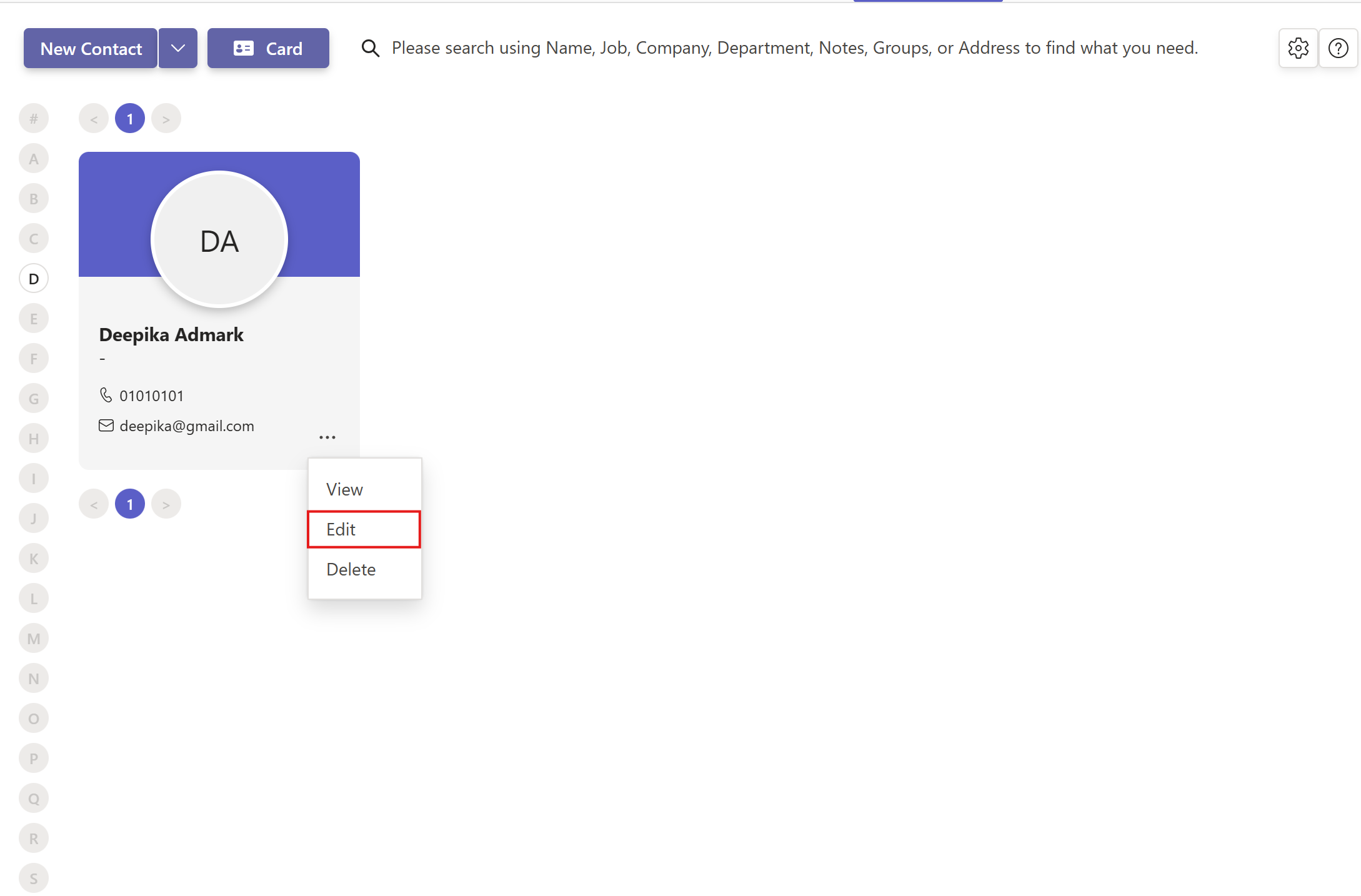
In Contacts Pro, click the three dots on the contact you want to change.
- 2
Select Edit to open the Edit Contact form.
- 3
Update the details across the form tabs, including the Groups tab.
- 4
Click Save to apply your changes.
You need edit rights to change a contact. If Edit is unavailable, ask a Contacts Pro owner to grant you permission.
Use the Groups tab in the edit form to add or remove group memberships in the same place you update the rest of the details.
# Related pages
- Manage group membership in how to assign a group to a contact.
- Remove a contact for good in how to delete a contact.
- Add someone new in how to add a new contact.