
# Connect with a Contact in Contacts Pro
Contacts Pro lets you reach any contact without leaving Microsoft Teams. From a contact you can start a chat, place a phone call, send an email, or plan a meeting. The way you open these actions depends on your display mode: Card or List.
The chat option works only with contacts inside your organization. Each action needs the matching detail on the contact record: an email address for chat, email, and meetings, and a phone number for calls.
# Connect from the Card display mode
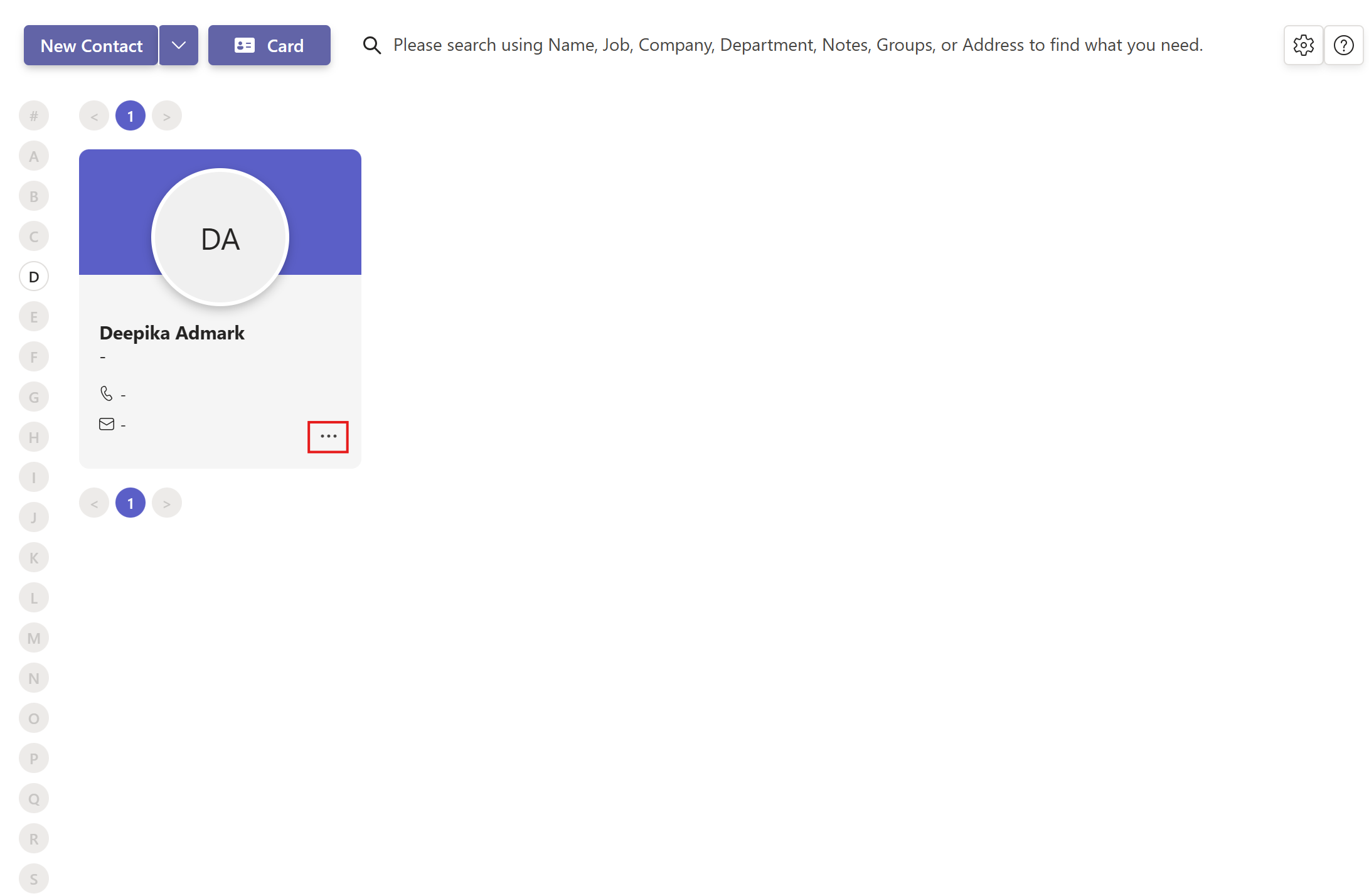
In Card view, the connection actions live inside each contact card.
- 1
Open Contacts Pro and set the display mode to Card.
- 2
Click the three dots at the bottom right of a contact card.
- 3
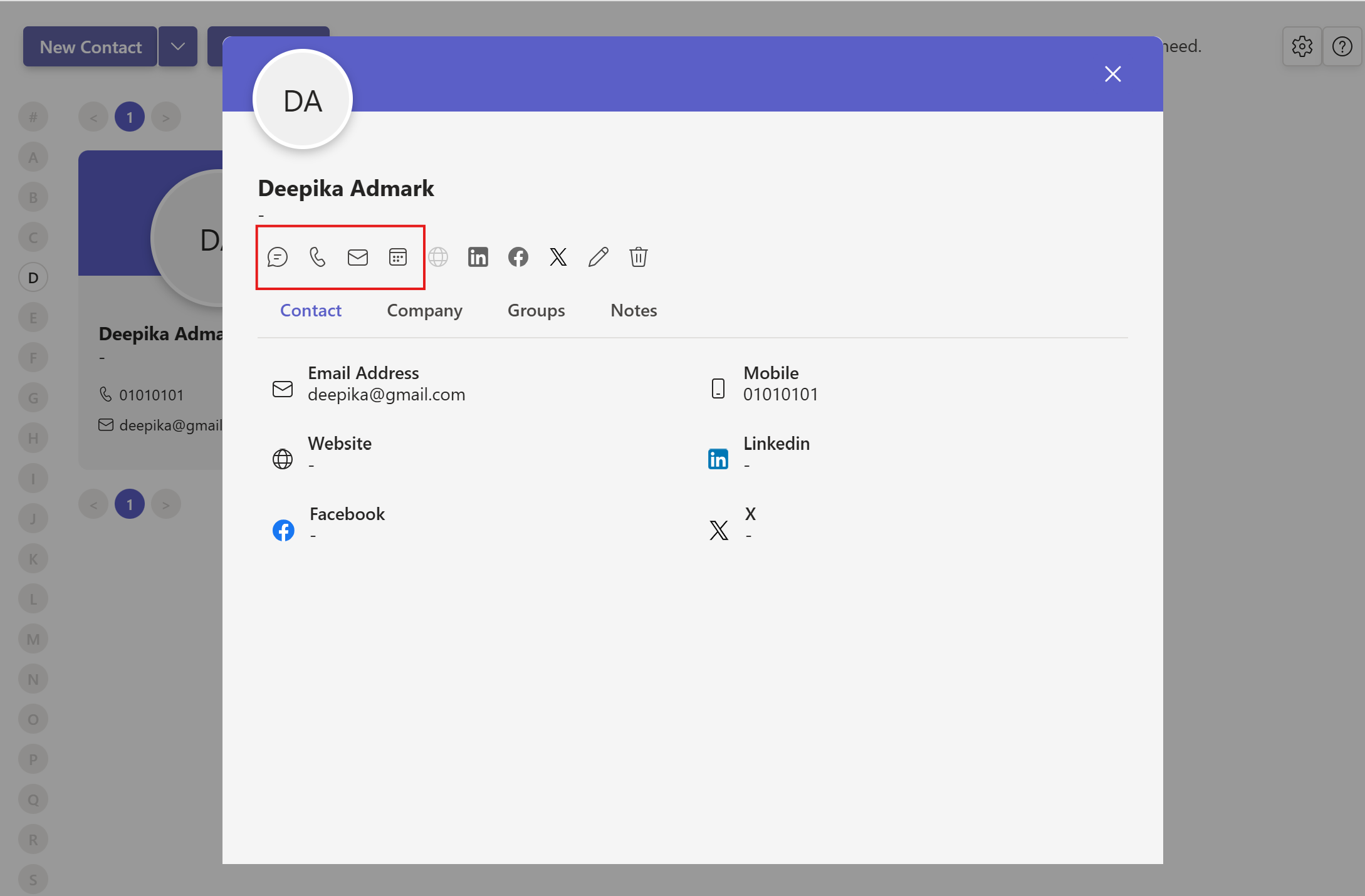
Select View to open the contact details window.
- 4
Choose an action: Start a Chat, Phone call, Send an Email, or Plan a Meeting.
Once the details window opens, you can see every way to connect with the contact.
# Connect from the List display mode
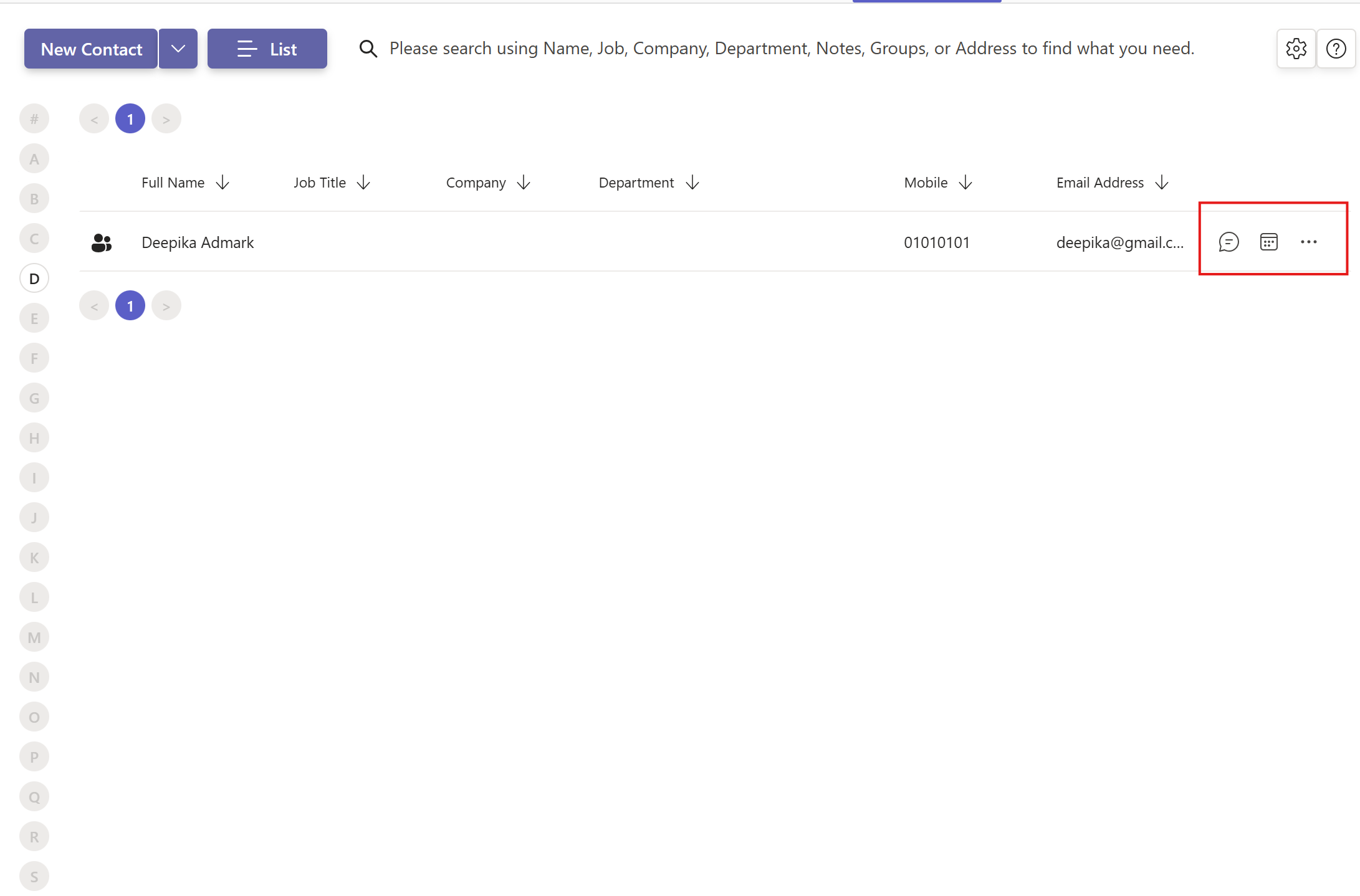
In List view, the actions appear directly on each row, so there is no menu to open.
Not sure which layout you are in? See how to select the display mode to switch between Group, Card, and List.
# Related pages
- Change the layout in how to select the display mode.
- Keep contact details current with how to edit a contact.
- Group people together in how to assign a group to a contact.