
# KeePass Pro Get Started Guide
Welcome to KeePass Pro, the secure password manager for Microsoft Teams. This guide walks you through adding KeePass Pro to a channel, creating an encrypted vault, and storing your first items, so your team can share credentials safely without leaving Teams. 🔐
# What is KeePass Pro?
KeePass Pro is a shared password manager that lives inside Microsoft Teams. It stores your encrypted .kdbx vault in your own SharePoint or OneDrive, so your organization keeps full control of the data while teammates securely store and share credentials in one place.
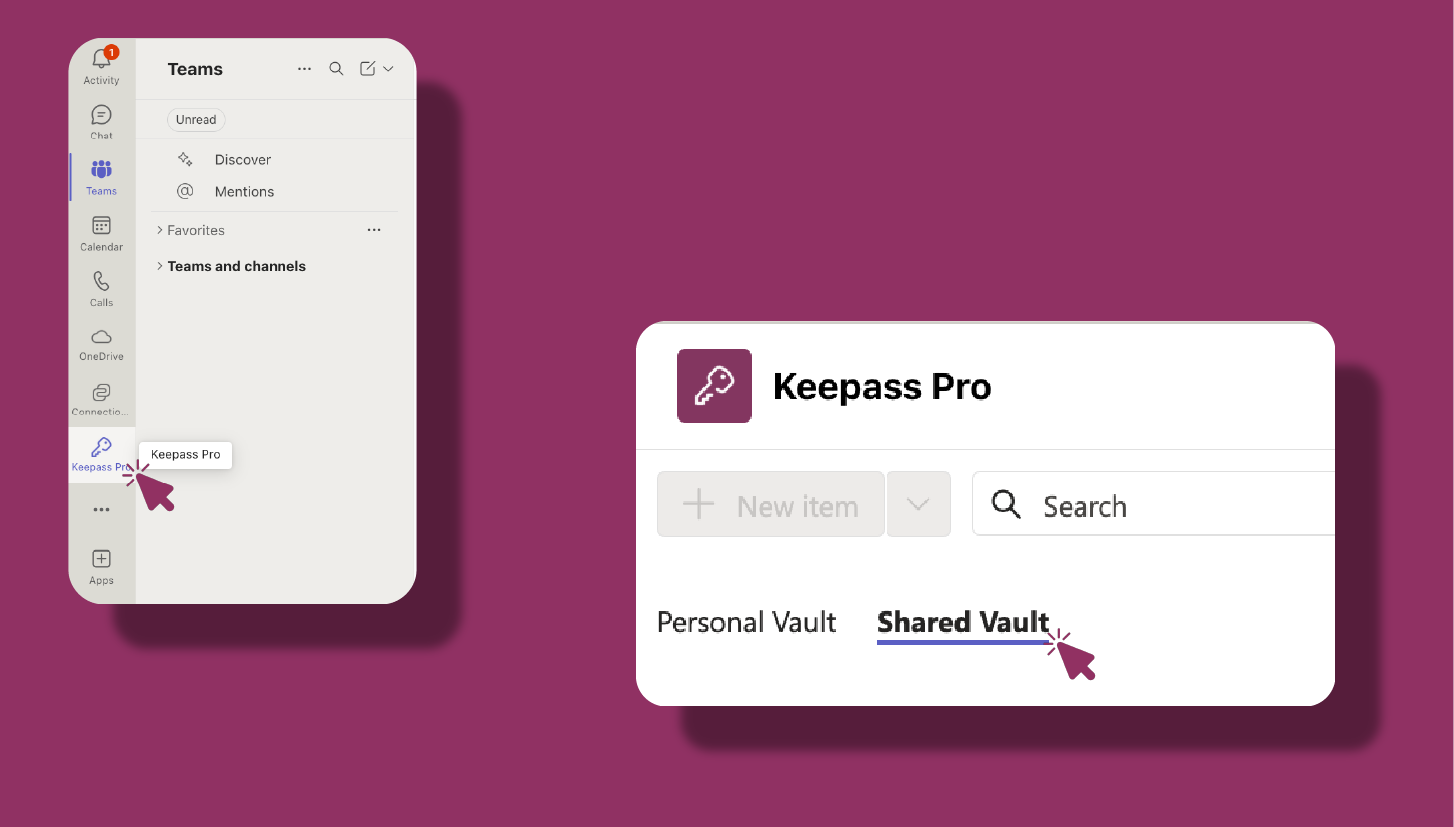
You add KeePass Pro as a tab in any team channel to share a vault, or pin it to your Teams navigation bar to keep a private vault just for you.
# Set up KeePass Pro
- 1
Add KeePass Pro to Microsoft Teams
- Open Microsoft Teams and click Apps in the left sidebar.
- Search for KeePass Pro.
- Click Add to a team.
- In Type a team or channel name, search for and select the target team or channel.
- Click Set up a tab, review the settings, then click Save.
You can also add KeePass Pro from inside a channel: click + Add a tab at the top, then search for KeePass Pro.
- 2
Create your vault
- Open the KeePass Pro tab. On first launch, choose New vault, or Clone existing vault to reuse a KeePass .kdbx file.
- Enter a Vault name and choose the Vault location in your SharePoint or OneDrive.
- Copy and save your master password, then click Confirm.
The master password is shown only once, at setup. Store it somewhere safe before you continue.
- 3
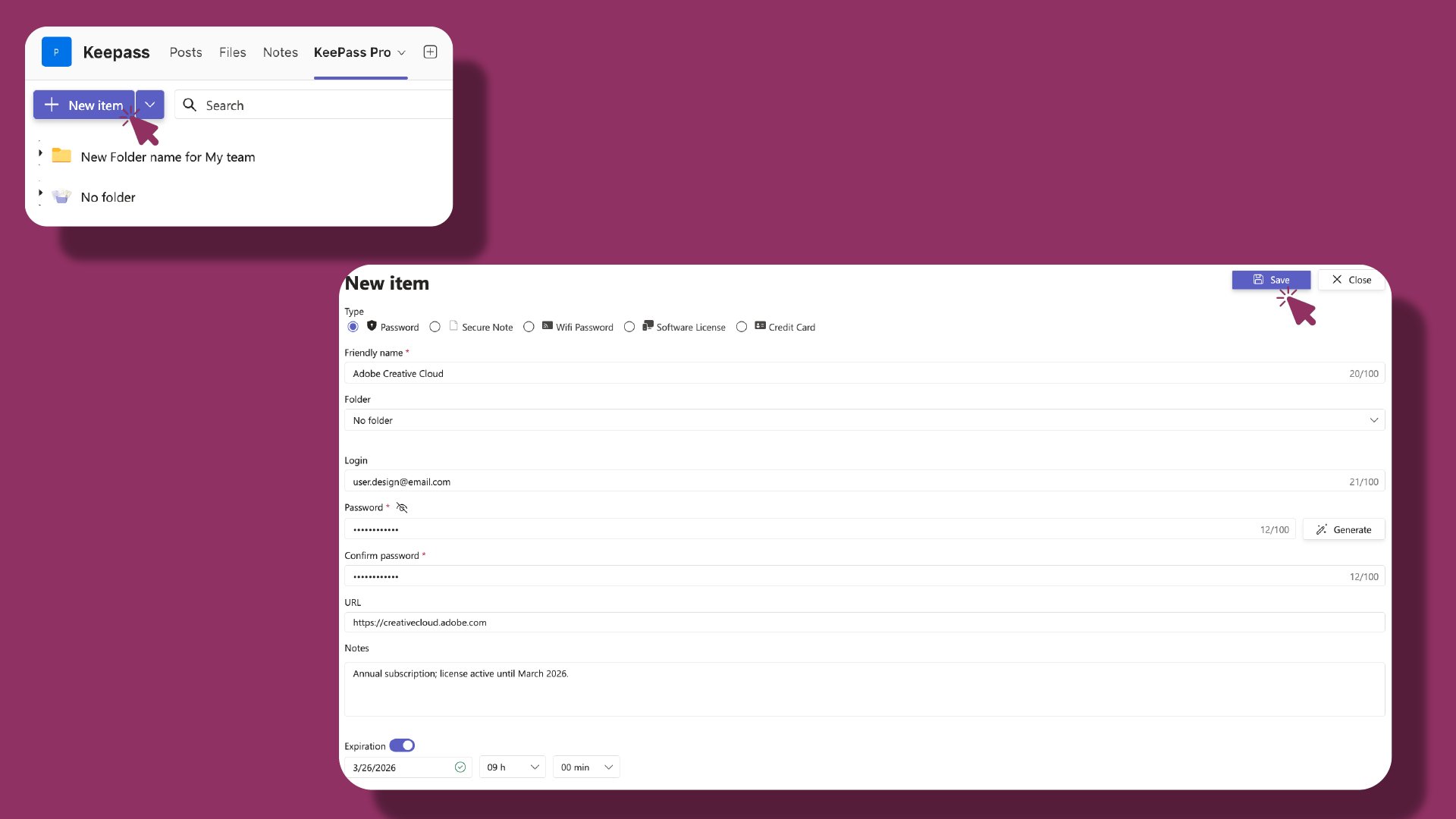
Add your first item
- Click New item.
- Choose a Type: Login, Secure Note, Wifi Password, Software License, or Credit Card.
- Fill in the fields. For a login, enter a Title, Login, Password, Website, and any Notes.
- Click Save. The item is encrypted and saved to your vault.
Use the built-in Generate option to create a strong random password, and set an Expiration date on sensitive credentials.
# Key features
# How safe are my passwords?
Your vault is a standard KeePass .kdbx file, protected with AES-256 encryption and your master password, and stored in your own Microsoft 365 environment. Only the people you share the vault with can open it.
# Personal or shared password management
Use KeePass Pro either way. To keep passwords private, pin your vault to the Teams navigation bar. To collaborate, add the vault as a tab in the right channel so every member can access the shared credentials.
# Related pages
- Learn the model behind vaults, tabs, and permissions in How KeePass Pro works.
- Organize and secure your data with vault management and item types.
- Compare tiers on the Access to KeePass Pro plans page.
- Still have questions? Browse the KeePass Pro Q&A.
← Overview How It Works →