
# Vault Management in KeePass Pro
A vault is where your team keeps its passwords and sensitive information. This page explains how to create vaults, keep one private, clone an existing vault, and bring in credentials from a KeePass database or a CSV file.
# What is a vault?
A vault in KeePass Pro is a secure digital container where you store your passwords and sensitive information. Each vault is protected by a master password and encrypted with AES-256 for maximum security.
# Create a new vault
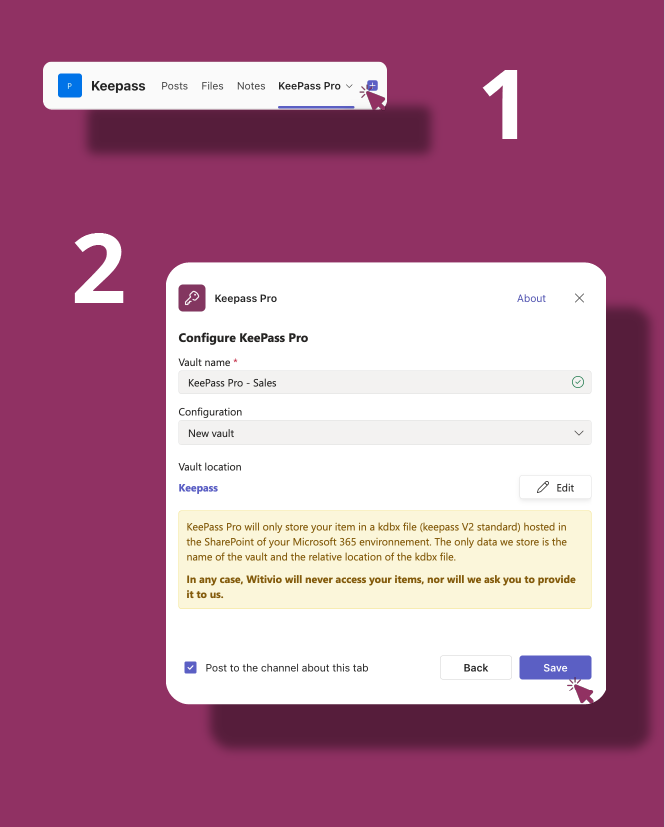
You create a new vault by adding KeePass Pro as a tab to a new channel or team. Follow the same process you use to set up any KeePass Pro tab.
# Keep a vault private
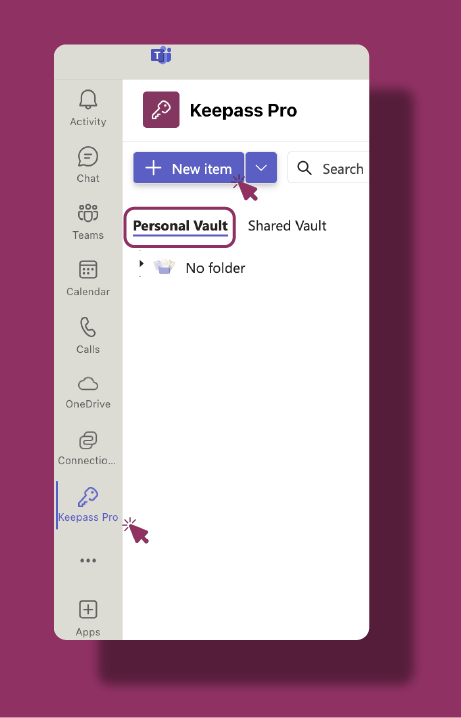
To keep a vault private, pin it to your Teams navigation bar instead of adding it as a shared tab. This way, only you can access it.
# Clone an existing vault
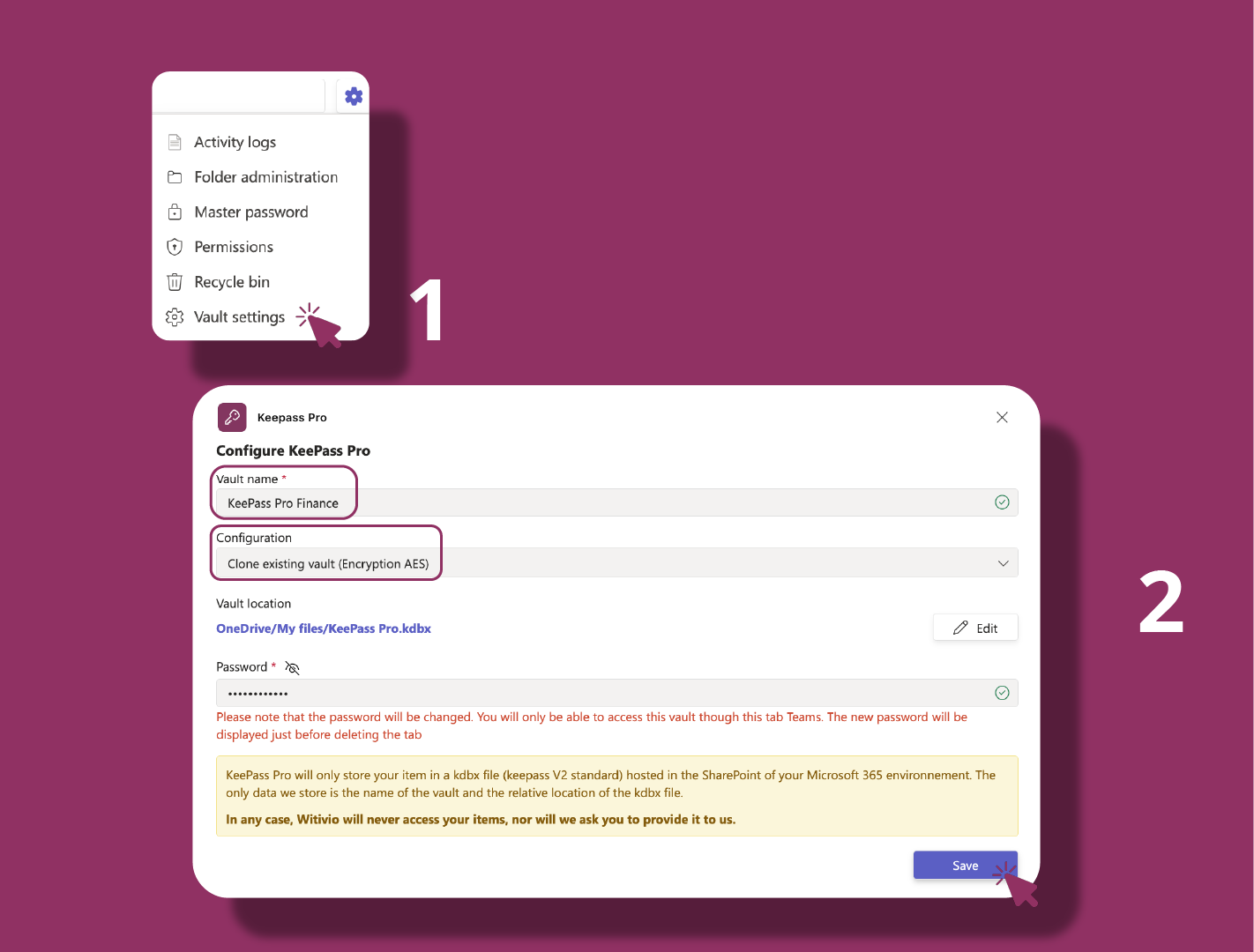
Clone a vault when you want to reuse the same structure or share it in a different channel. Select the vault you want to clone from the settings menu and follow the on-screen instructions.
# Import a KDBX file
You can import an existing KeePass database (.kdbx file) into KeePass Pro.
- 1
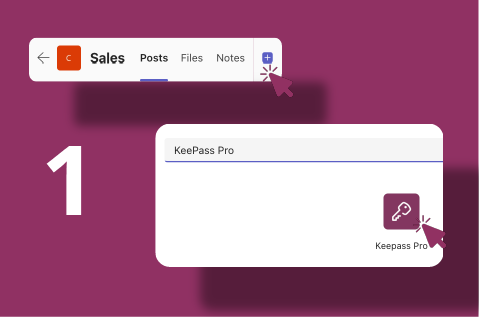
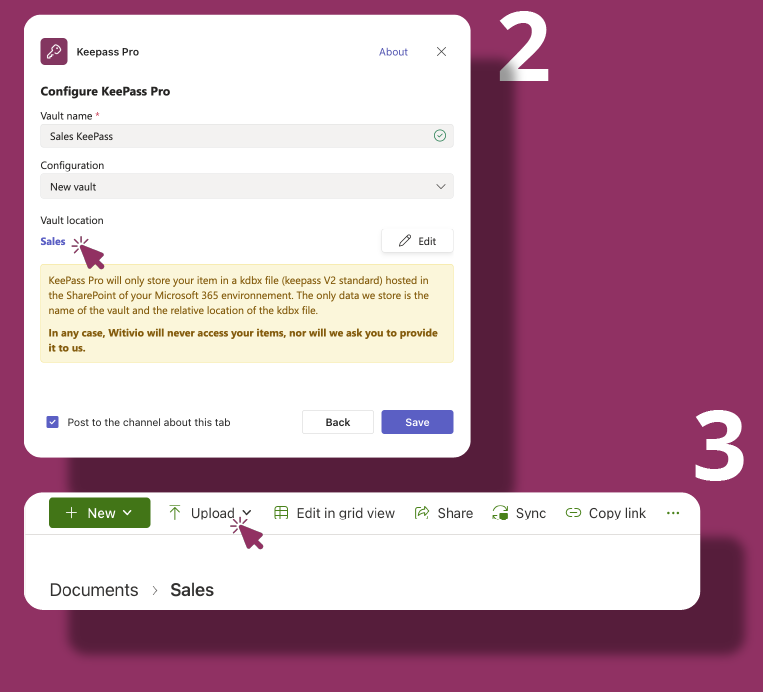
Add a KeePass vault on a channel.
- 2
Click the vault location name (highlighted in purple, for example sales) to open the linked SharePoint folder in a new tab.
- 3
Upload your .kdbx file into that folder.
- 4
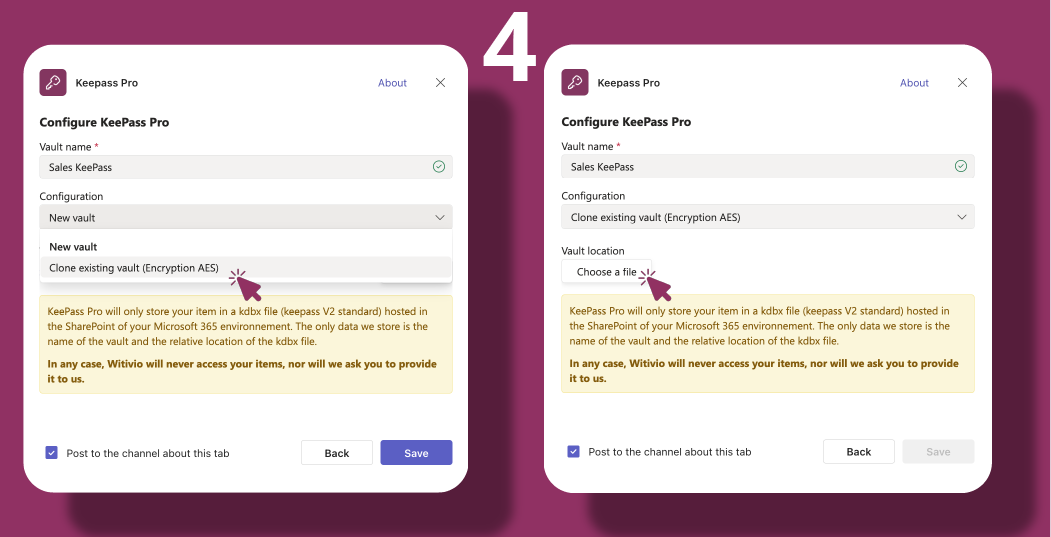
Return to KeePass Pro and select Clone existing vault from the configuration options.
- 5
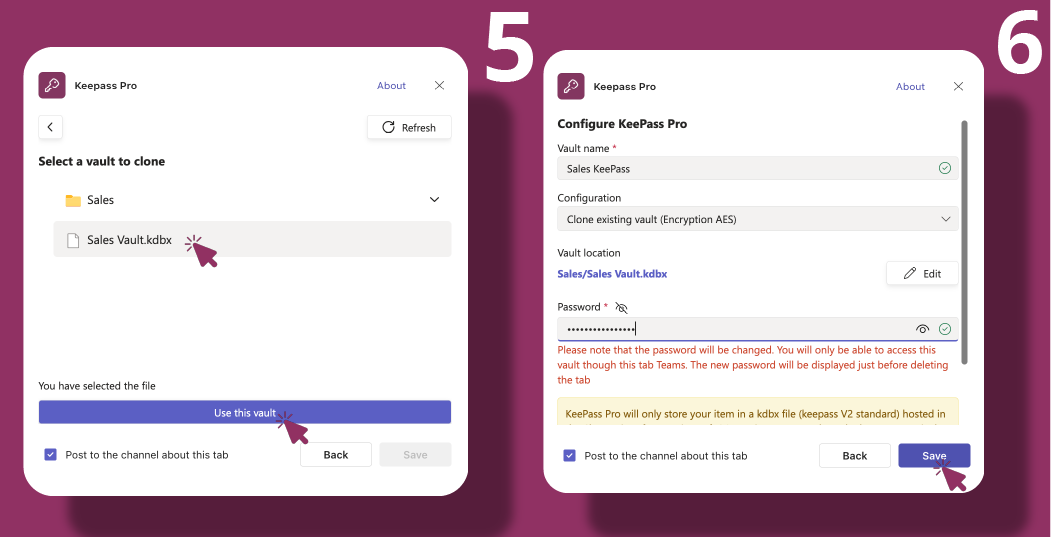
If the file does not appear, click the refresh icon in the top-right corner, then select your uploaded file.
- 6
Enter the master password for the database and click Save.
All passwords stored in the selected database are imported into KeePass Pro.
# Import passwords from a CSV file
If your credentials are saved in another password manager or in your browser, you can bring them into KeePass Pro from a CSV file. This is different from cloning a .kdbx database: the CSV import adds individual password items into your existing vault.
- 1
Open the vault Settings menu and choose Import passwords.
- 2
Make sure your file has three columns in this order: url, username, and password. Click Download sample CSV file to get a ready-made template.
- 3
Click Upload CSV and select your .csv file.
- 4
KeePass Pro imports each valid row as a new Password item and confirms how many passwords were imported successfully, for example 18 / 20. Do not close the app while the import runs.
# Supported encryption (AES only)
When you import or clone an existing .kdbx database, KeePass Pro only supports databases that use the AES key derivation (hash) function.
To import such a database, first re-save it with AES key derivation in the original KeePass application:
- 1
Open the database in the desktop KeePass app.
- 2
Go to the database settings and, under Security, change the Key Derivation Function from Argon2 to AES-KDF.
- 3
Save the database, then import the updated .kdbx file into KeePass Pro.
# Related pages
- Add and organize credentials in password management.
- Learn what each credential can hold in item types.
- Audit changes across the vault with the activity logs.