
# KeePass Pro Sharing and Collaboration
KeePass Pro turns a personal password manager into a team tool. When you add it as a tab in a shared channel, everyone in that channel works from the same vault, and you can share individual items, browse the vaults shared with you, and control who reaches sensitive folders. This page explains how sharing works and which permission controls each plan unlocks.
# Share an item
Sharing sends a colleague a direct link to an item that already lives in a shared vault. It does not expose the secret to anyone outside the vault.
- 1
Open the vault and find the item you want to share.
- 2
Click the Share icon at the bottom right of the item card, or open the item and choose Share at the top right.
- 3
Copy the link from the pop-up window and send it to a member of the same channel.
The link points to the item location, not the secret itself. Only members who already have access to the vault can open it.

# Access shared vaults
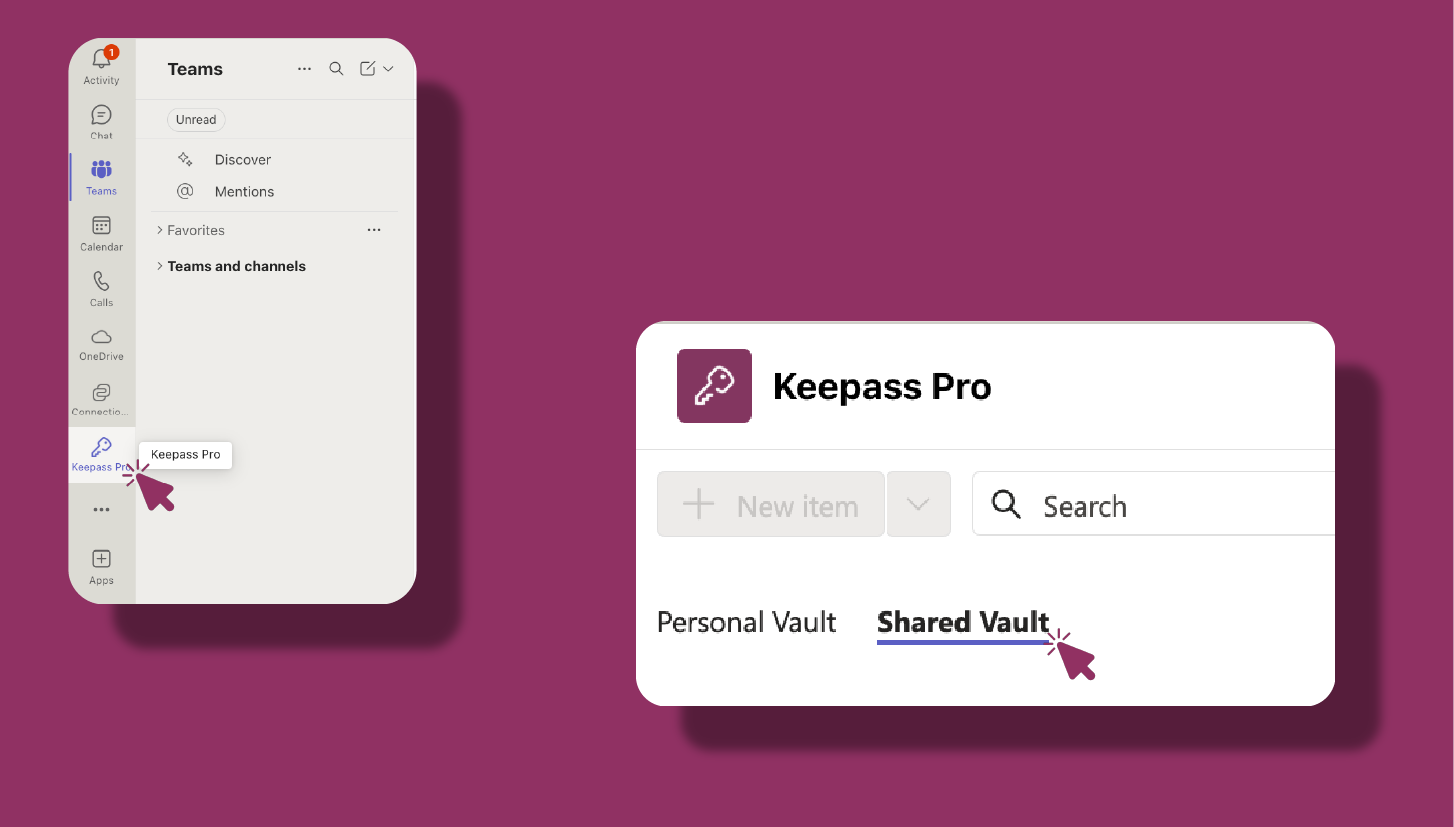
KeePass Pro shows every vault you have access to inside the app, so there is nothing to configure. Vaults shared with your team appear automatically under the shared vaults area of the main dashboard.
# Control folder access
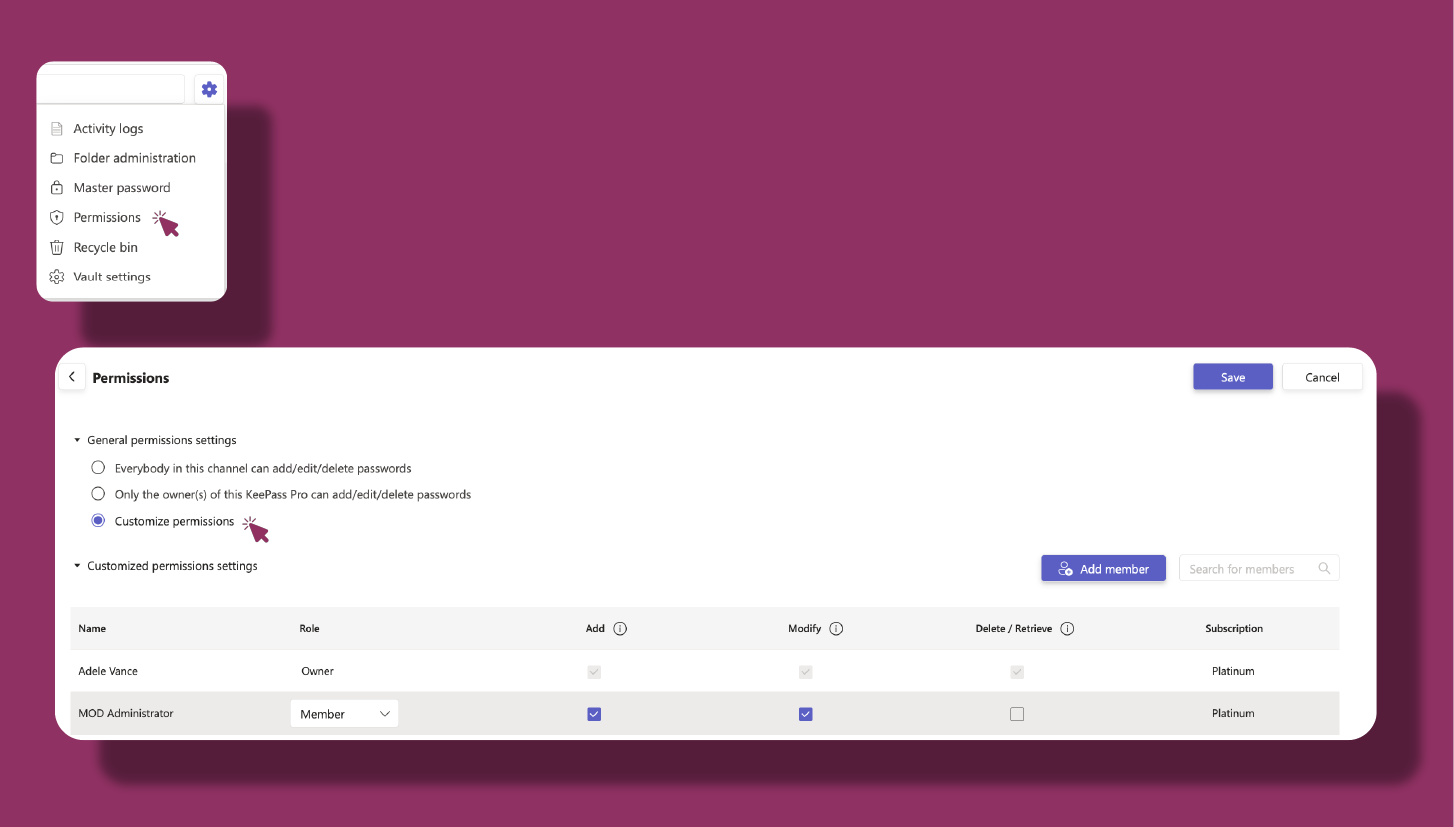
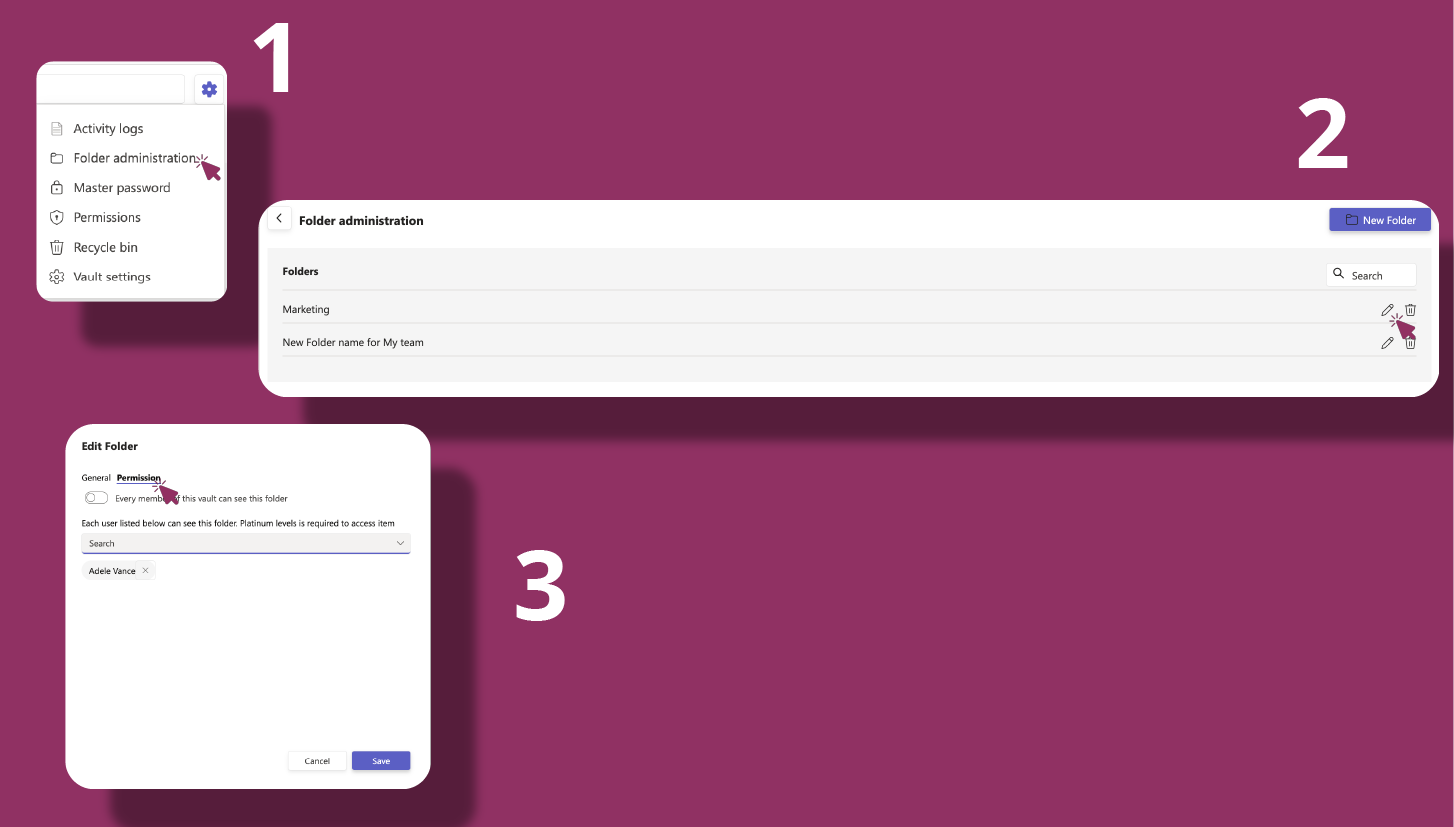
Folder administration lets a vault owner decide who can see each folder. It is the way to keep sensitive credentials, such as production keys or finance cards, visible only to the people who need them.
- 1
Open the vault Settings menu and select Folder administration.
- 2
Select the folder you want to control.
- 3
Choose whether every member of the vault can see the folder, or list the specific users who can.
- 4
Click Save.
# Every member can see the folder
Grant access to the whole team when a folder holds credentials that everyone in the channel should reach. This is the simplest option for shared, non-sensitive items.
# Only specific users can see the folder
For sensitive data, list the individual users who can see the folder. This gives you granular control over who can view, and reach, the items inside, which is useful for organizing passwords by project, department, or sensitivity level.
# Troubleshooting
# I do not see the Share option
Sharing works only inside a shared channel. If the vault is pinned as a private vault, or the tab is in a private channel, the Share option is unavailable.
# I cannot open Folder administration
Folder administration is Platinum only, and it is limited to vault owners. If the menu item is locked, confirm you hold a Platinum license and that you have the Owner role on the vault.
# Related pages
- Create shared and private vaults in Vault management.
- Handle day-to-day setup and the master password in Administration.
- See what each plan unlocks in Limitations.