
# Access to KeePass Pro plans
KeePass Pro comes in three plans, so you only pay for the capabilities your team needs. This page compares the Free (Basic), Premium, and Platinum tiers and explains how to buy, upgrade, and manage licenses.
# Compare plans
Free (Basic)
Core secure password management for individuals and small teams.
- Shared and personal vaults
- Up to 3 items per vault
- Password generator
- Password expiration dates
- Logins, secure notes, Wi-Fi, credit cards, and license keys
- Secure sharing in Microsoft Teams channels
- Multi-channel and multi-team access
Premium
Unlimited items and better organization.
- Everything in Free
- Unlimited items per vault
- Pin favorite items
- Item history and change logs
- Activity logs for vault owners
- Import credentials from a CSV file
Platinum
Full control for larger teams and organizations.
- Everything in Premium
- Folders and folder administration
- Custom permissions
- Folder-level permissions
- Transfer vault ownership
# Free (Basic)
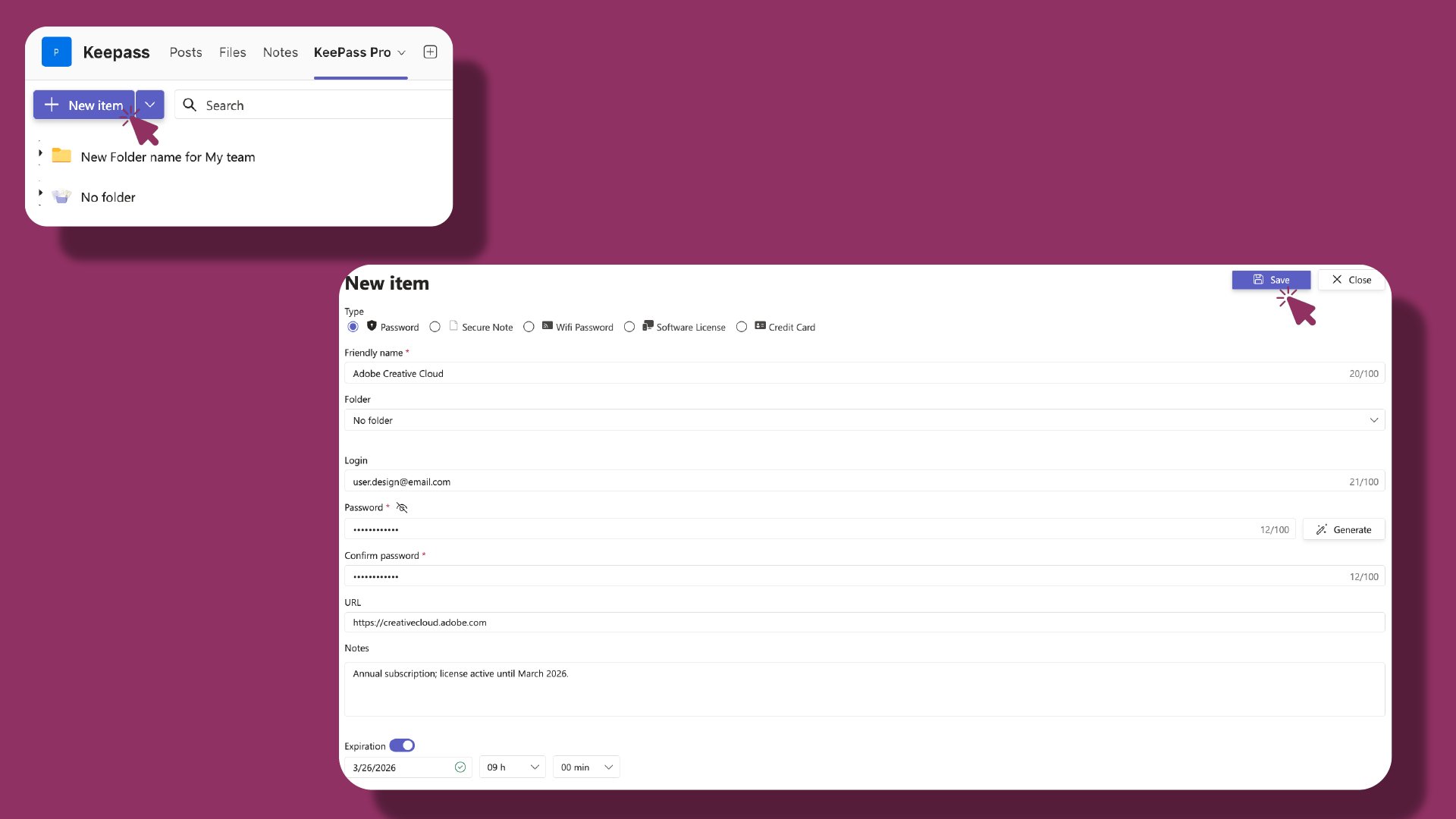
Free users get the essential features of KeePass Pro, a great starting point for individuals and small teams:
- Create and store items and organize them easily.
- Share items securely with members of your Microsoft Teams channels.
- Set expiration dates to keep credentials current.
- Copy and generate passwords to create strong, random values.
- Create personal vaults to keep private credentials secure.
- Use multiple channels across teams.
- Store more than passwords, including secure notes, Wi-Fi passwords, credit cards, and software licenses.
# Premium
Premium unlocks more room and better organization:
- All Free features are included.
- Unlimited items with no per-vault cap.
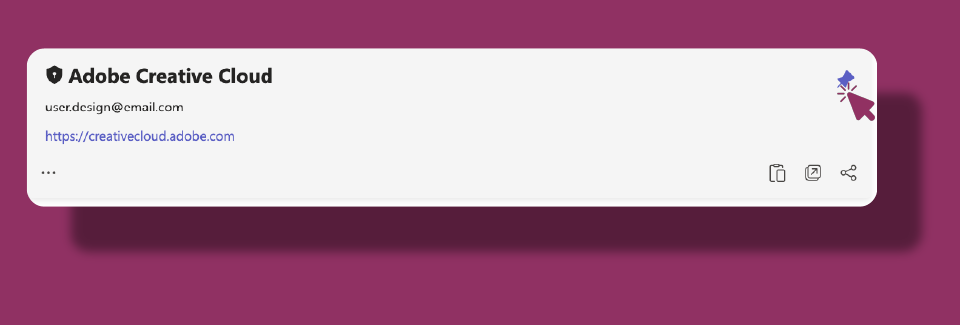
- Pin favorite items so the credentials you use most stay at the top of the vault.
- Item history and change logs to track edits over time.
- Activity logs so vault owners can review who did what.
- Import from CSV to bring in existing credentials.
# Platinum
Platinum gives larger teams full control:
- All Free and Premium features are included.
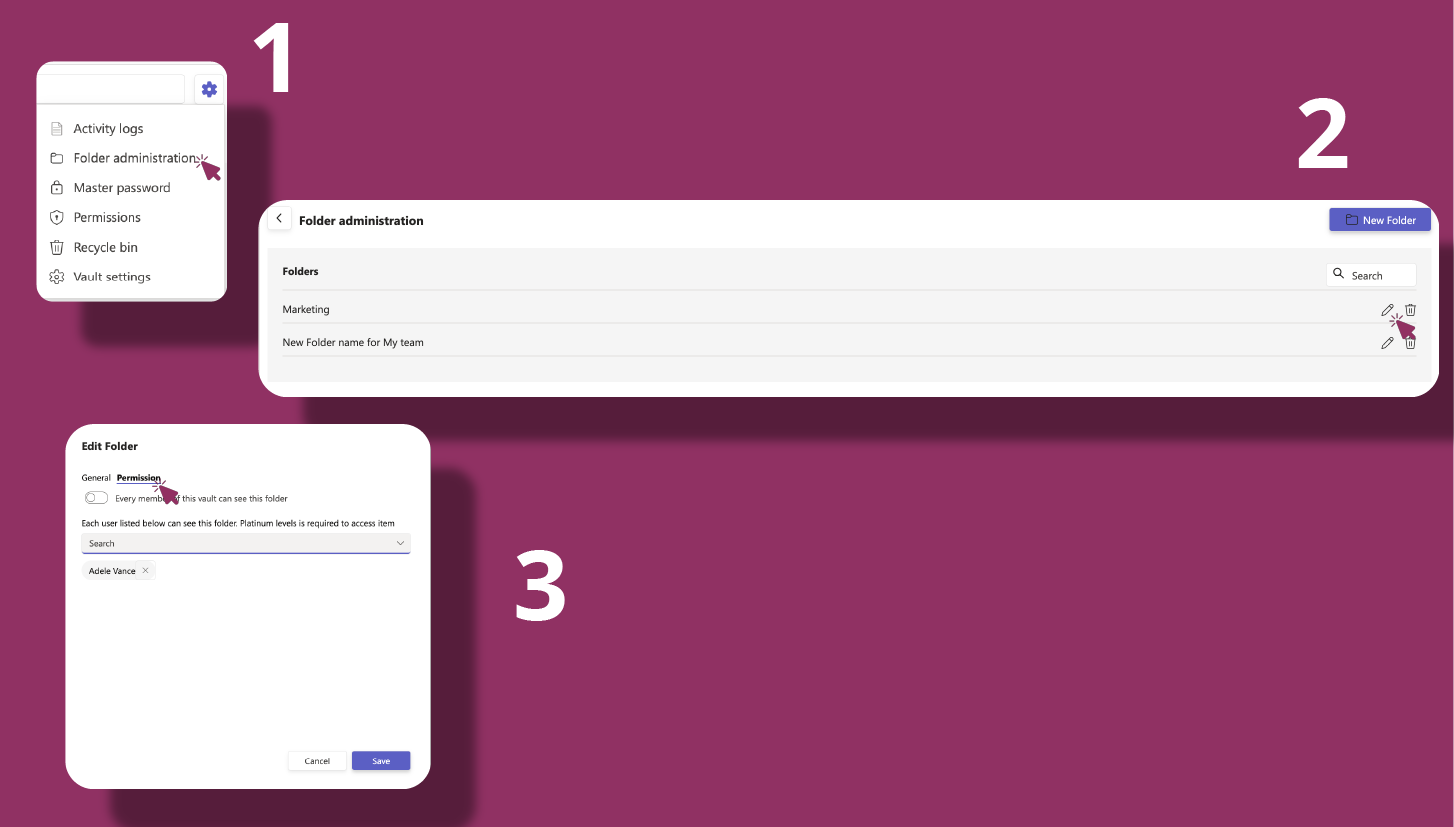
- Custom permissions set granular access for each folder or item.
- Folder-level permissions manage access to specific folders within a vault.
- Folder administration lets vault owners create and organize folders.
- Transfer ownership of a vault to another team member.
# Common questions
# Where do I buy and manage KeePass Pro?
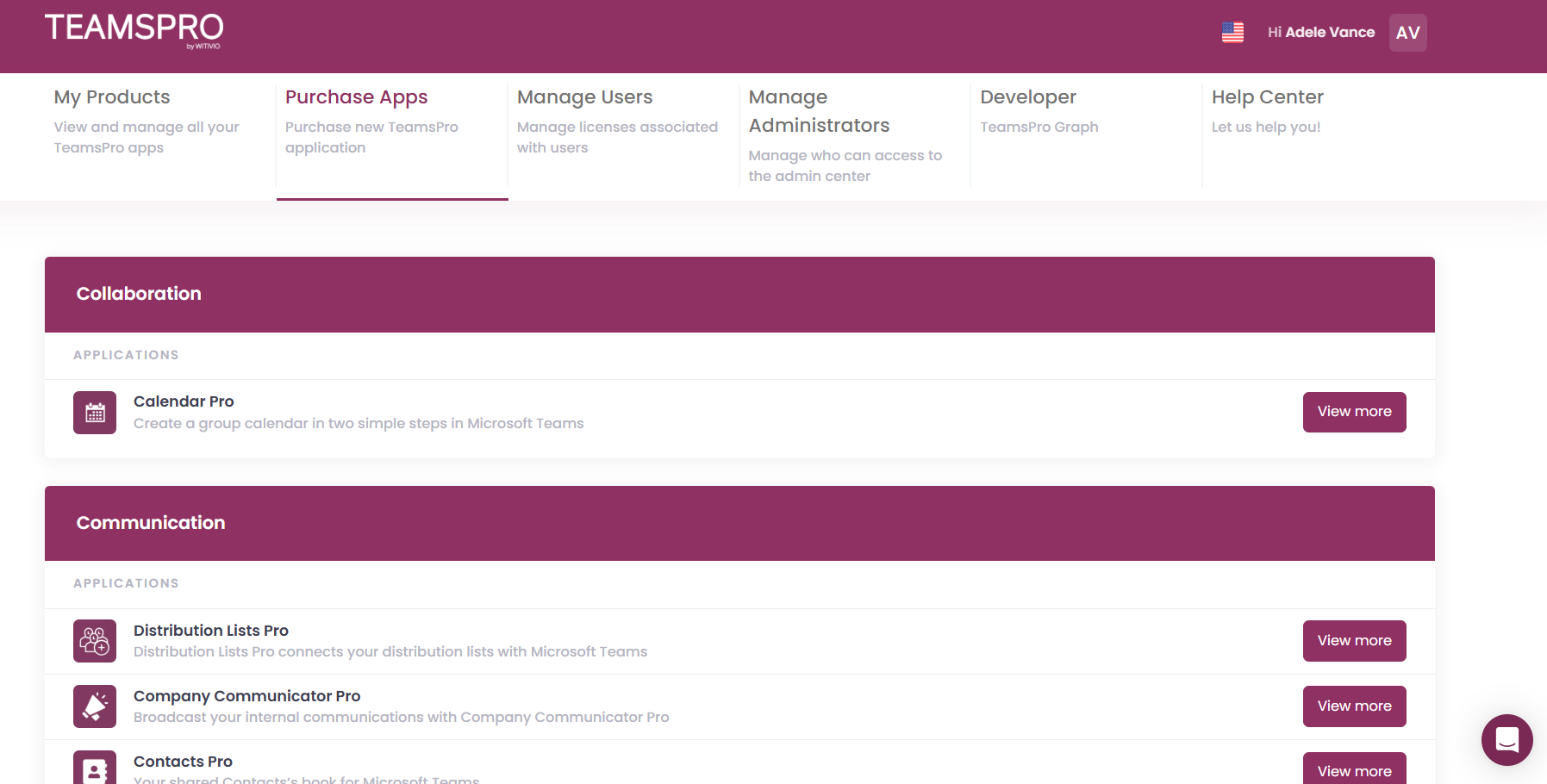
In the Teams-Pro Admin Center. Buy plans, add or remove seats, update billing, download invoices, and cancel or reactivate there.
# Is there a free plan or a trial?
Yes. KeePass Pro has a Free (Basic) tier, and you can request a time-limited trial of advanced features from the product site.
# How do I upgrade from the KeePass Pro tab in Microsoft Teams?
- 1
In the KeePass Pro tab, click Click here or the crown button at the top.
- 2
In the pop-up, select Upgrade to Platinum.
- 3
Set your billing country/region, then click Save & continue.
- 4
Choose your subscription plan and follow the prompts to confirm.
# Who needs a paid license?
Assign paid licenses to users who need Premium or Platinum capabilities. Users who only need the Basic experience can stay on the free tier.
# How do I assign or unassign licenses to users?
- 1
Open the Teams-Pro Admin Center.
- 2
Click the Manage Users tab.
- 3
For each user, choose Assign license or Unassign license, then confirm.
# Can I upgrade or downgrade between plans?
Yes. Change plans anytime in the Teams-Pro Admin Center.
# Can I switch billing frequency (monthly or annual)?
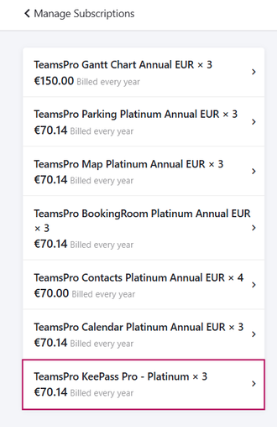
Yes. Choose during purchase, or change it later:
- Open the Teams-Pro Admin Center.
- Click your profile icon or name at the top-right, then select Billing.
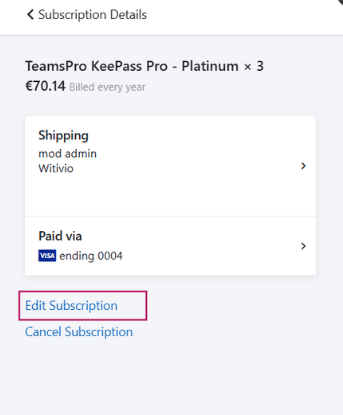
- In the pop-up window, click the subscription you want to edit.
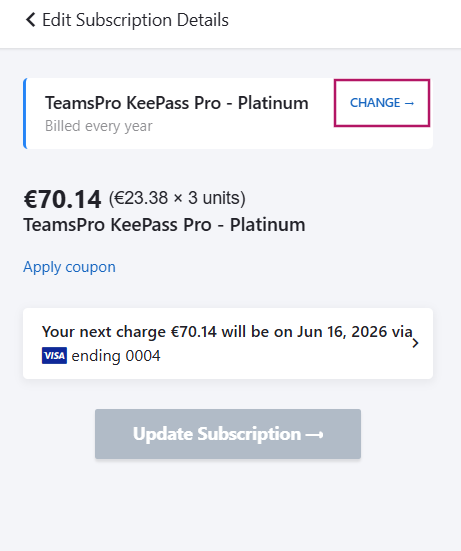
- Click Edit subscription.
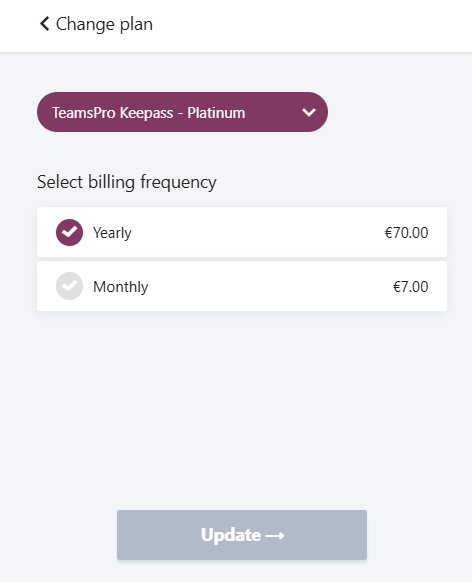
- Click Change.
- Select the desired billing frequency (Monthly or Yearly).
- Click Update to confirm.

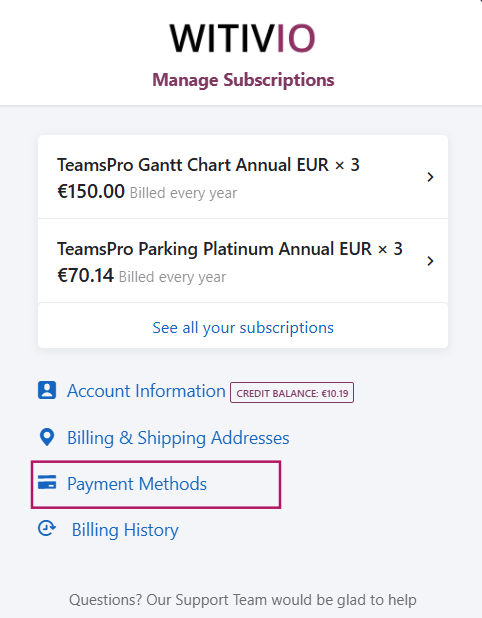
# How do I update payment details or company info for invoices?
- Open the Teams-Pro Admin Center.
- Go to Billing.
- Select Payment method.
- Update your card details (number, expiry, CVV) and click Save.
- Edit your company information used on invoices in the same area.
# Where do I find past invoices?
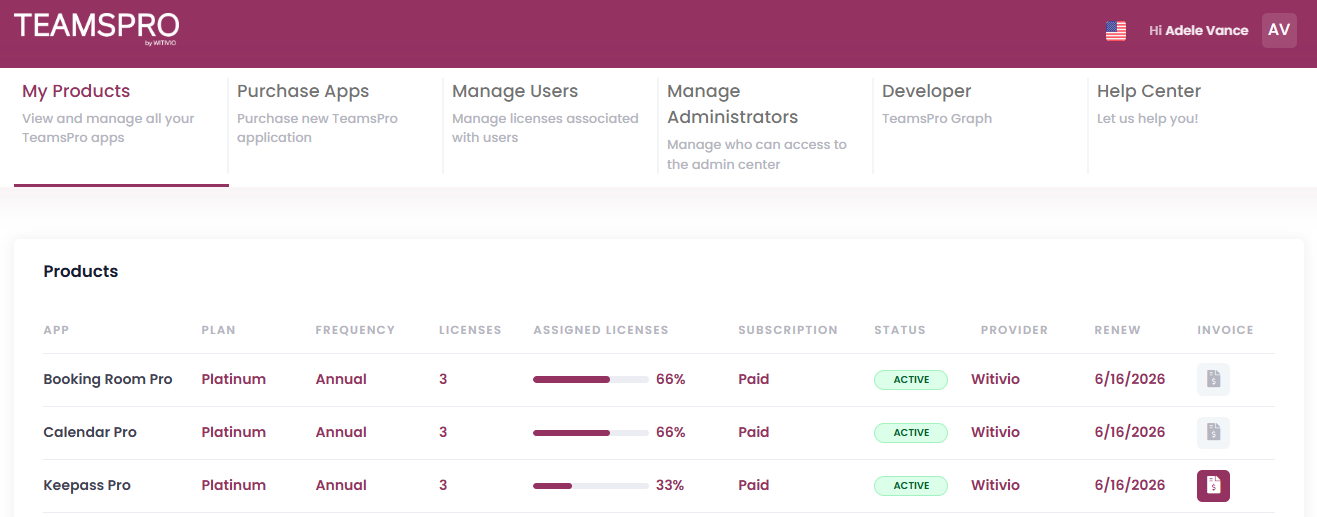
Teams-Pro Admin Center > My Products > KeePass Pro > Invoices > Billing History.
# What happens if I cancel?
Cancellation takes effect at the end of the current billing period. You can reactivate later from the Teams-Pro Admin Center.
# Do guests or external users require licenses?
External access follows your Microsoft 365 sharing policies. External Microsoft Teams users cannot open a vault unless they are explicitly added with the right permissions. If an external user needs advanced KeePass Pro capabilities, assign them a plan seat and make sure they can reach the SharePoint or OneDrive location that stores the vault.
# Related pages
- New to the app? Start with the KeePass Pro Get Started Guide.
- Understand vaults, tabs, and permissions in How KeePass Pro works.
- Manage roles and access in administration.
- Still have questions? Browse the KeePass Pro Q&A.