
# Milestones in Gantt Chart Pro
A milestone is a zero-duration checkpoint, such as Kickoff or Launch, that stands out on the timeline as a diamond marker instead of a bar. Use milestones in Gantt Chart Pro for Microsoft Teams to flag the moments that matter in your plan without giving them a start-to-end span.
# Create a milestone
Add a task, then mark it as a milestone so it collapses to a single point on the timeline.
- 1
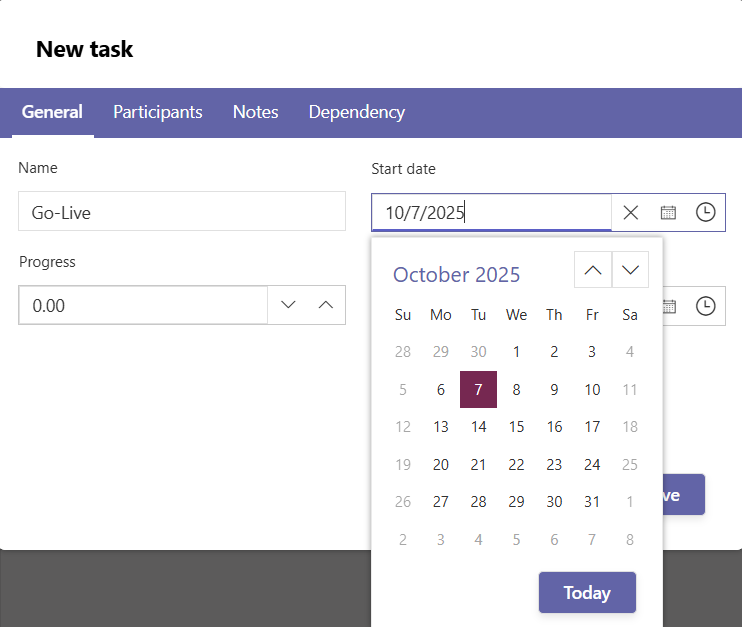
Click Add in the toolbar and name your task, for example Go-Live.
- 2
In the General tab of the task dialog, select the Milestone checkbox, then click Save.
The Milestone checkbox appears only for Premium users. Setting the Start and End dates to the same day also turns the task into a milestone.
# Convert between a task and a milestone
You can switch an existing item back and forth at any time. Select the Milestone checkbox and the item collapses to a single point; clear it and the item regains a start-to-end span as a normal task.
- 1
Right-click the task row and choose Task information to open the task.
- 2
Select the Milestone checkbox to turn a task into a milestone, or clear it to turn a milestone back into a task.
- 3
Click Save. The Milestone column shows Yes or No for each row.
# Common questions
# Why do I not see the Milestone checkbox?
The Milestone checkbox appears only with a Premium license. On the Free plan, the option prompts you to upgrade.
# Can I turn a milestone into a normal task?
Yes. Open the task from Task information, clear the Milestone checkbox, and save. The item regains a start-to-end span.
# Related pages
- Learn how to create and structure work in tasks and subtasks.
- Color your milestones and filter the timeline in colors, filters, and sorting.
- Link milestones to the work that leads up to them in dependencies.
← What it is What it is →