
# Export and reporting in Gantt Chart Pro
Export lets you take a snapshot of your Gantt Chart Pro plan out of Microsoft Teams to share it, report on it, or keep a record. Choose a data format when you need to analyze or combine the plan with other data, and choose PDF when you need a visual snapshot for a briefing or an approval. Export is available on every plan.
# Export formats
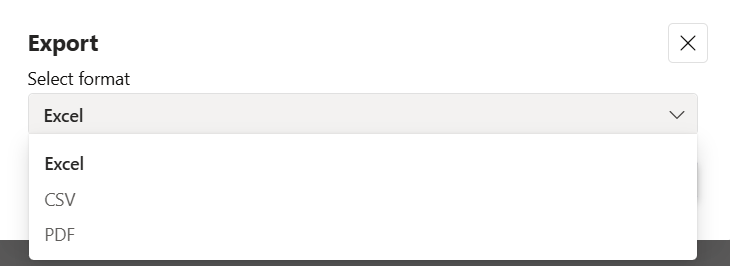
- Excel (.xlsx) gives structured rows for analysis and reporting in Microsoft Excel.
- CSV gives plain, structured data you can open in any spreadsheet or import into another tool.
- PDF gives a visual snapshot of the chart for briefings, sign-off, or archiving.
# Export your plan
- 1
In the toolbar, click Export to open the export dialog.
- 2
Open the Select format dropdown and choose Excel, CSV, or PDF.
- 3
Confirm to download the file. PDF exports use A4 page size and are named with the current date and time.

# Common questions
# My PDF is cut off, how do I fix it?
PDF exports are sized to A4. If content runs off the page, reduce the Microsoft Teams zoom level, narrow long task names, or collapse subtasks, then export again.
# Which columns are included?
The export reflects the columns shown in the chart, including task name, start and end dates, progress, status, participants, and milestone. Adjust what is visible before you export to control the output.
# Do I need a paid plan to export?
No. Export to Excel, CSV, and PDF works on the free and Premium plans.
# Related pages
- Prepare the data you export in tasks and subtasks.
- Set the timeline scale before a snapshot in view and timeline.
- Highlight key dates with milestones.
← What it is What it is →