
# Using Power Automate with Contacts Pro
Contacts Pro exposes an API that you can call from Microsoft Power Automate to read and manage your contacts automatically. Use it to connect Contacts Pro to your other workflows, so contact updates happen without manual steps. Setup has three parts: get a TeamsPro Graph API key, find your Contacts Pro application identifier, then build the flow.
# 1. Get the TeamsPro Graph API key
The TeamsPro Graph API Key lets you connect to the Contacts Pro API. It is only available with a valid Platinum license for Contacts Pro.
- 1
Open the TeamsPro developer page.
- 2
Sign in with the account that holds the license by clicking Sign In.
- 3
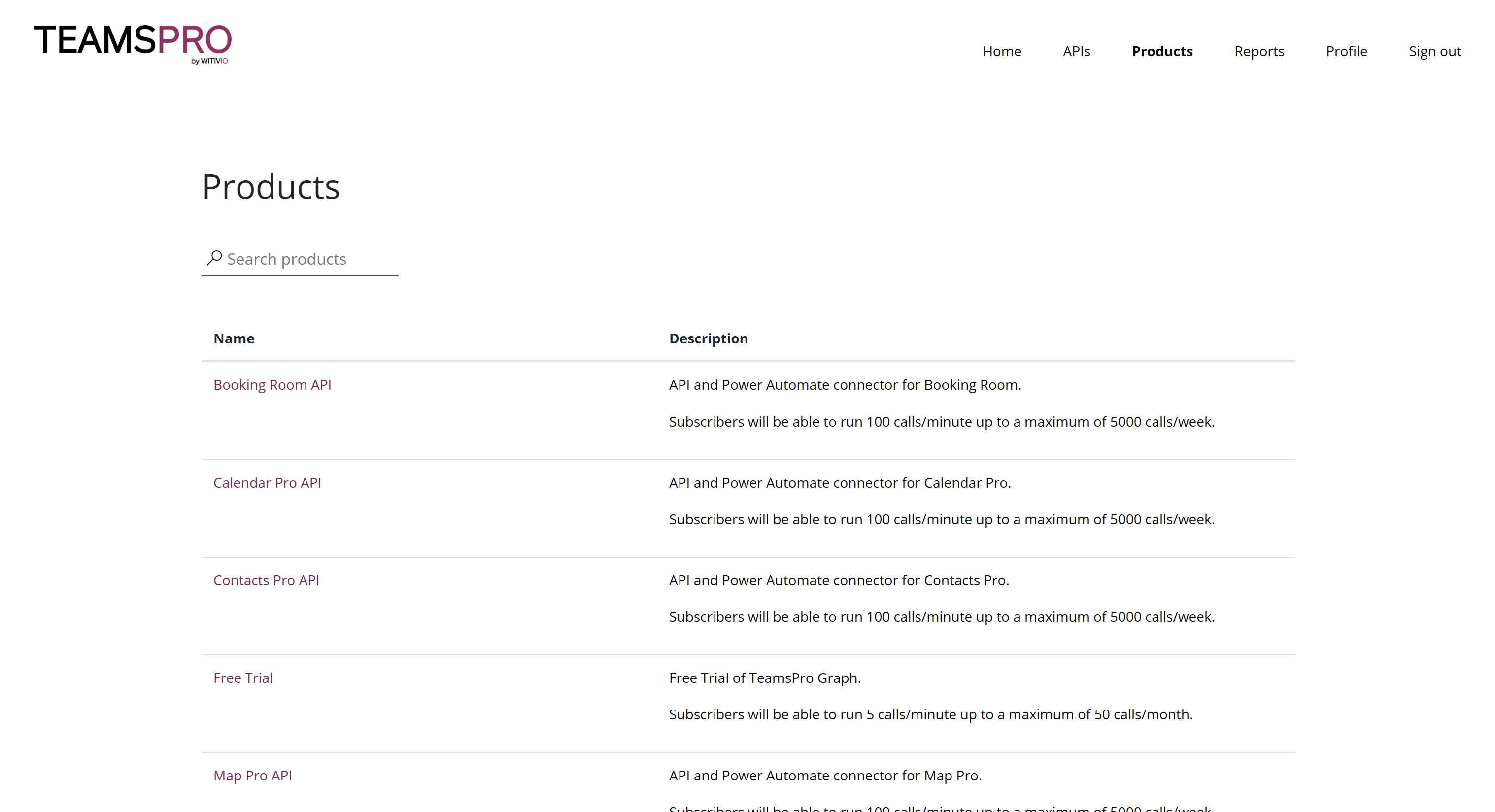
Open the Products page by clicking Products.
- 4
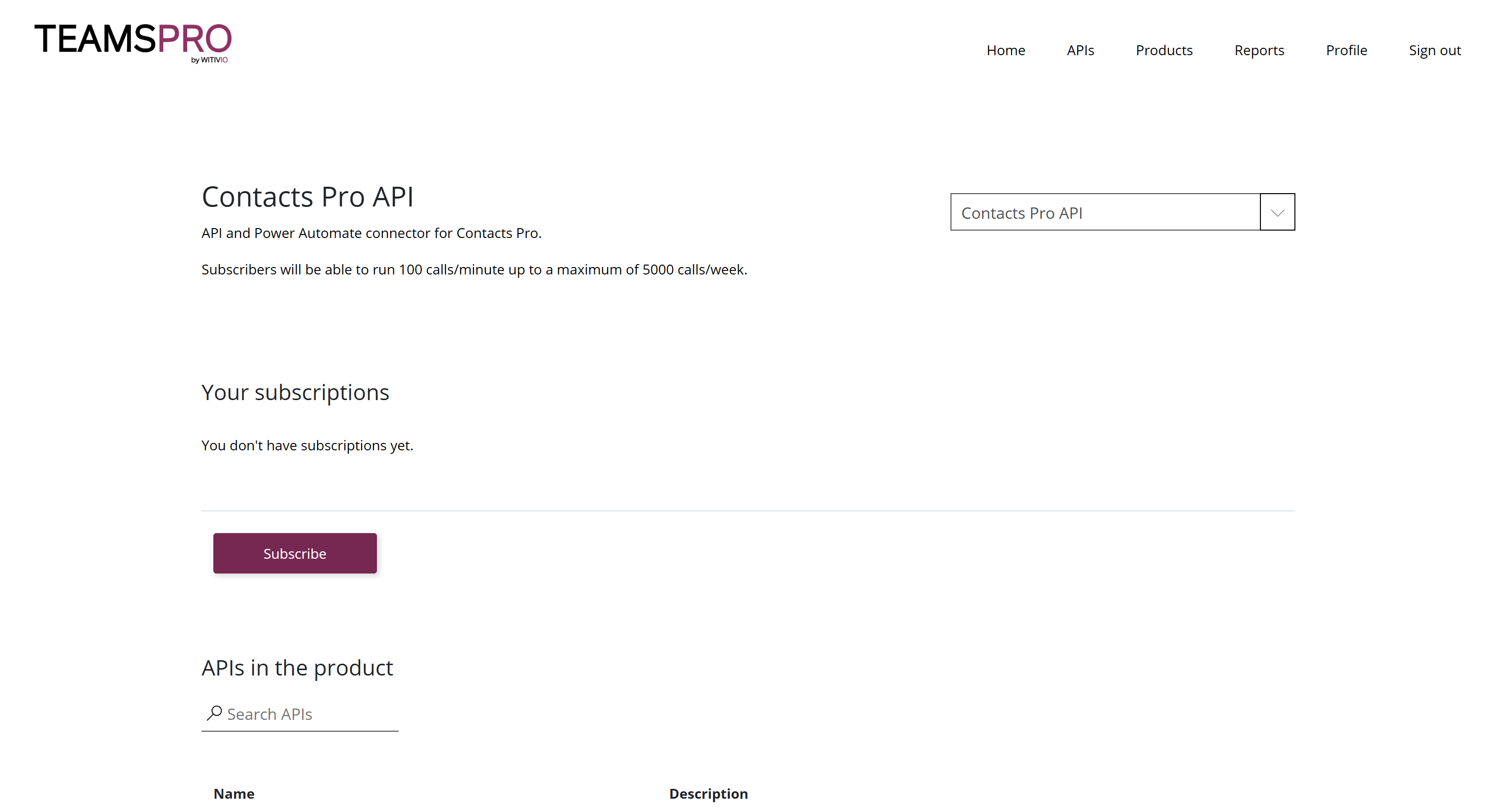
Locate the Contacts Pro API in the list and click it.
- 5
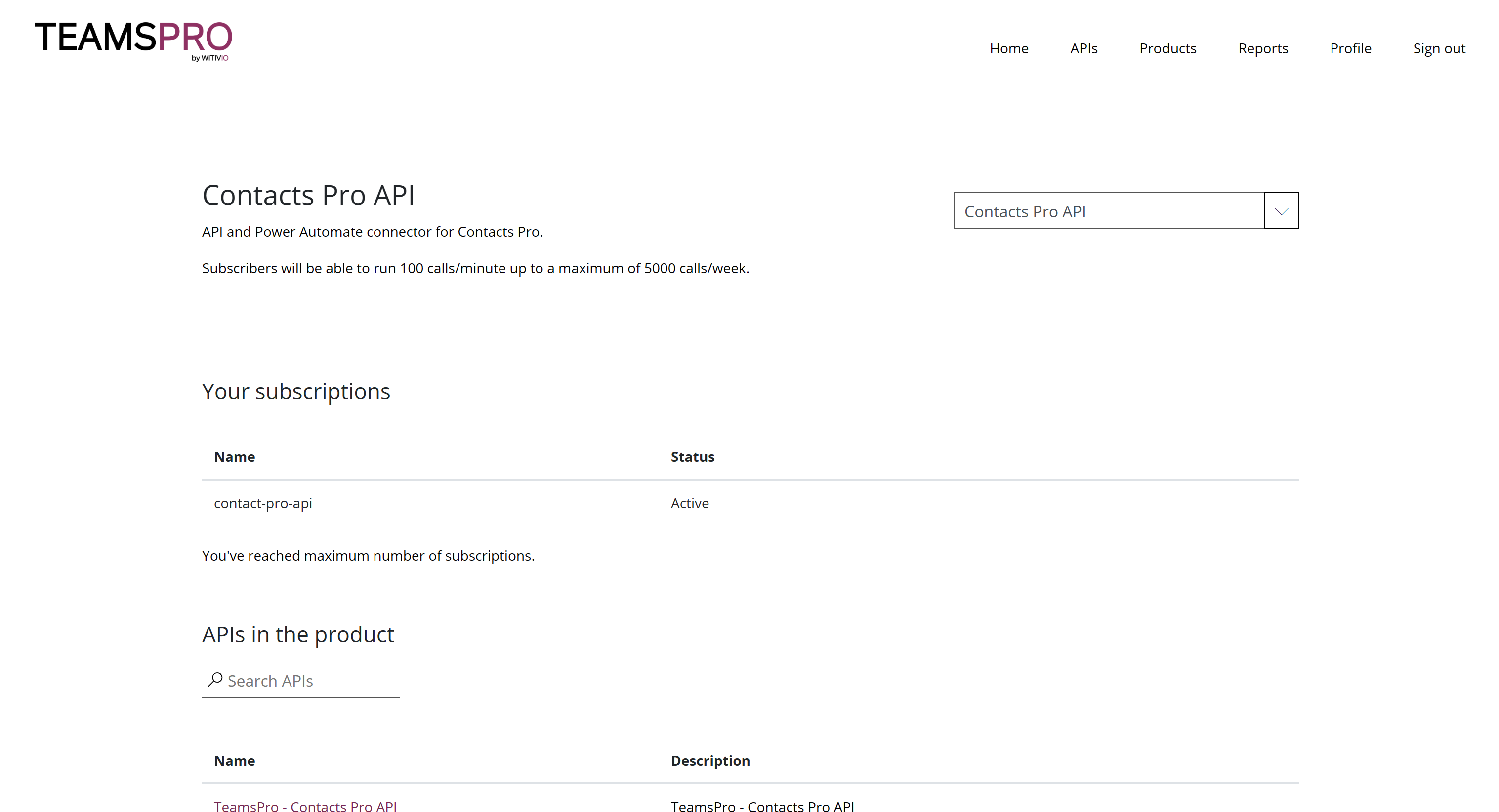
Click Subscribe to subscribe to the API, then wait for the confirmation.
- 6
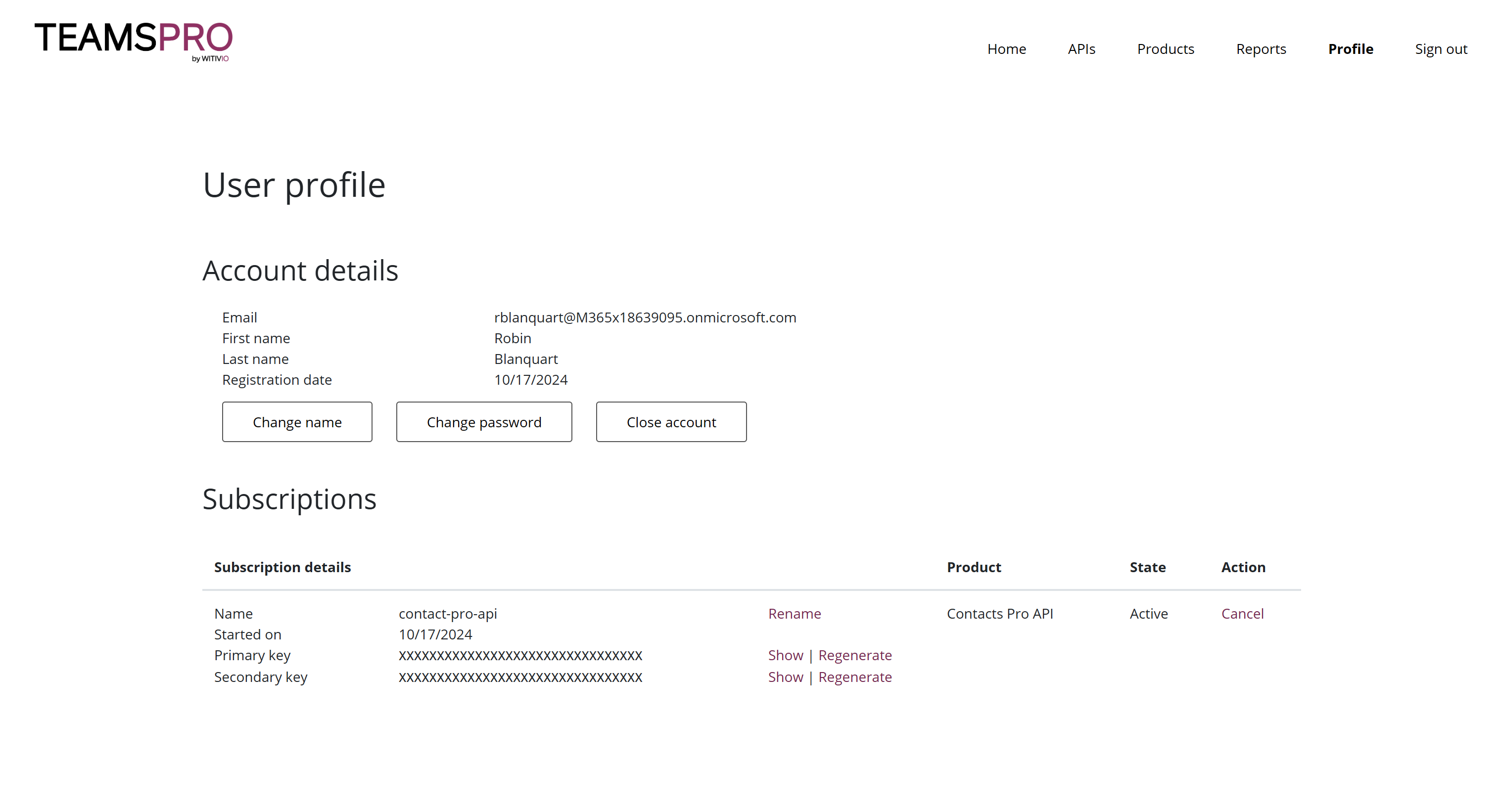
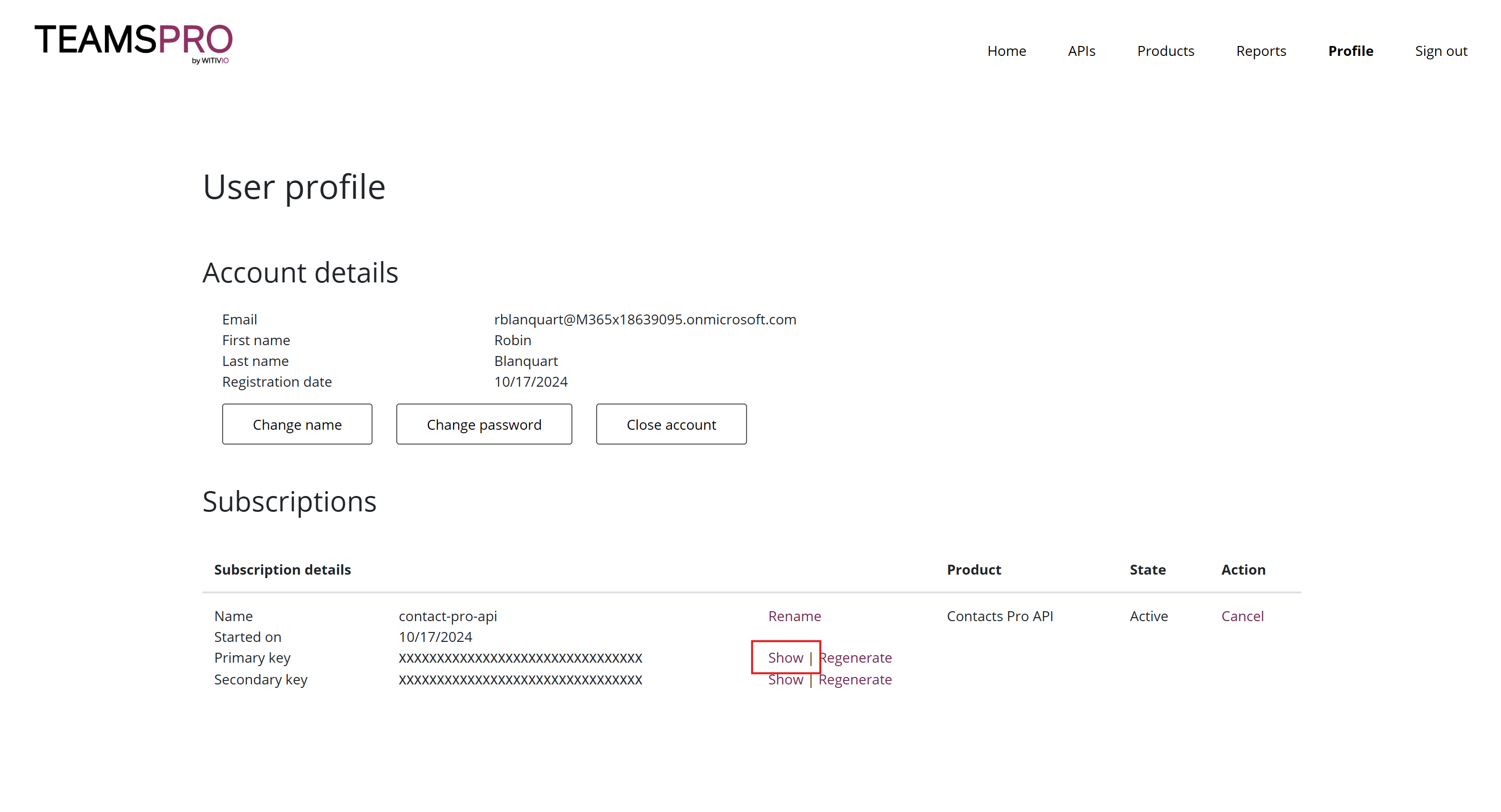
Open the Profile page, then click Show next to Primary key in your Contacts Pro subscription to reveal your TeamsPro Graph API Key.

# 2. Retrieve the Contacts Pro application identifier
To access data from your Contacts Pro instance, you need its application identifier (ID).
- 1
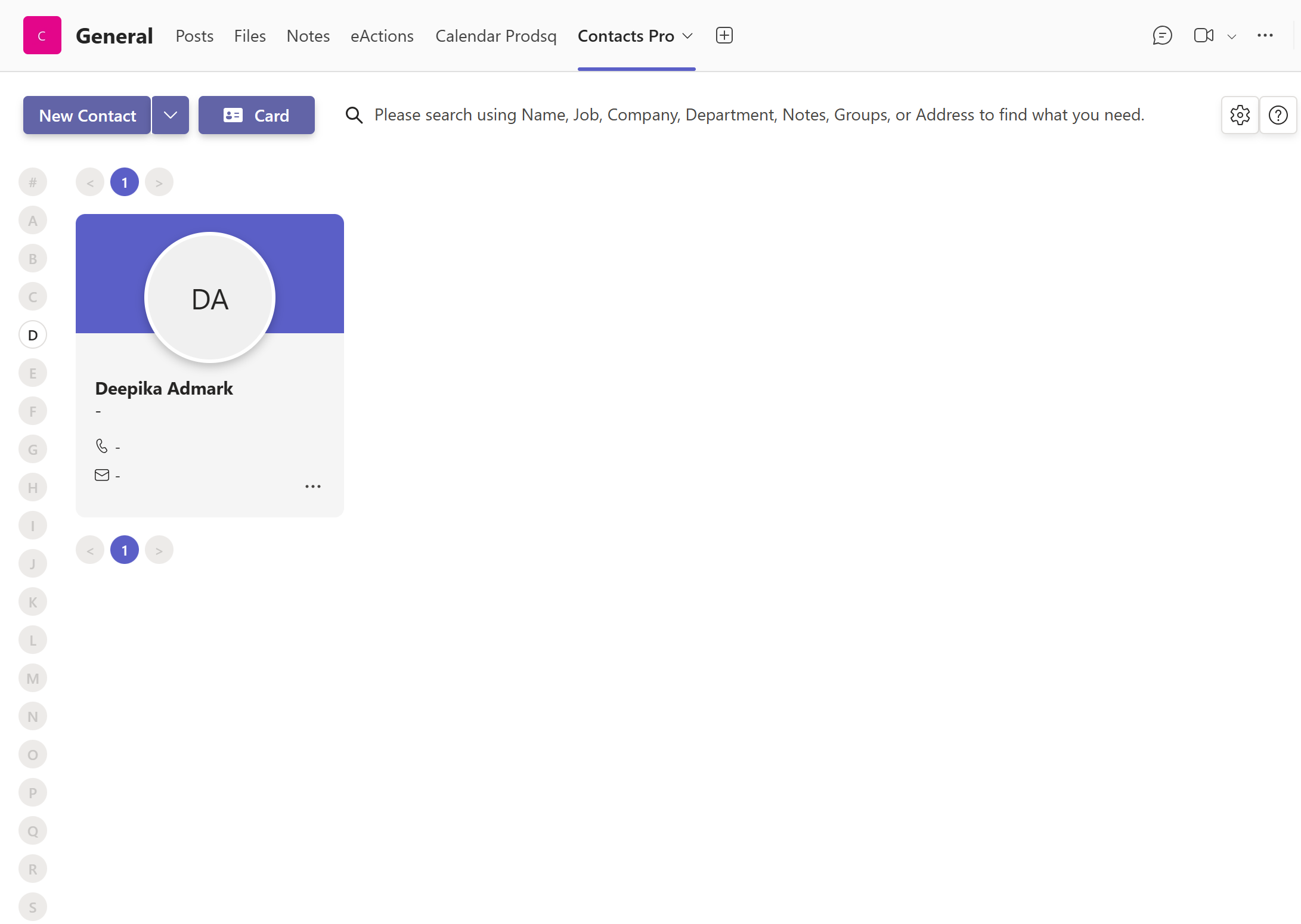
Open the Contacts Pro application in Microsoft Teams.
- 2
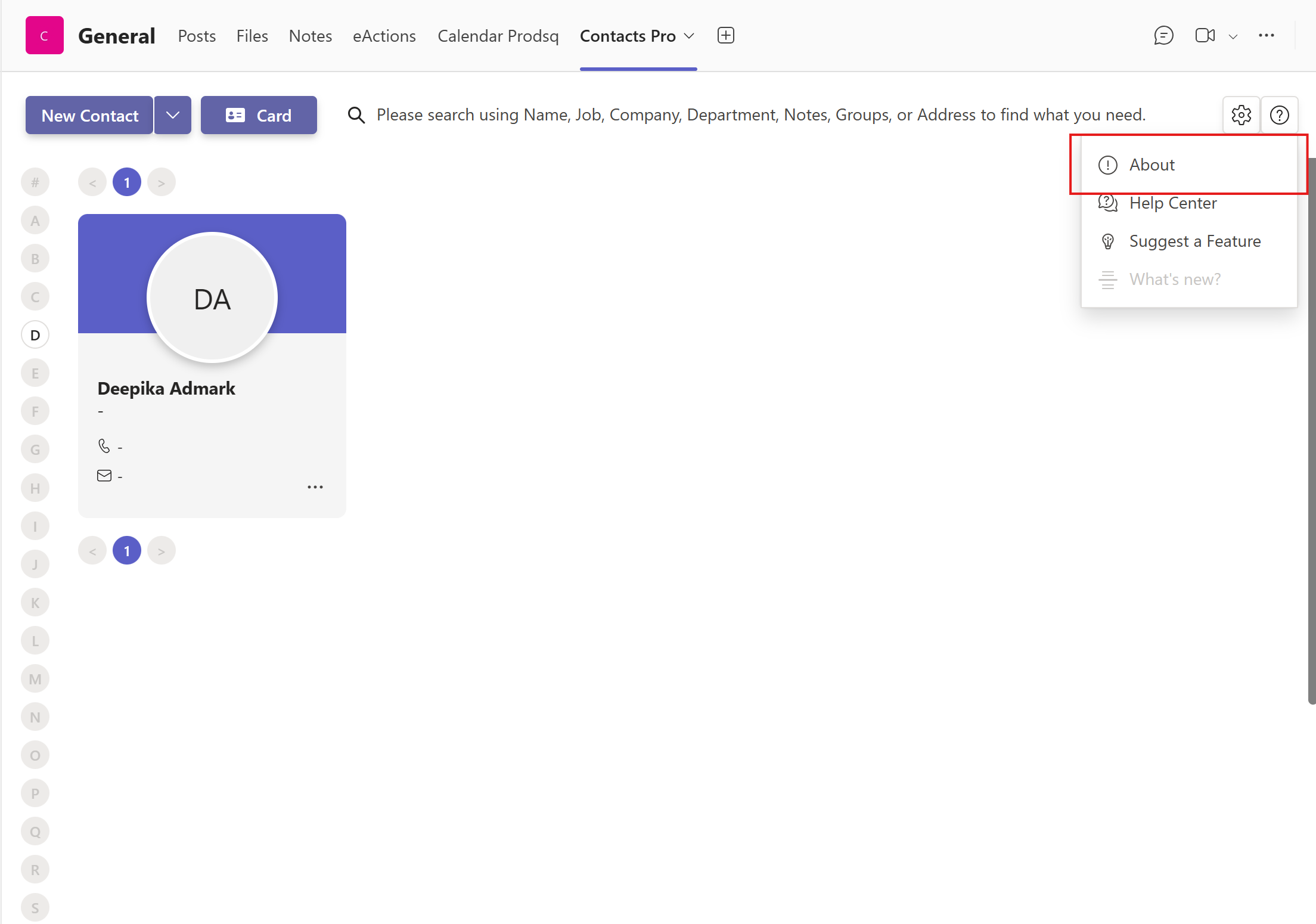
Click the information button in the top-right corner and select About.
- 3
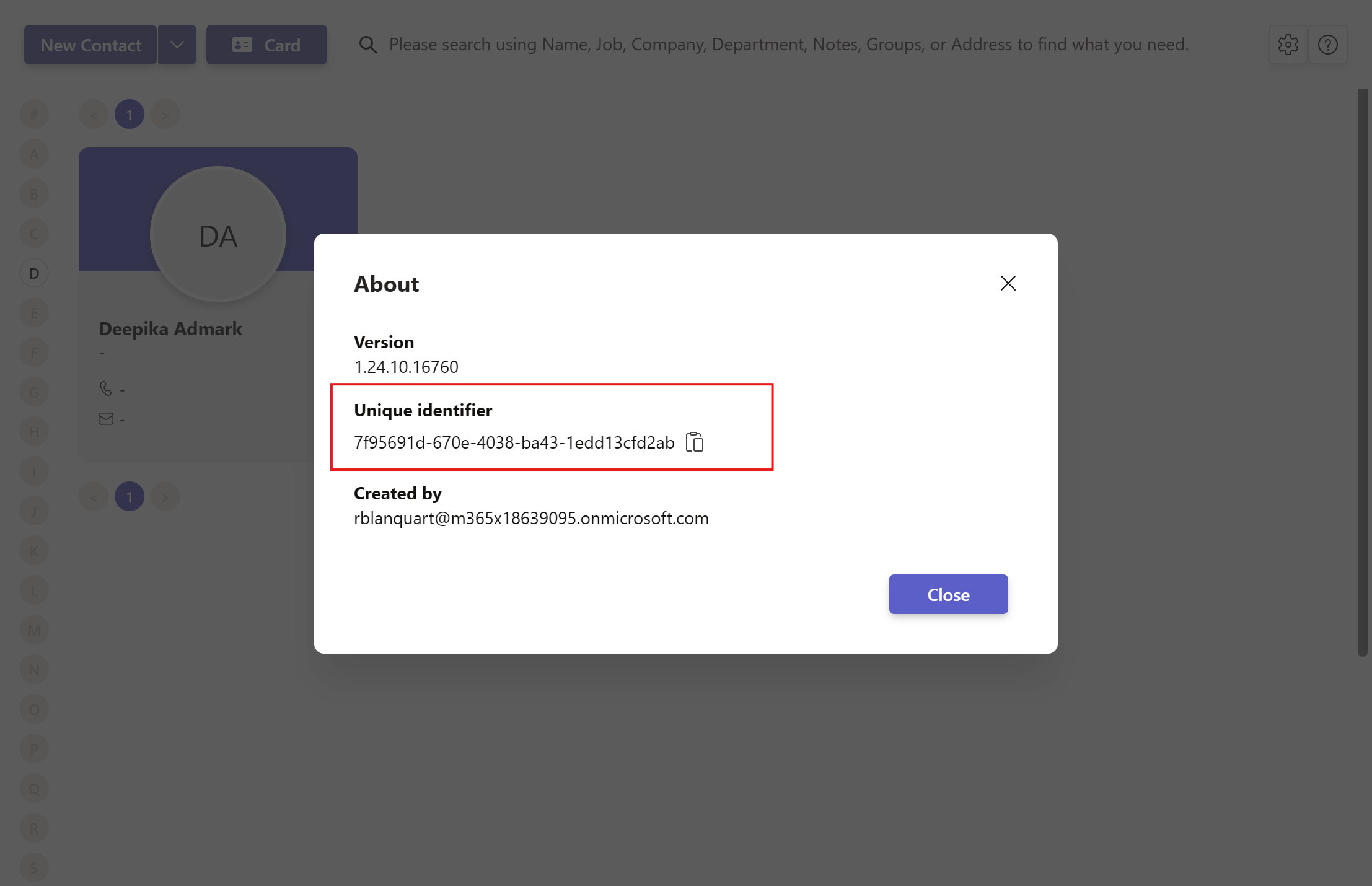
Copy the application identifier shown in the window. You use it as the Contact List ID in your flow.
# 3. Connect to Power Automate
With your API key and application identifier ready, build a flow that calls the Contacts Pro connector.
- 1
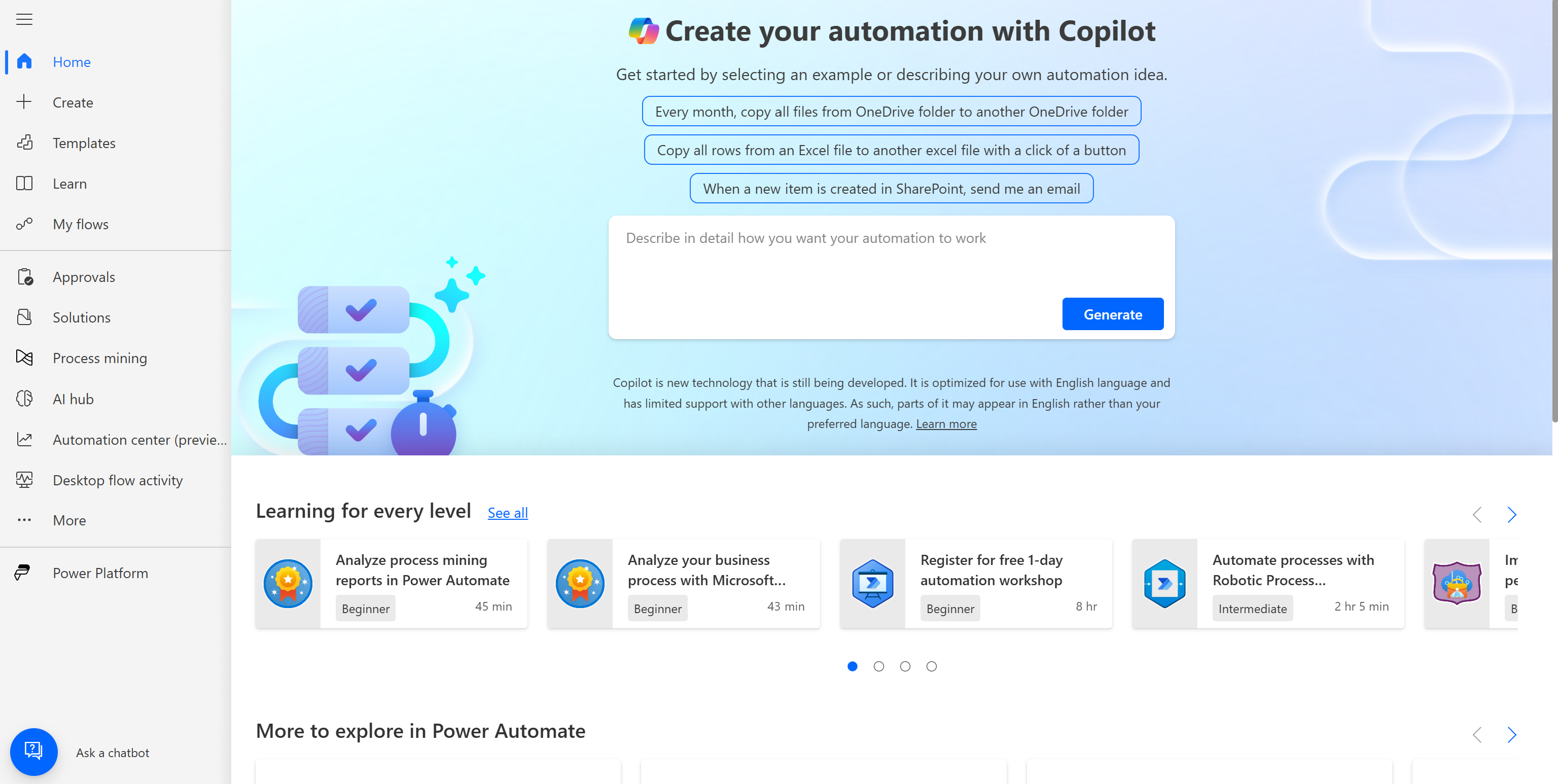
Go to the Power Automate website and create a new flow.
- 2
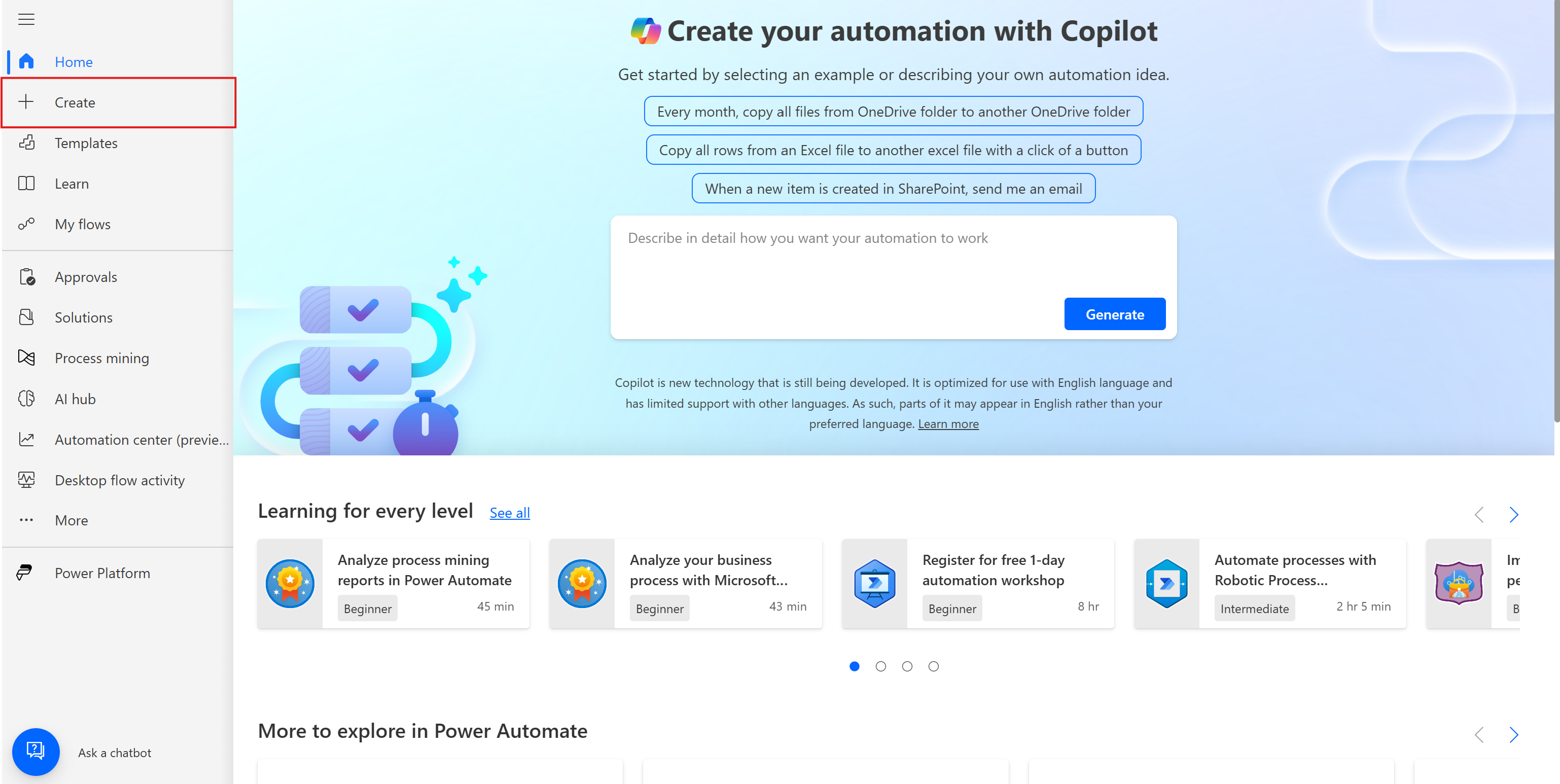
Click Create to start a new flow.
- 3
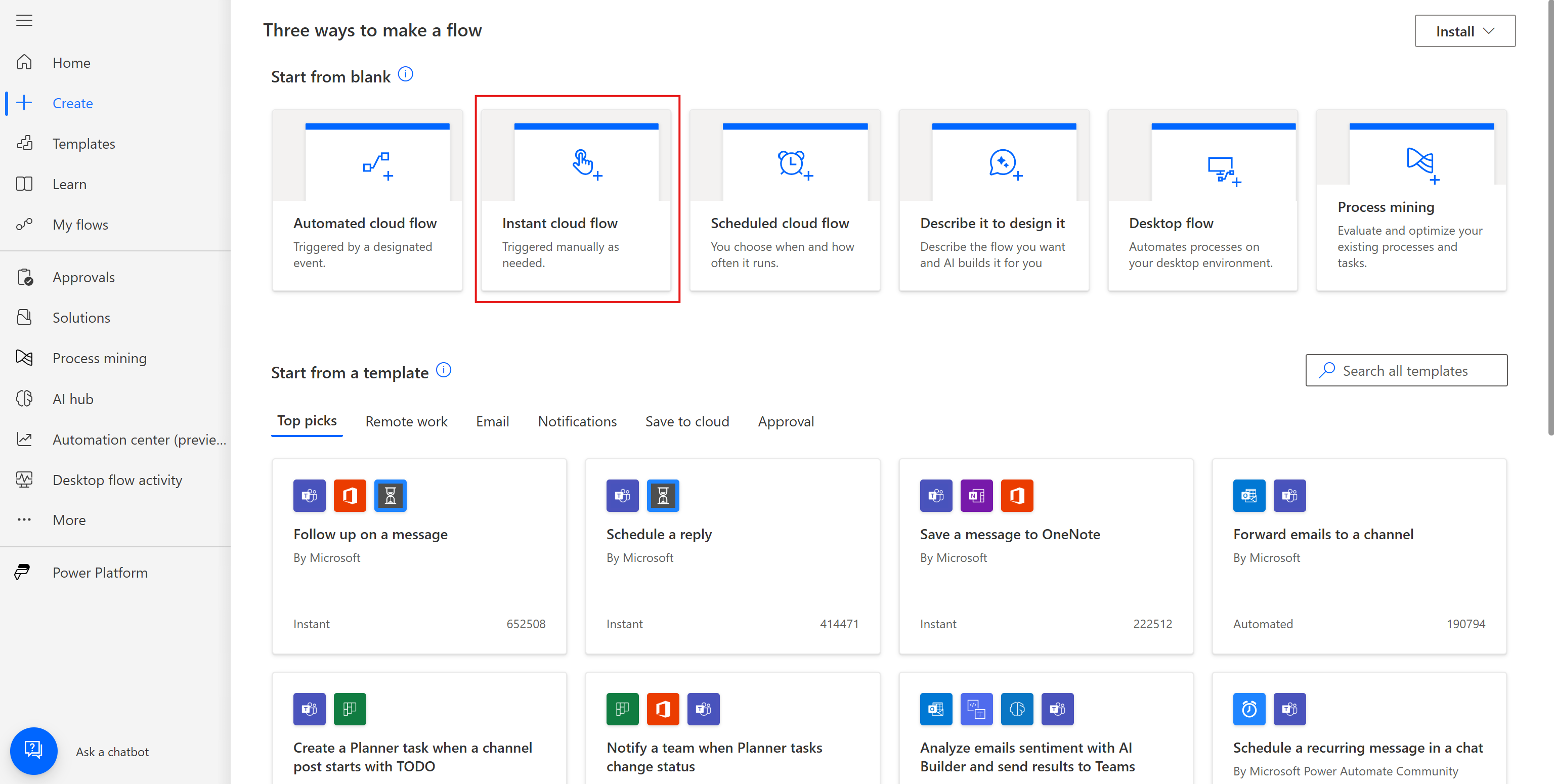
Select the flow type. This example uses Instant cloud flow.
- 4
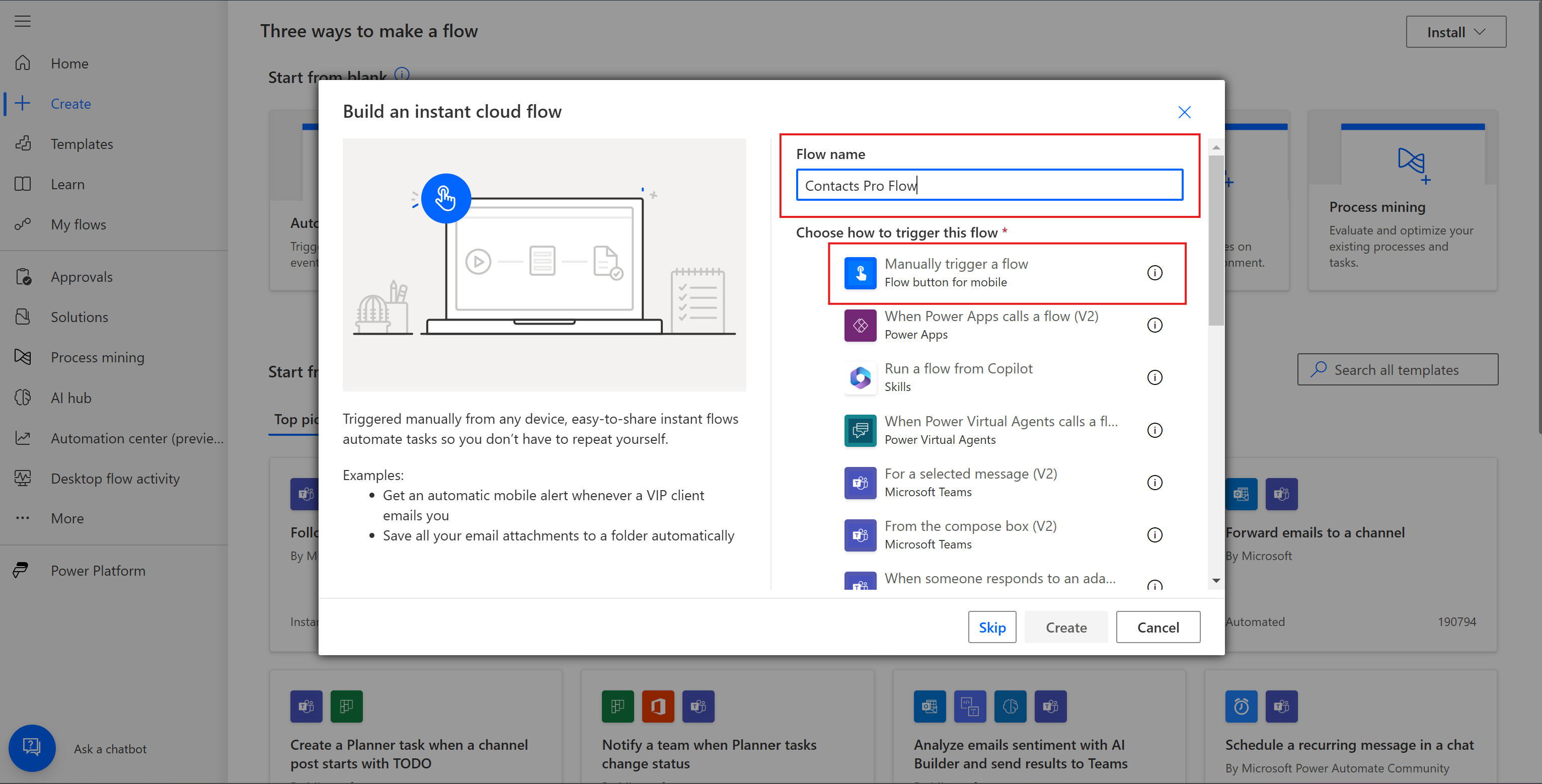
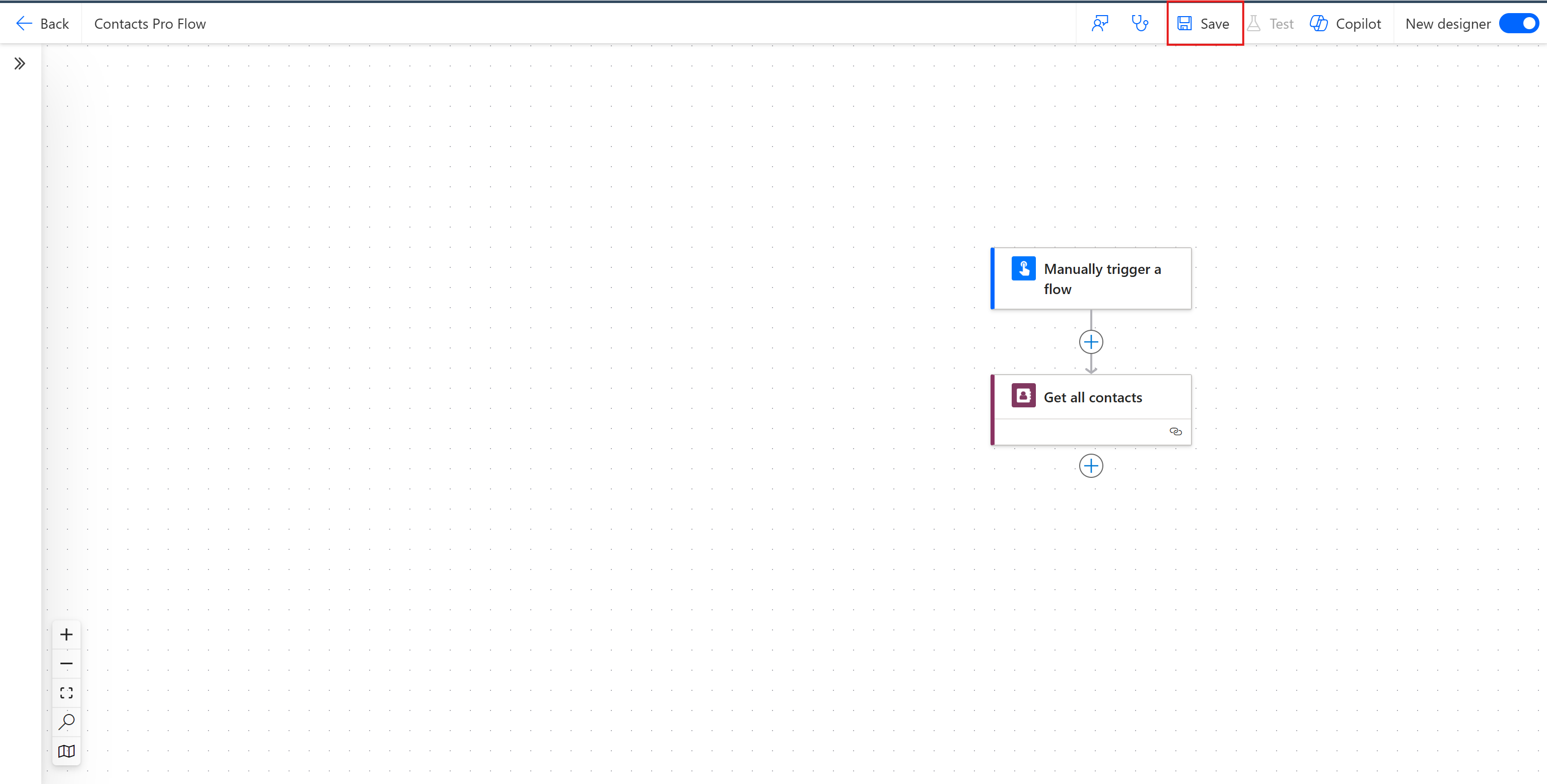
Name your flow and choose a trigger. This example uses Manually trigger a flow.
- 5
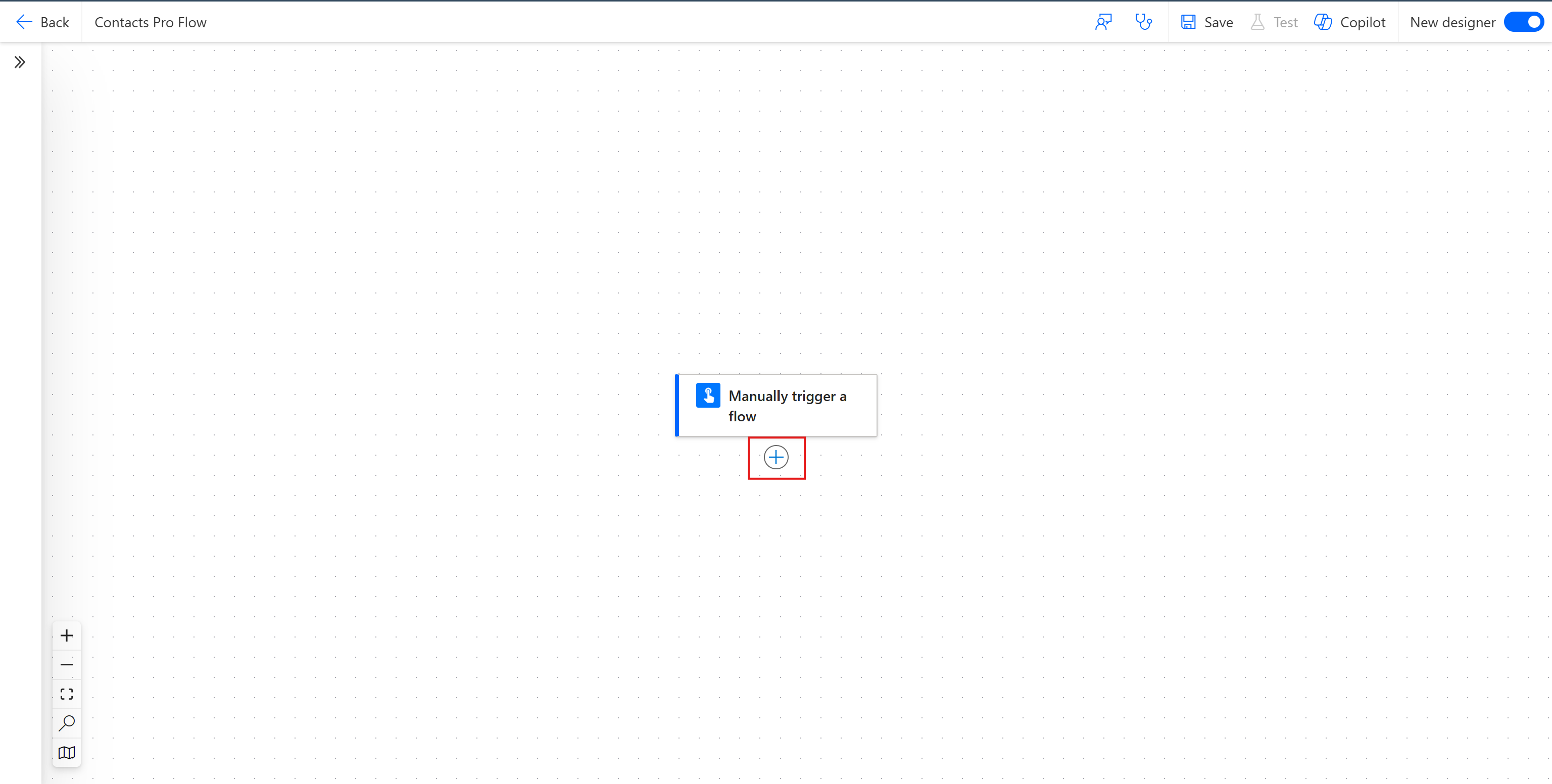
On the flow canvas, click +, then Add an action.
- 6
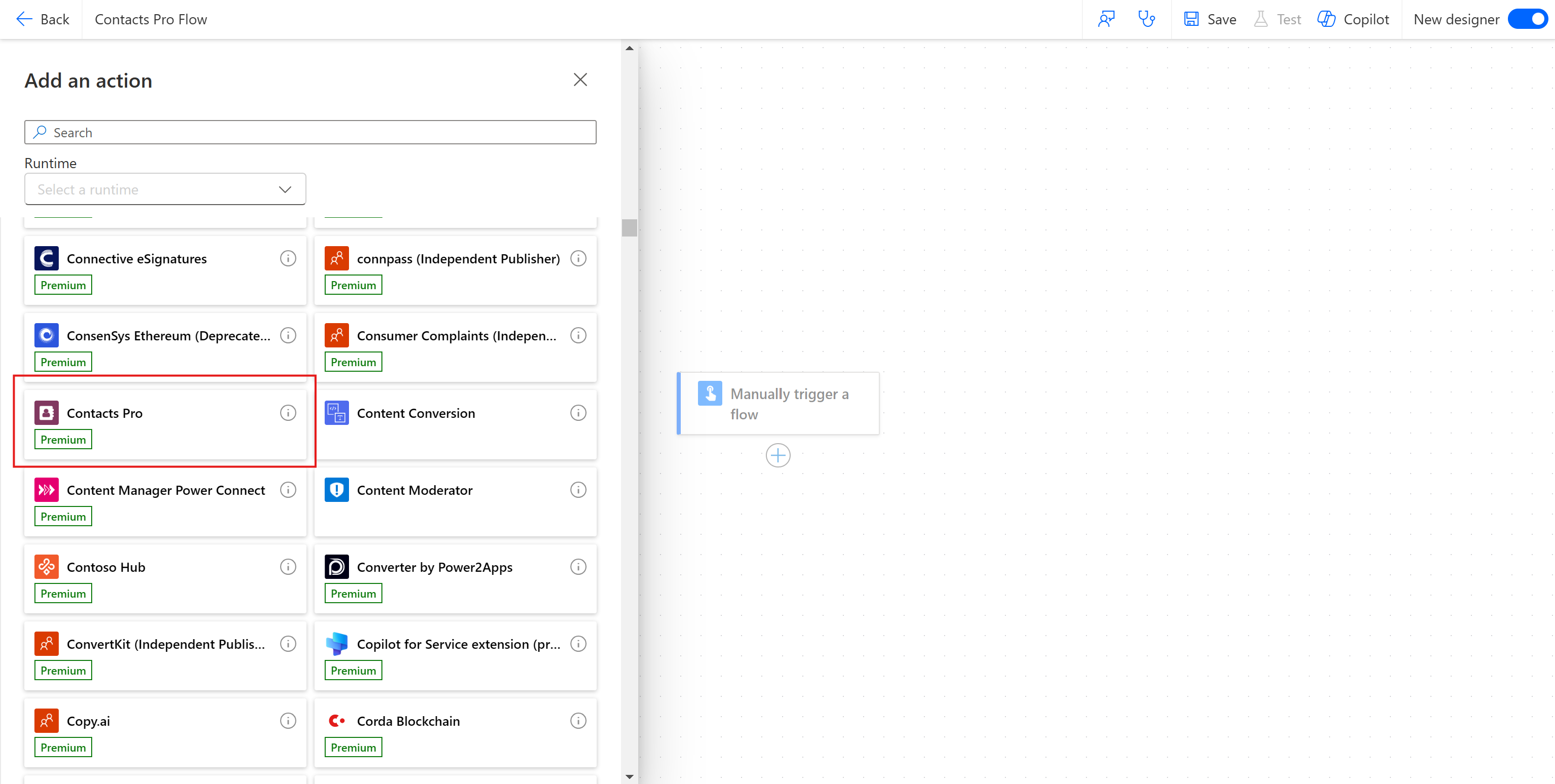
Search for Contacts Pro and select it.
- 7
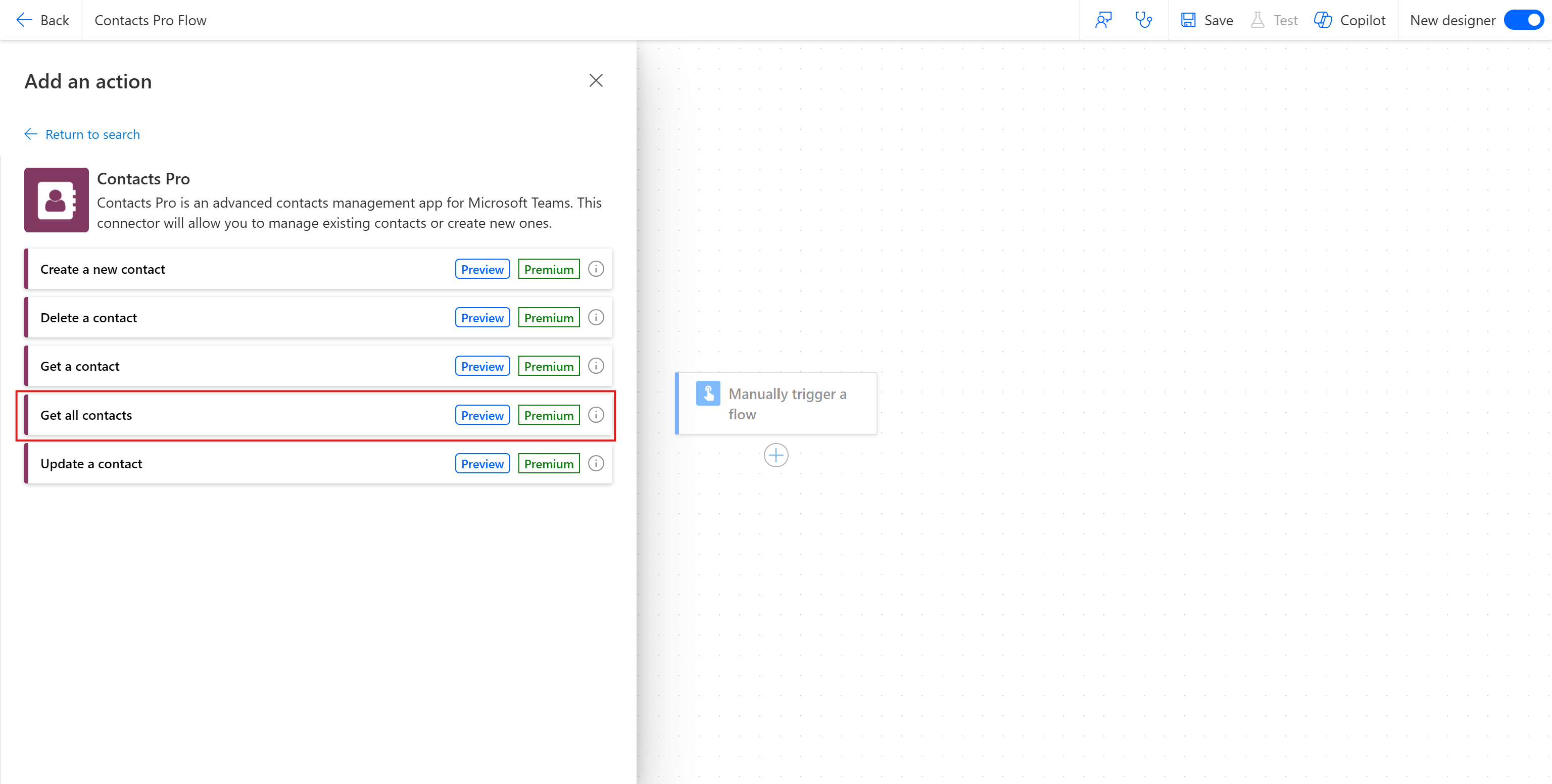
Choose the action you want. This example uses Get all contacts.
- 8
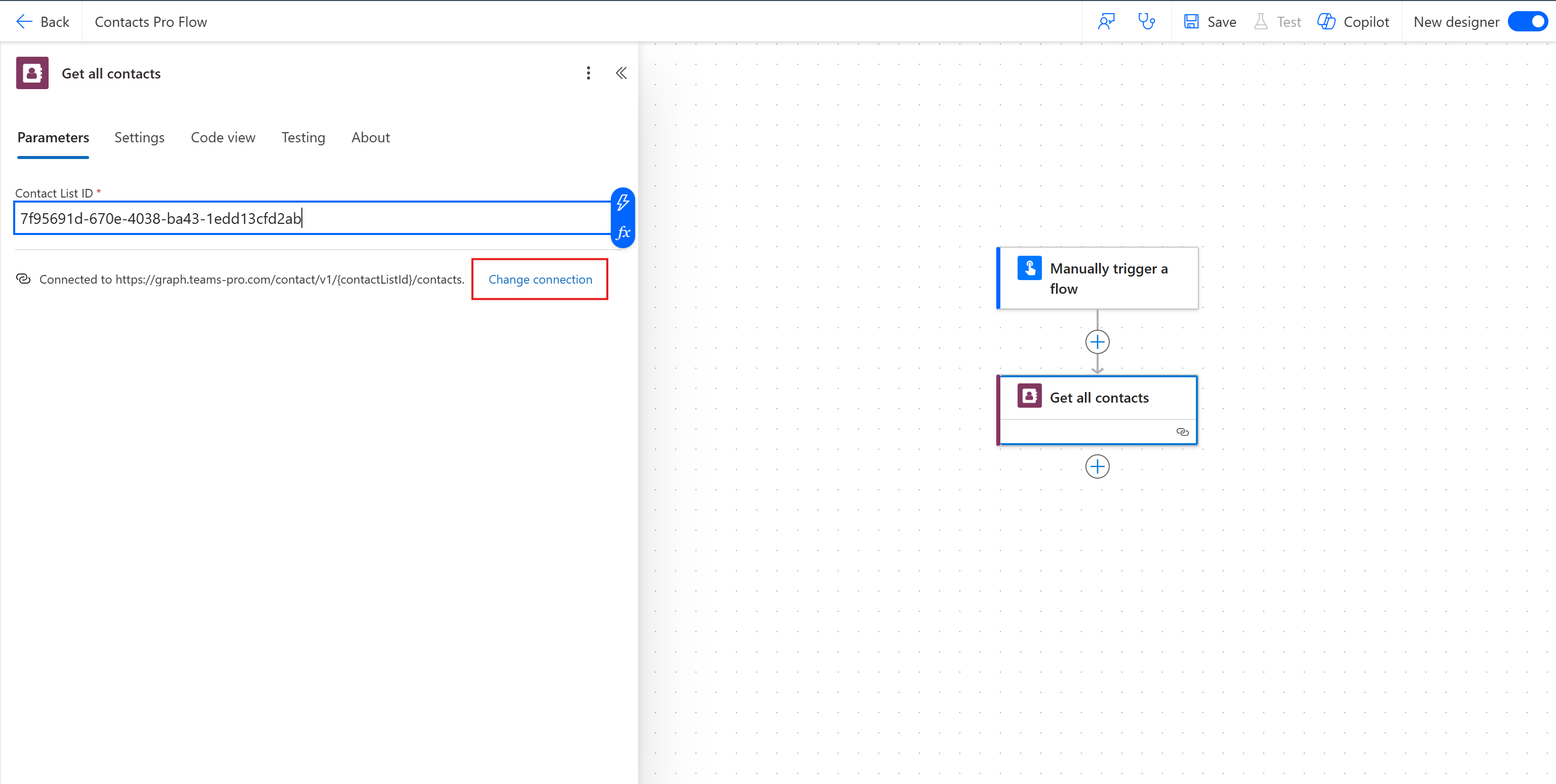
Enter the Contact List ID, which is the application identifier you copied earlier.
- 9
Click Change connection, then Add new, and fill in a Connection Name and your TeamsPro Graph API Key.
- 10
Click Create New to authenticate, then save your flow.
Once all these steps are complete, save your flow and it is ready to use.
# Related pages
- Find the application identifier in how to get the Contacts Pro ID.
- Move contacts in bulk with how to export contacts and how to import contacts.
- See what each plan unlocks in mixed tier usage in Contacts Pro.