
# How to export contacts from Contacts Pro
Exporting your contacts from Contacts Pro lets you back up your data or reuse it in other applications. Contacts are exported to an Excel file (.xlsx), and the finished file is delivered to your registered email address. Follow these steps to run an export.
# Export your contacts
- 1
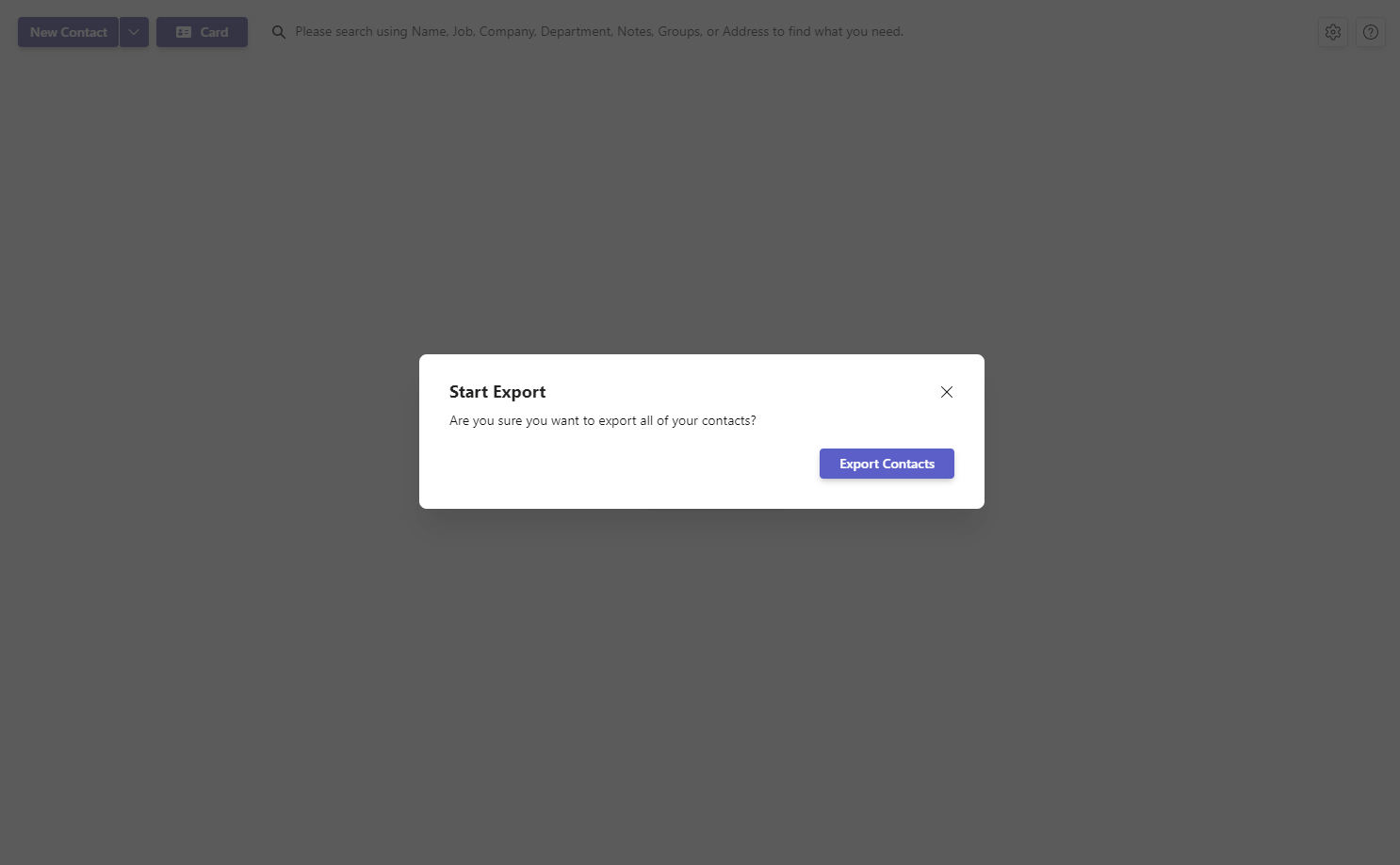
Open the export interface in Contacts Pro and click Export Contacts to open the confirmation modal.
- 2
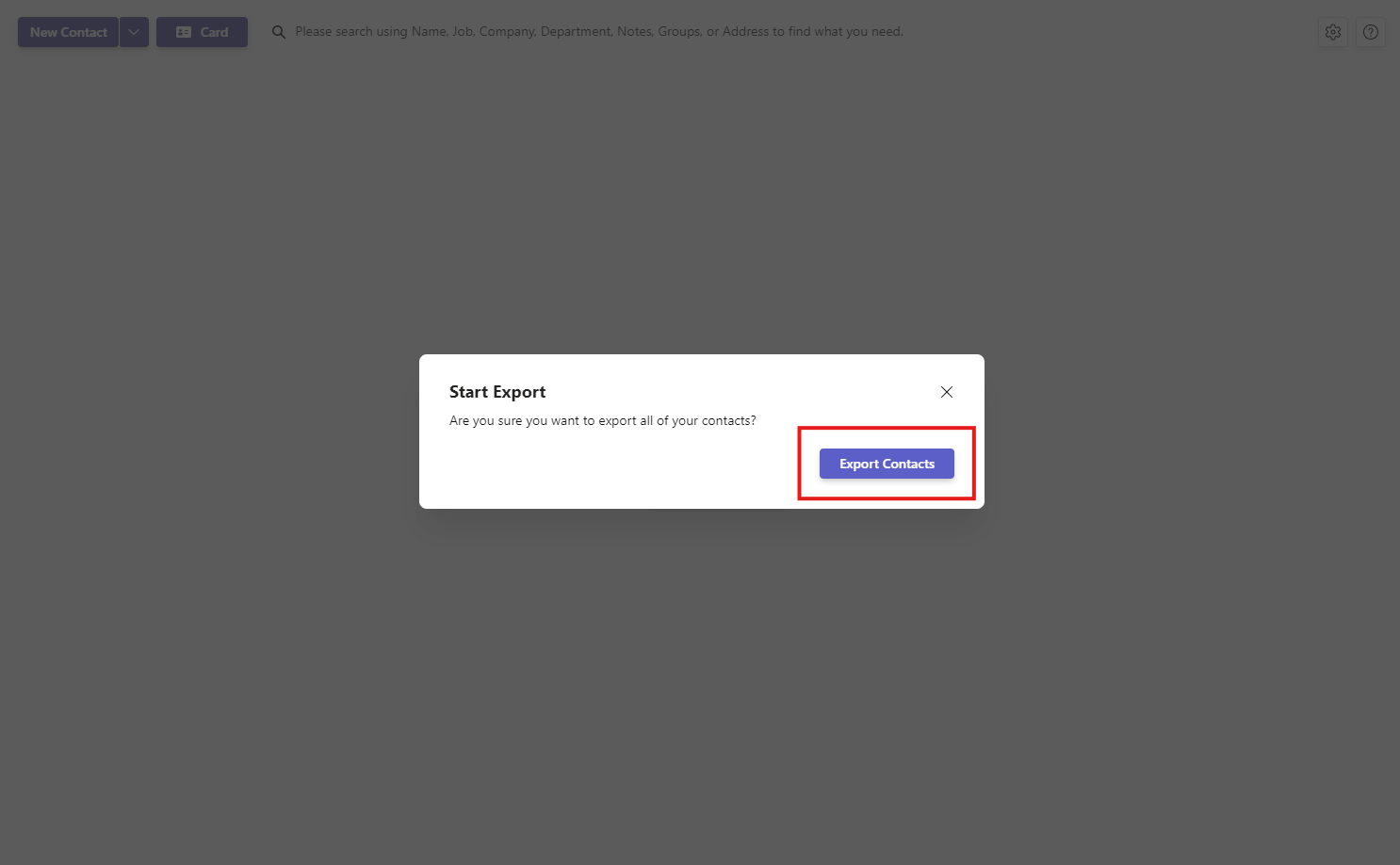
In the modal, confirm the prompt Are you sure you want to export all of your contacts? by clicking Export Contacts.
- 3
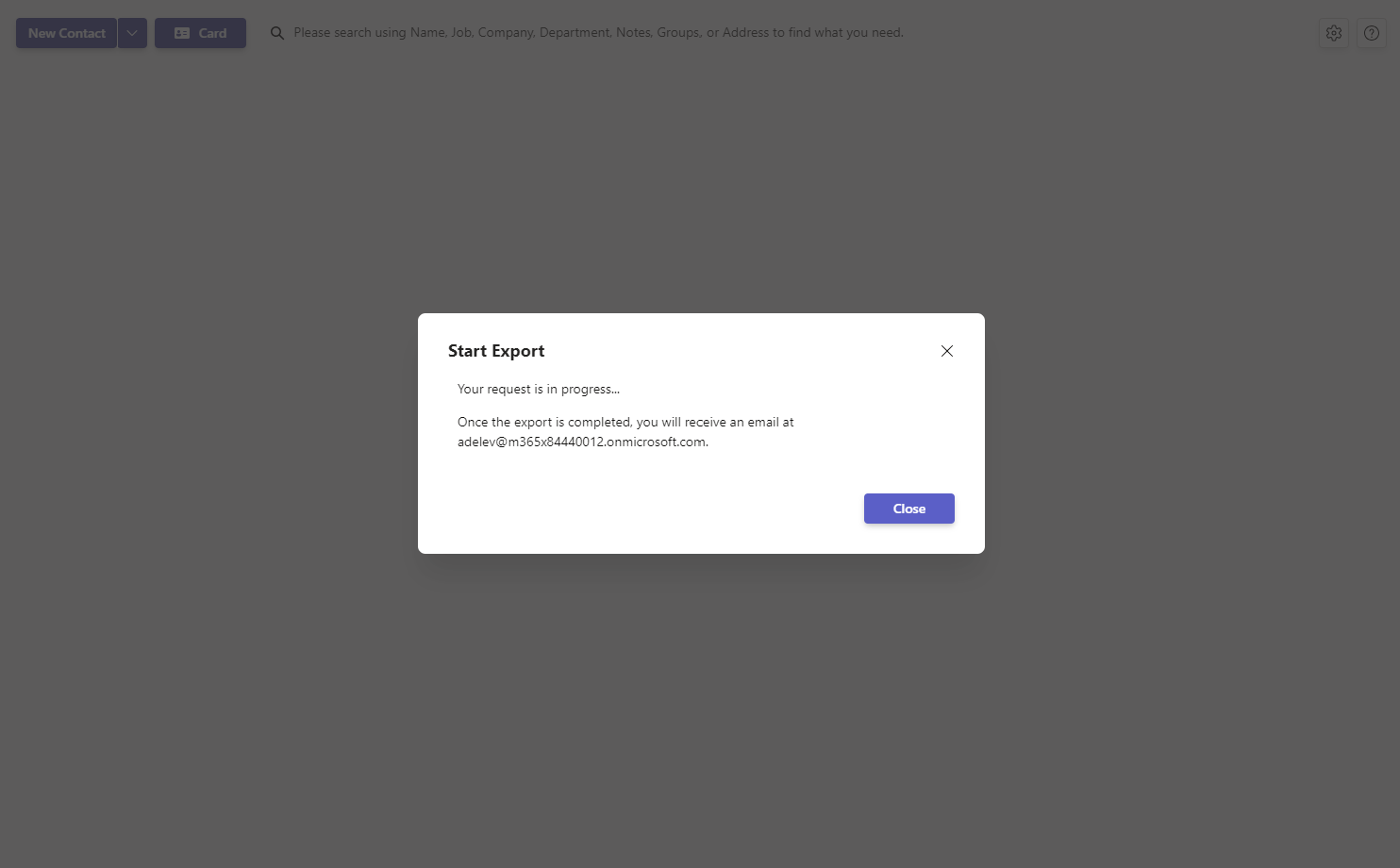
Wait for processing to finish. An in-progress modal appears, and you receive an email at your registered address once the export is complete.
# Related pages
- Bring contacts into Contacts Pro with how to import contacts.
- Move exported contacts into Outlook with sharing contacts through Outlook.
- Understand plan limits in mixed tier usage in Contacts Pro.
# Need help?
If you run into any issues during the export or have questions, contact our support team. We are here to help you manage and use your contact data.