
# Manage the Calendar Pro view
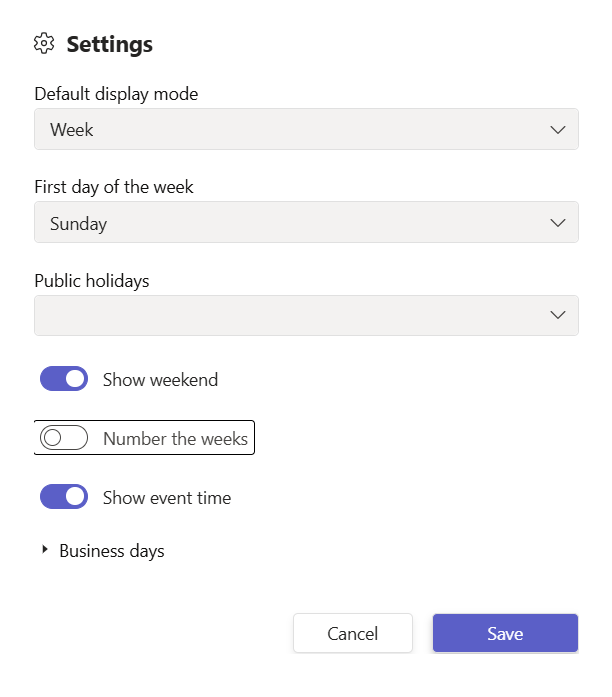
Tailor how Calendar Pro looks for your team inside Microsoft Teams. From the calendar settings you can set the first day of the week, pick the view that opens by default, highlight your business days, and show or hide weekends and week numbers.
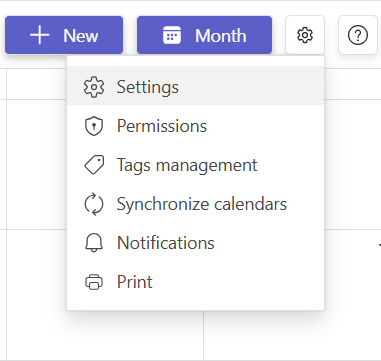
# Set the first day of the week
- 1
Click the Settings gear, then select Settings.
- 2
In the First day of the week dropdown, select the day your week should start on.
- 3
Click Save.
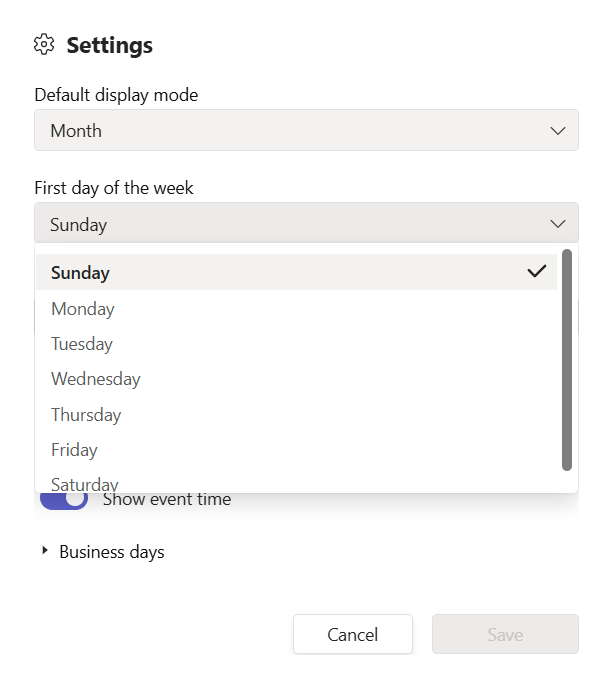
# Set the default view
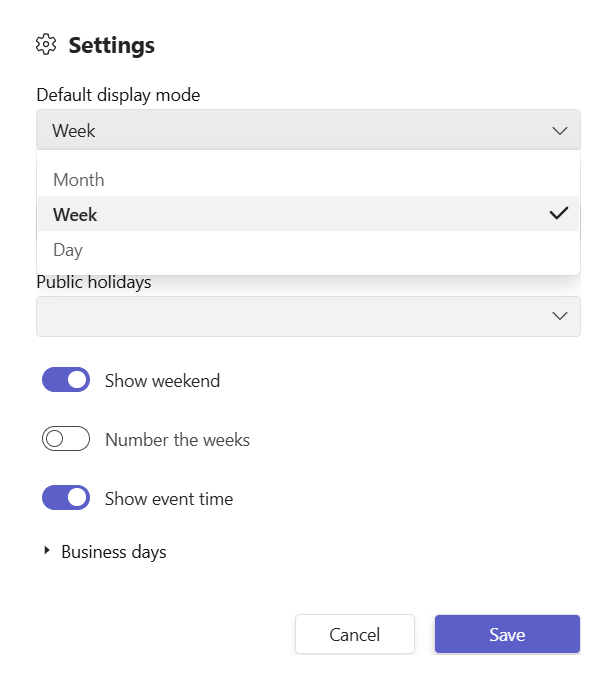
Choose the layout that opens whenever your team opens the calendar.
- 1
Click the Settings gear, then select Settings.
- 2
In the Default display mode dropdown, select the view that opens by default: Month, Week, or Day.
- 3
Click Save.
# Show your business days and hours
Highlight the days your team works so events outside working hours stand out.
- 1
Click the Settings gear, then select Settings.
- 2
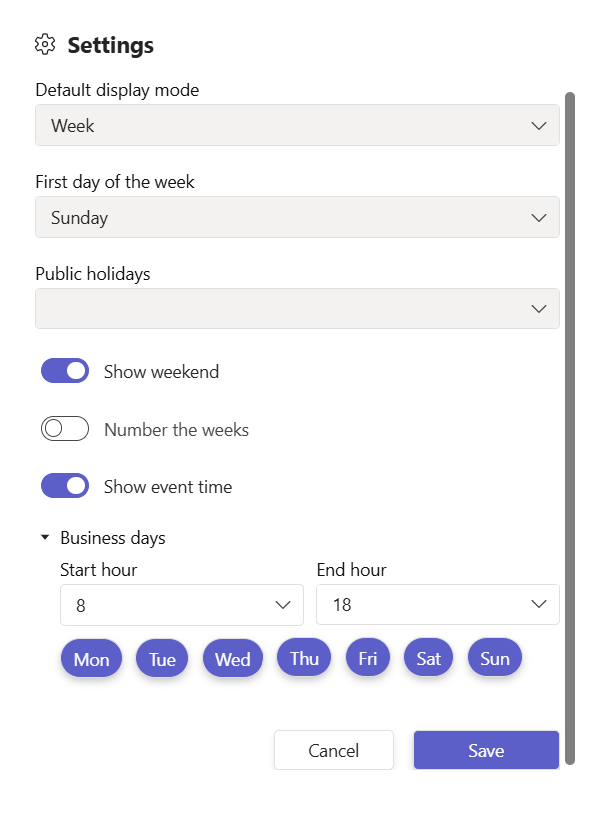
Set your working days under Business days so the calendar highlights your team schedule.
- 3
Click Save.
# Show or hide weekends and week numbers
- 1
Click the Settings gear, then select Settings.
- 2
Toggle Show weekend to display or hide Saturday and Sunday.
- 3
Toggle Number the weeks to show or hide the week number.
- 4
Click Save.
# Switch views quickly
You do not have to open Settings every time. In the calendar toolbar, click Month, Week, Day, List, or Timeline to switch layouts instantly without changing your default.
# Related pages
- Adjust how times display across regions with time zones.
- Gray out non-working days with public holidays.
- New to the app? Start with the Calendar Pro Get Started guide.