
# Create recurring events in Booking Room Pro
A recurring booking reserves the same room on a repeating schedule, so you set it up once instead of creating a separate event for every date. Use it for standing meetings, weekly team sessions, or any room you need on a regular basis in your shared Booking Room Pro calendar in Microsoft Teams.
Recurring bookings are a Booking Room Pro Premium feature. On the Free plan the Recurrence option stays locked. See the Premium vs Free comparison.
# Set up a recurrence
- 1
Open the Booking Room Pro tab, then click the date and time you want, or click + New.
- 2
Enter a Title, choose the Room, add Participants, and set the times.
- 3
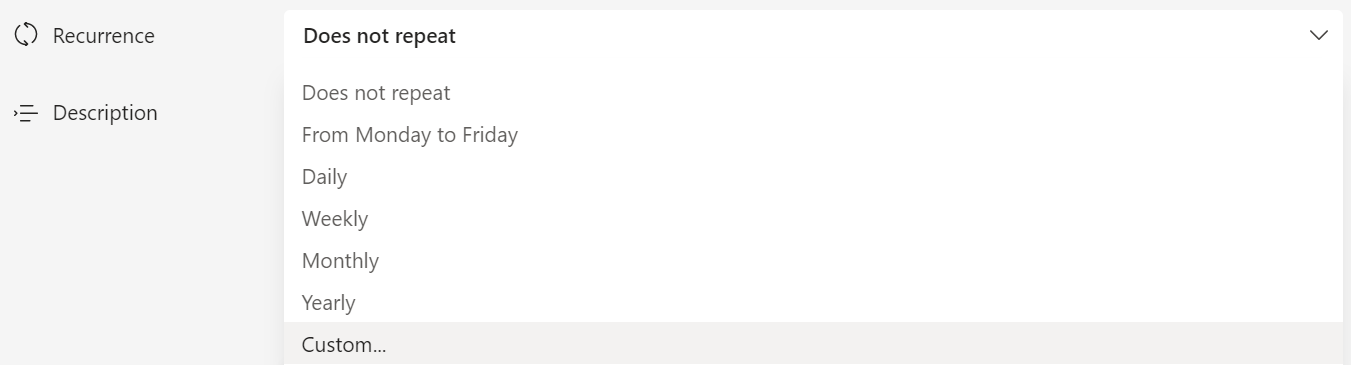
Open the Recurrence field (set to Does not repeat by default) and choose Daily, Weekly, Monthly, or Custom.
- For Custom, set Repeat every (the interval), Repeat on (the days), and Ends (Never, On a date, or After a number of occurrences).
- 4
Click Save. The room is reserved for every date in the series.
A recurring booking can be scheduled for up to 1 year, and the duration of a single booking cannot exceed that of its recurrence.