# Add an event in Booking Room Pro
A booking reserves a room for a set date and time in your shared Booking Room Pro calendar in Microsoft Teams. Create one whenever you need to hold a meeting space, and everyone in the channel sees the reservation right away so the room is not double-booked.
# Add a booking
- 1
Open the Booking Room Pro tab in Microsoft Teams.
- 2
Click the date and time you want to book, or click + New at the top right to open the booking form.
Clicking directly on a time slot in the calendar pre-fills the start and end times for you.
- 3
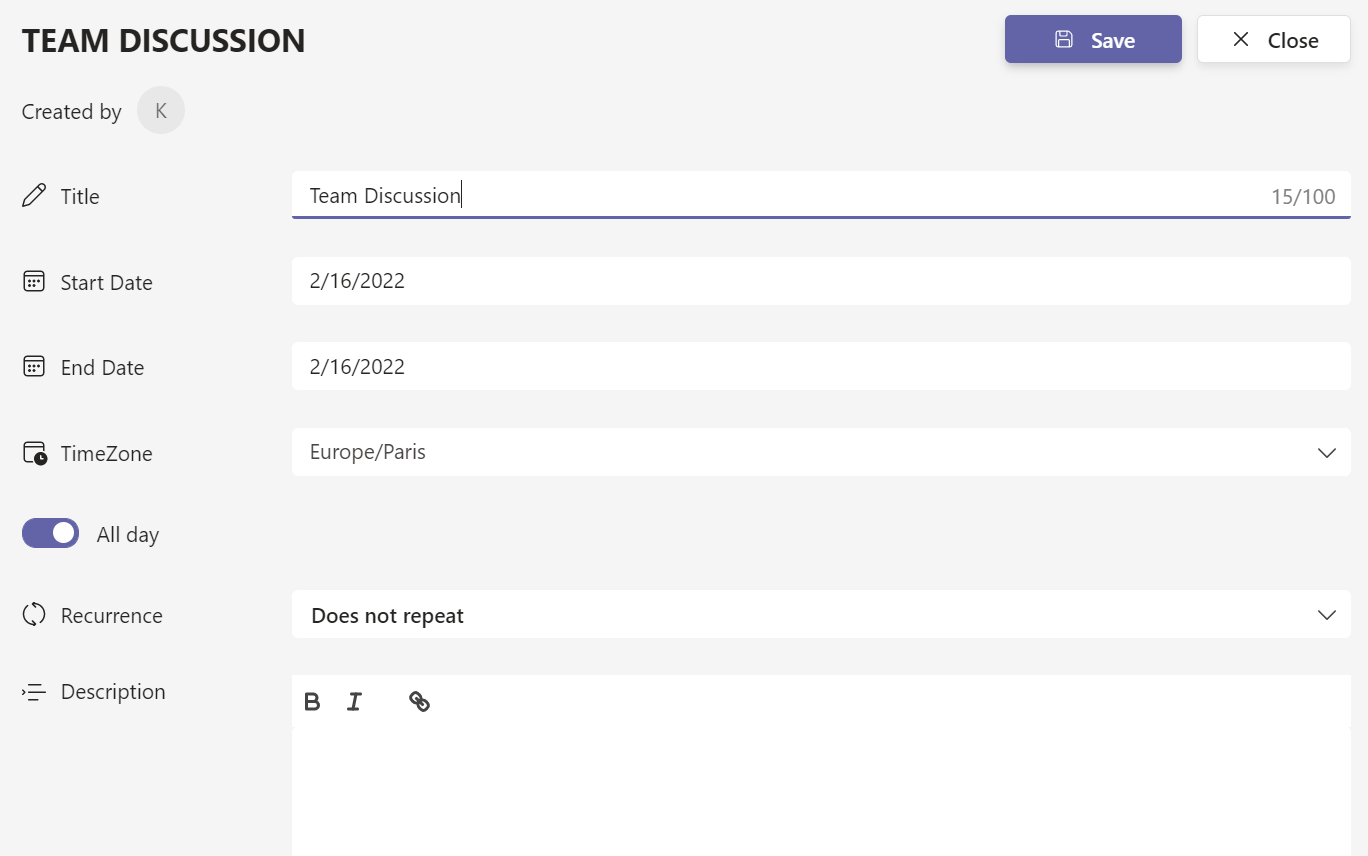
Enter a Title for the booking. This field is required.
- 4
Choose the Room to reserve and add any Participants.
- 5
Set the Start Date and End Date, and adjust the Timezone if needed.
- 6
Add a Description with any details attendees should know.
- 7
Click Save. The booking appears in the shared calendar for everyone in the channel.