
# Password Management in KeePass Pro
KeePass Pro lets your team create, update, and share credentials from one secure vault inside Microsoft Teams. This page walks you through creating passwords, editing and deleting them, copying values to your clipboard, generating strong passwords, pinning your most-used items, and finding items fast.
# Create a password
Add a new credential to your vault and store every detail your team needs to sign in.
- 1
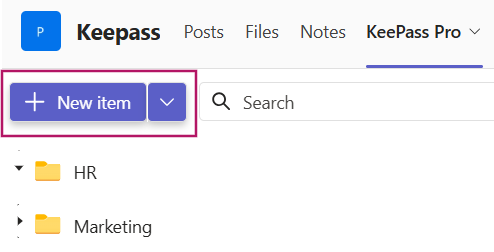
Click + New item ➕.
- 2
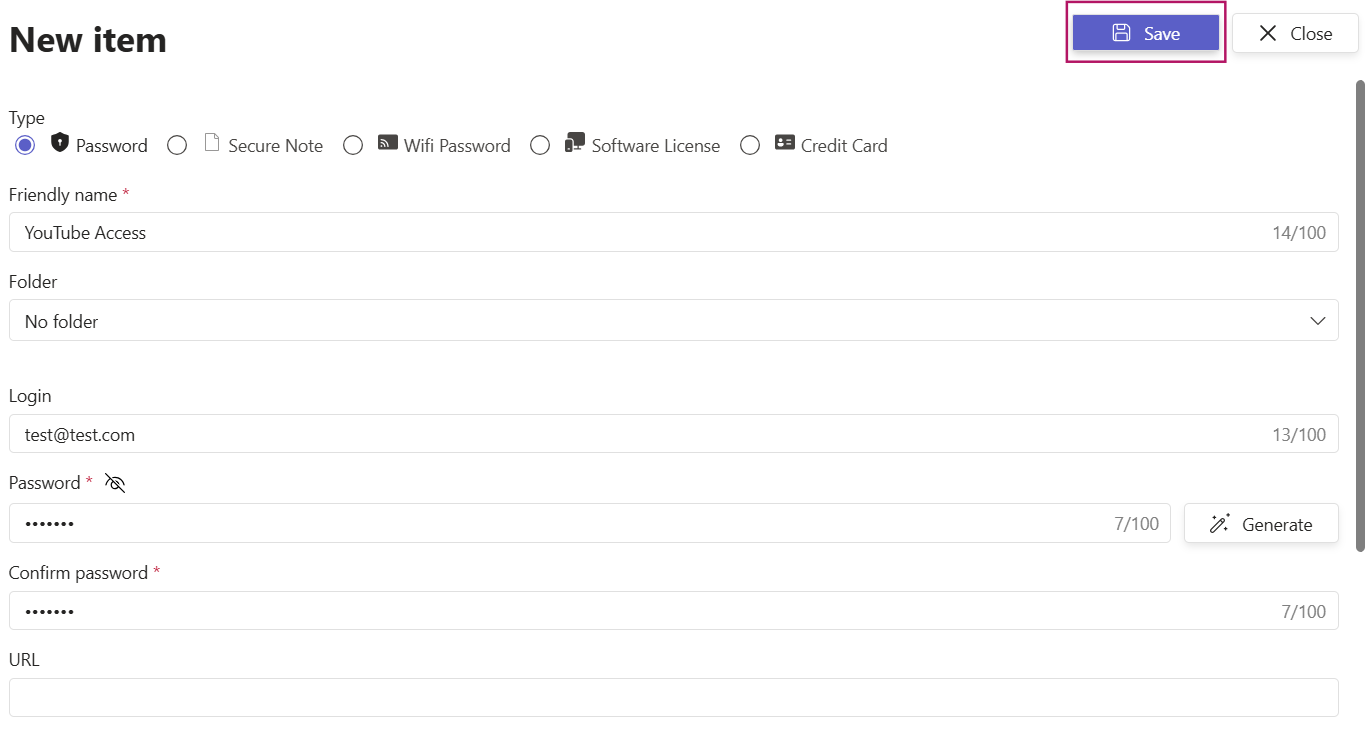
Enter the details you want to store, such as title, login, password, URL, and notes.
- 3
Set an expiration date to be reminded when the credential needs rotation.
- 4
Click Save to create the item. ✅
Place the item in the right folder so teammates can find it quickly later.

# Edit a password
Update a credential whenever a password changes or a detail needs correcting. There are two ways to reach edit mode:
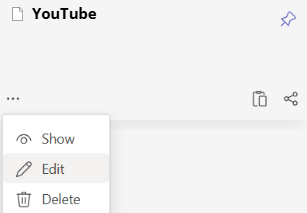
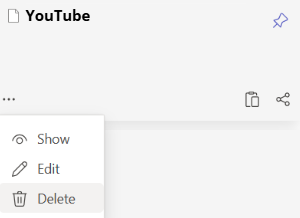
- From the card: click the ellipsis [···] at the bottom-left of the password card, then choose Edit.
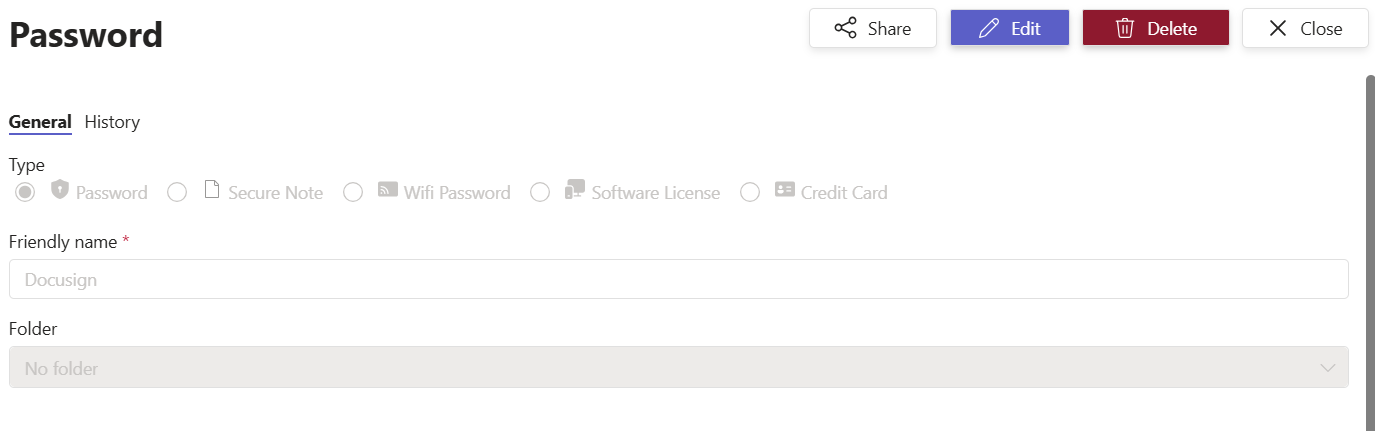
- From the details view: click the password entry to open its details, then select Edit in the top-right.
# Delete a password
Remove a credential you no longer need. As with editing, you can delete from the card or from the details view:
- From the card: click the ellipsis [···] at the bottom-left of the password card, then choose Delete.
- From the details view: open the item, then select Delete in the top-right.
# Copy a password
Copy any stored value to your clipboard without revealing it on screen. Click the copy icon at the bottom-right of the password card. A menu lists every value that can be copied for that item, and clicking one copies it. A Copied! confirmation appears. You can also open an item and click the Copy button next to any field.
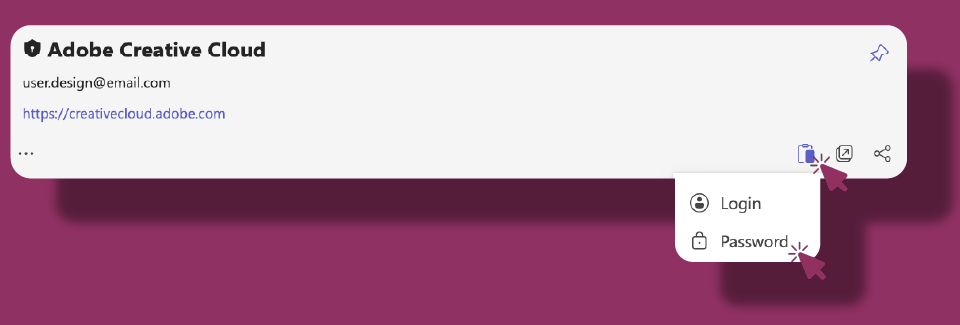
The copy menu only shows the values that exist for the selected item type, so what you can copy depends on the item:
- Login for a Password, Wifi (SSID), Software License (License Key), or Credit Card (Name Of Card) item.
- Password for Password and Wifi items.
- Card Number for Credit Card items.
- Security Code for Credit Card items.
- Notes for Secure Note items.
# Generate a password
Let KeePass Pro build a strong, random password so you never reuse a weak one.
- 1
Click + New item, or open an existing item and switch to Edit.
- 2
Next to the Password field, click Generate 🪄 to open the Random Password pop-up.
- 3
Drag the Password length slider to any size from 10 to 100 characters.
- 4
Select the character sets you want to include (see the options below).
- 5
Click Generate to preview the result, then Use this password to insert it into the item.
- 6
Click Save to store the item. ✅
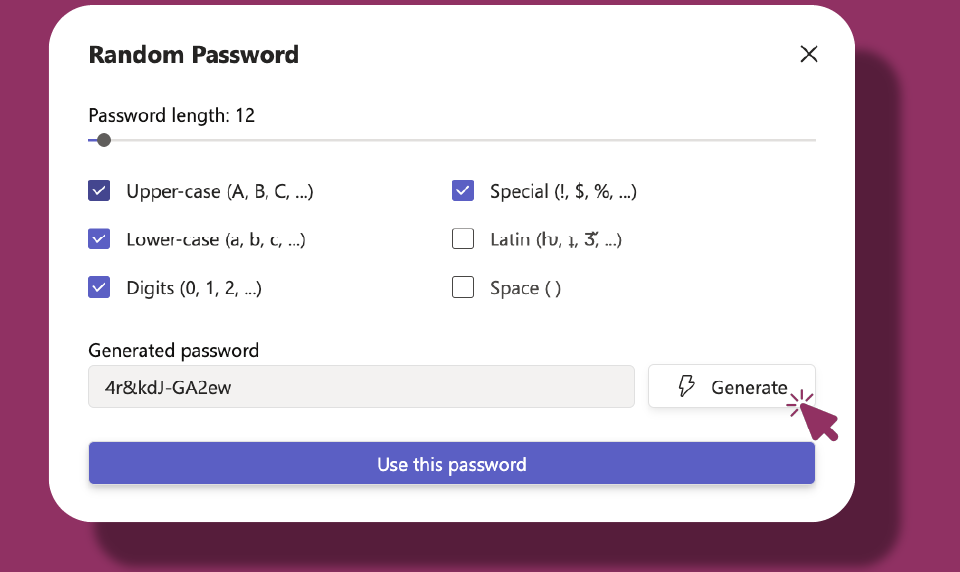
The generator offers six options you can mix freely:
- Upper-case capital letters (A, B, C, and so on).
- Lower-case small letters (a, b, c, and so on).
- Digits numbers (0, 1, 2, and so on).
- Special symbols (!, $, %, and so on).
- Space allows blank spaces inside the password, making it longer and harder to guess.
- Latin adds accented and extended Latin letters (for example ƕ, ʇ, Ǯ), which greatly increases the variety of characters used.
# Pin a password
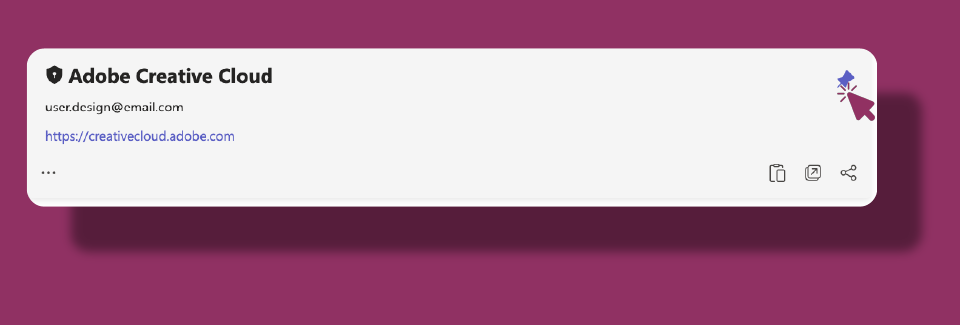
Pin your most important credentials so they stay at the top of the vault under Favorites for quick access. Click the pin icon 📌 at the top-right of the password card.
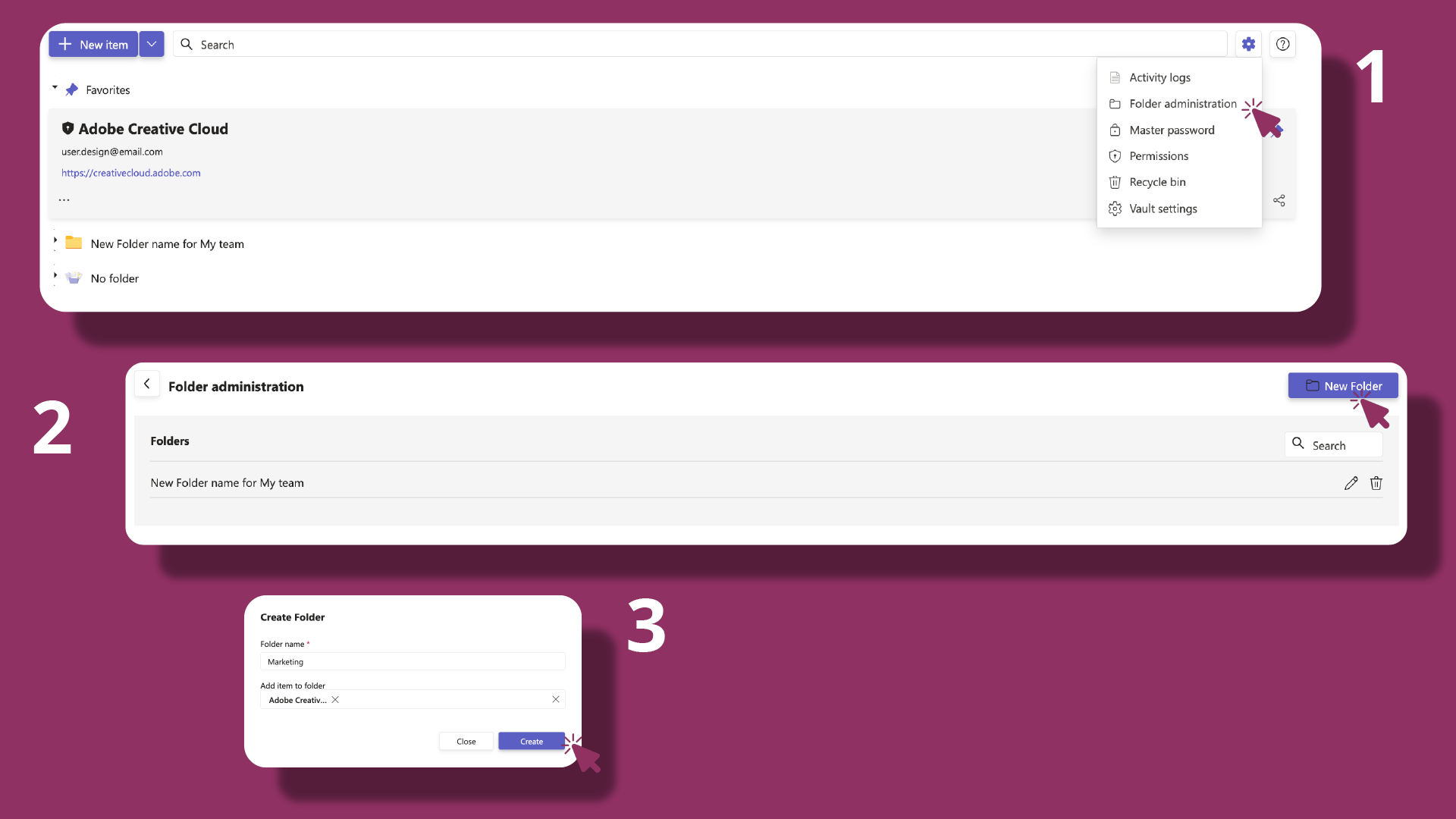
# Folders and organization
Vaults use folders to keep passwords organized. Not everyone can create folders: only a vault Owner on the Platinum plan can add and manage them.
# Search your vault
Use the Search bar at the top of the vault to locate an item in seconds. Start typing and the list filters as you go.
The search looks across multiple fields at once, such as the title, login, URL, and notes, as well as folder names, so you can find an item even if you only remember part of a detail. For your security, the password value itself is never searched.
When you search, matching folders open automatically and each folder shows how many matching items it contains. If nothing matches, KeePass Pro tells you that no item was found for your search.
# Sort and filter items
Click the filter icon 🔽 next to the Search bar to change how your items are ordered. A checkmark shows which option is active:
- Alphabetical sorts items by name from A to Z.
- Date orders items by their creation or update date.
- Expires orders items by their expiration date, so credentials that need rotating soonest are easy to spot.
# Related pages
- Understand the fields behind each credential in item types.
- Set up and secure your vault in vault management.
- Track who changed what with the activity logs.