
# Participants in Gantt Chart Pro
Assign people to tasks so ownership is visible to everyone in the channel. In Gantt Chart Pro for Microsoft Teams you first add participants to the project, then assign them to individual tasks and set how much of their time each task takes.
# Add participants to the project
Build a shared list of people for the plan so they are ready to assign on any task.
- 1
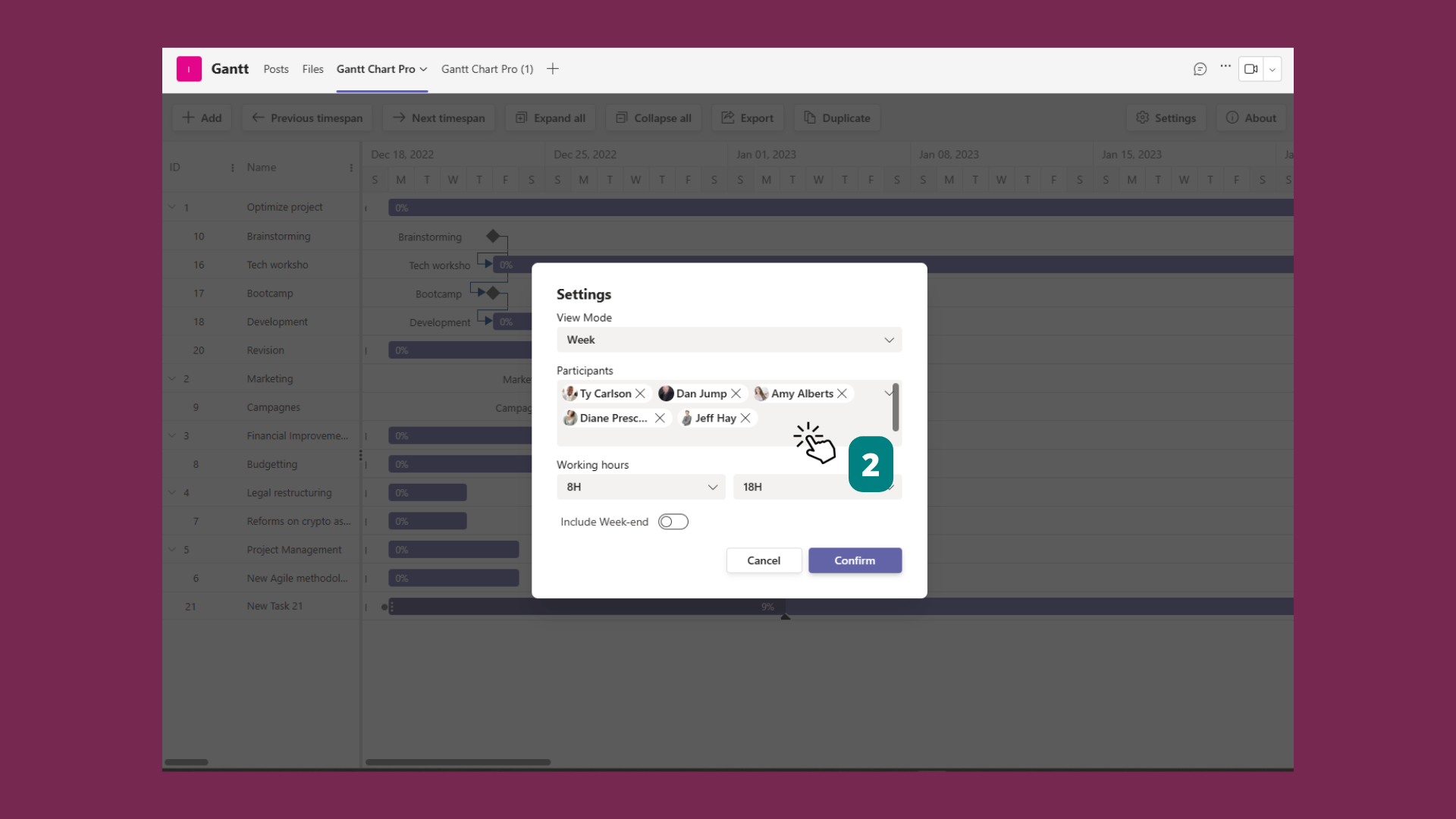
Click the Settings button in the toolbar.
- 2
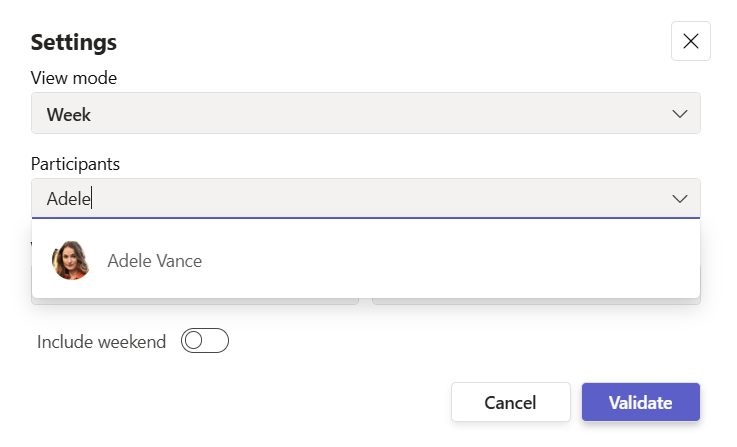
In the Participants section, type the names of the people you want on the project.
- 3
Click Confirm to add them to the project participant list.
These participants become available to assign on every task in the plan.

# Assign participants to a task
Once people are on the project list, assign them to the tasks they own and set their level of dedication.
- 1
Create a task with + Add, or open an existing task to edit it.
- 2
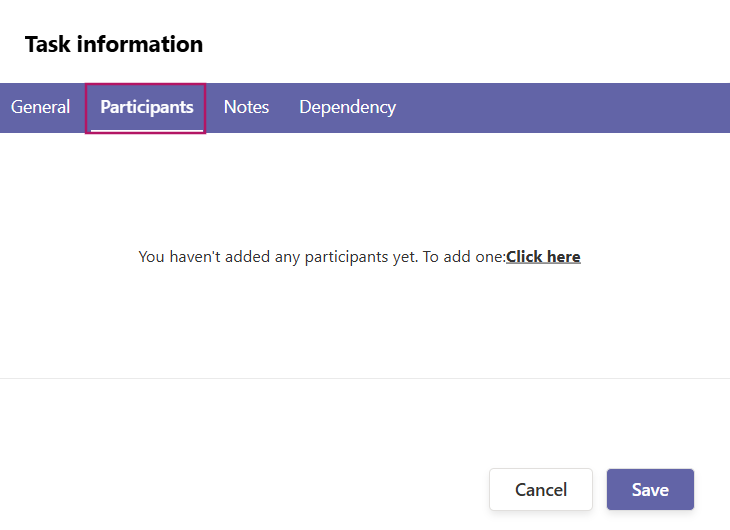
Open the Participants tab, then select the people to assign from the project list.
- 3
Set each person Participation (%) to show how much they are dedicated to the task, then click Save.

# Common questions
# How do I see who owns a task?
Open the task to view its participants, or check the assignee indicator shown on the task bar in the timeline.
# Why can I not add a fourth participant?
The Free plan limits you to 3 participants per task. Upgrade to Premium to assign an unlimited number of people.
# Do assigned participants get notified?
Yes, if notifications are turned on. See Teams notifications for how alerts reach the people assigned to a task.
# Related pages
- Turn on alerts for the people you assign in Teams notifications.
- Structure multi-owner work in tasks and subtasks.
- Group and filter the plan by owner in colors, filters, and sorting.
← What it is What it is →