
# Add a new group in Contacts Pro
Groups let you sort your shared contacts into meaningful sets, such as customers, suppliers, or a project team. Once contacts are grouped, you can browse the book in Group view and filter people faster. This page shows you how to create a group.
# Create a group
- 1
Open the Contacts Pro tab in Microsoft Teams.
- 2
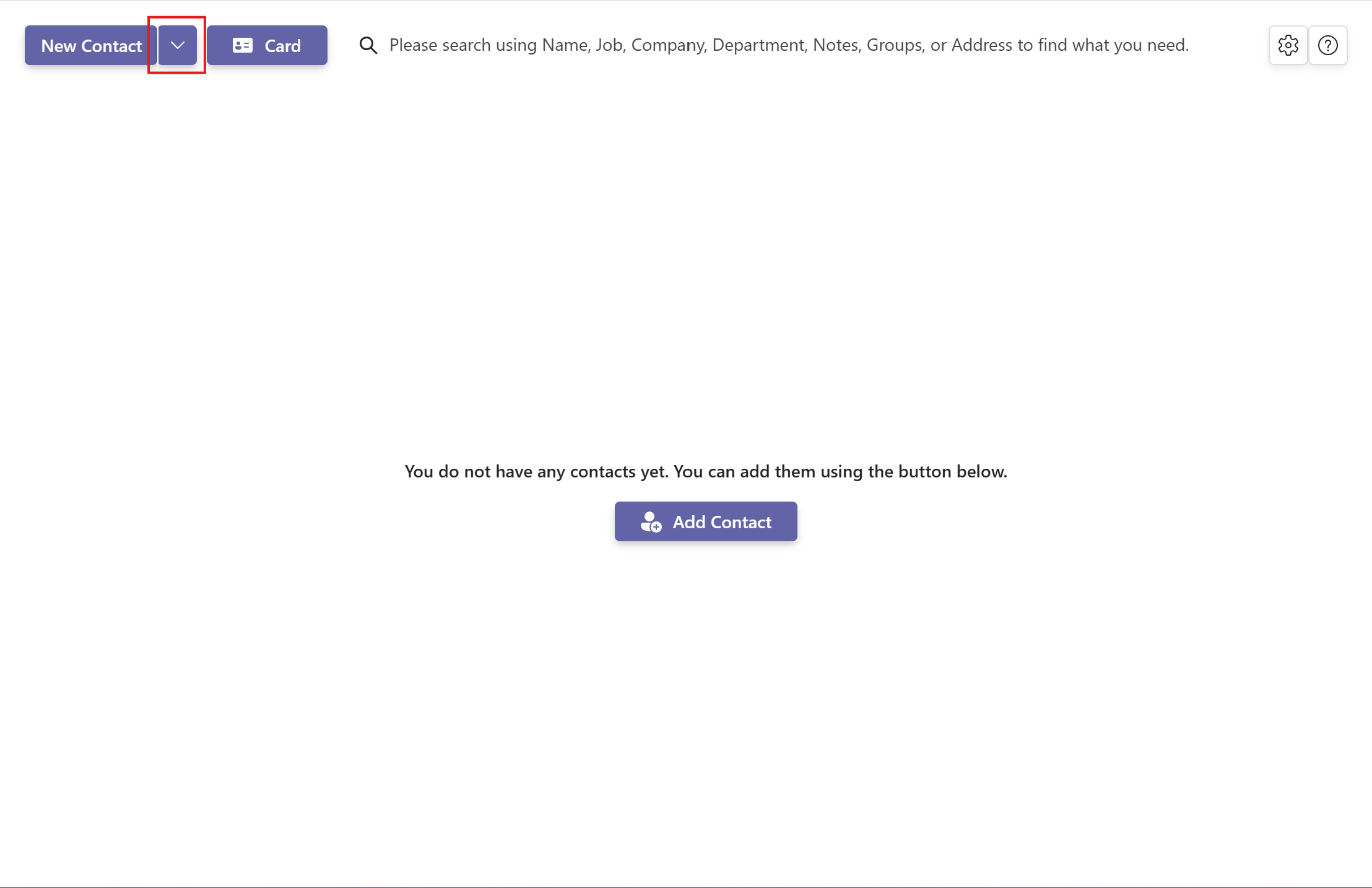
Click the arrow next to the New Contact button, then select New Group.
- 3
In the pop-up window, enter a Group name.
Each group name must be unique. If the name already exists, Contacts Pro asks you to choose a different one.
- 4
Click Create to save the group.
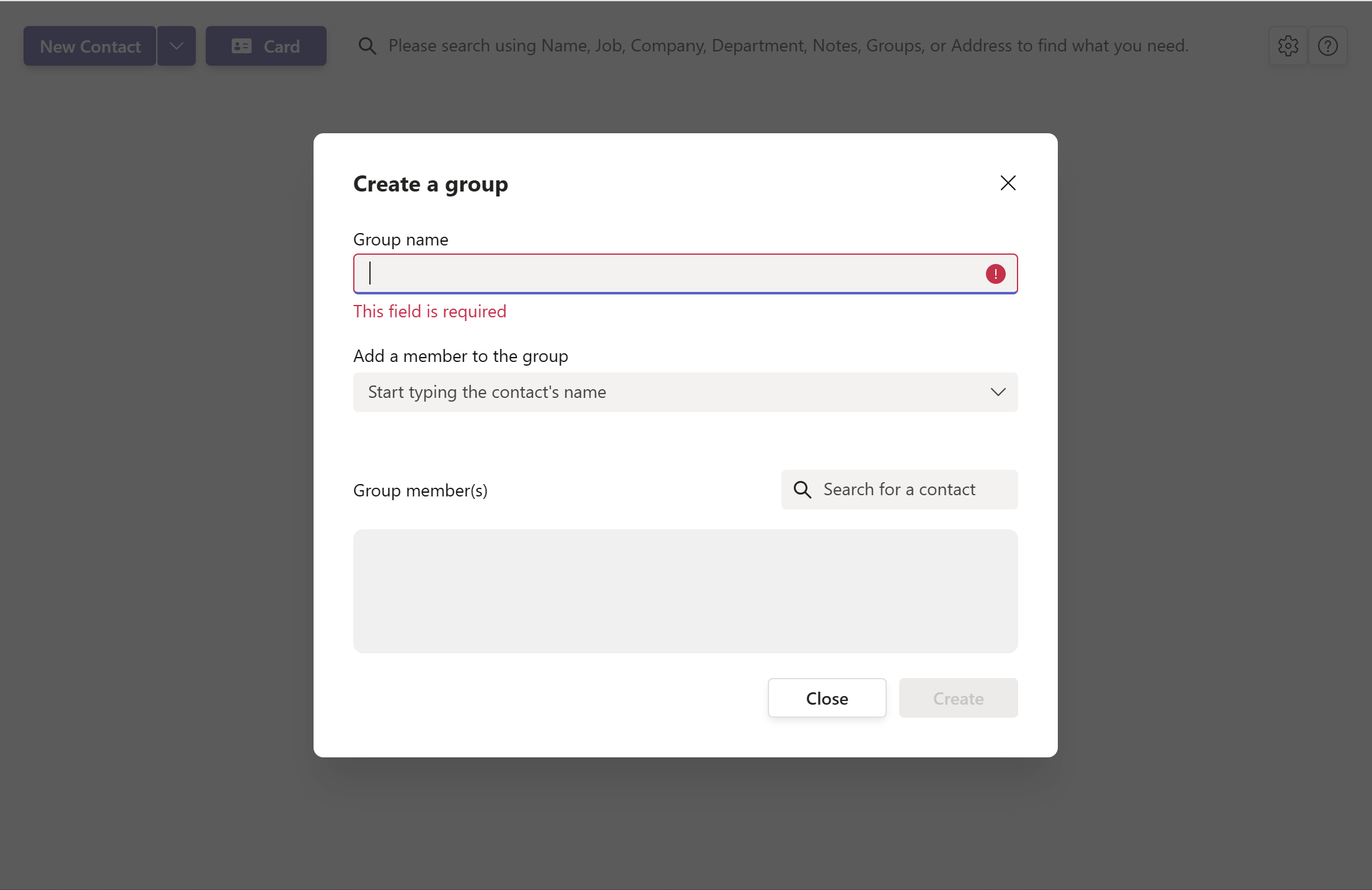
You can add contacts to a group while creating it, or manage members later from Group Administration in the settings menu.
# Related pages
- Put people into groups with how to assign a group to a contact.
- Add the people themselves in how can I add a new contact.
- Browse by group using how can I select the display mode.