
# Booking Room Pro Time Zones
Booking Room Pro shows every booking in a single time zone so your team reads the same schedule. You can set the time zone for the whole view, or override it on a single booking when you plan across regions.
# Change the time zone for the whole view
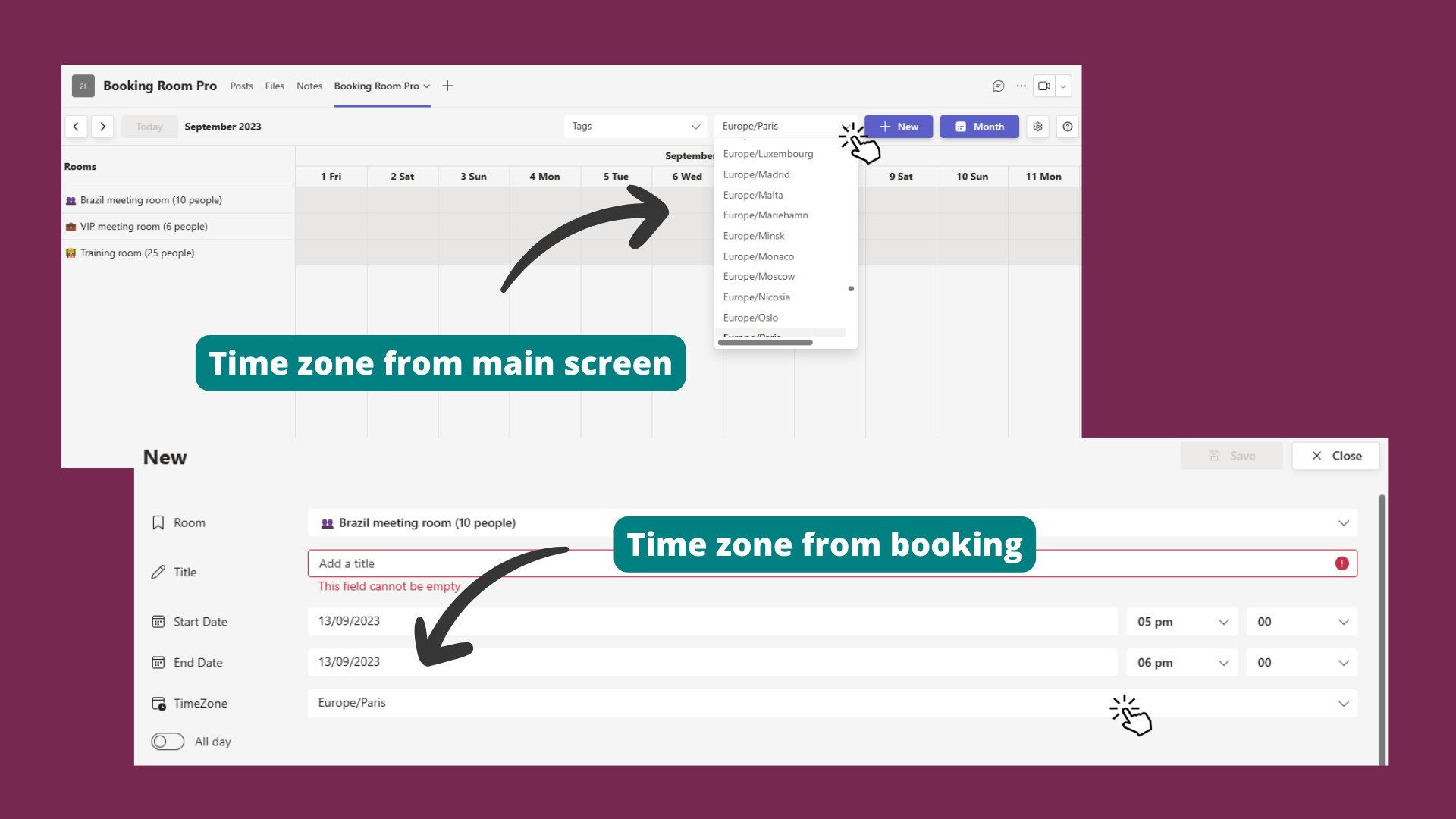
Use the view-level time zone when your channel works mostly from one region. Set it from the TimeZone dropdown at the top of the Booking Room Pro view.
- 1
At the top of the Booking Room Pro view, open the TimeZone dropdown.
- 2
Browse the list or use the search box to find the zone you want.
- Select it by continent and region, for example
America/New_York.
For some regions you can narrow the zone further with a second slash, for example
America/Indiana/Indianapolis. - Select it by continent and region, for example
- 3
The view updates automatically and every booking shows in the new time zone.
# Set the time zone for a single booking
Give one booking its own time zone when it involves people in a different region, without changing the view for everyone else.
- 1
Open a booking, or click New to create one.
- 2
In the booking options, find the Timezone field below the start and end dates.
- 3
Open the Timezone dropdown, then browse or search for the zone you want, for example
Europe/Paris. - 4
Complete the rest of the booking, then save it to store the booking with its own time zone.
# Related pages
- Add an event to create a booking with the time zone you need.
- Change the view and day of the week to adjust how bookings appear.
- Print your planning once your times are set for the right region.