
# Privacy and consent in Map Pro
The first time you open a map, Map Pro for Microsoft Teams asks two optional questions: whether you want product tips and offers by email, and whether you are willing to share how you use the app so it can be improved. Both are off until you turn them on, and neither has any effect on the map itself.
# When the dialog appears
The dialog opens by itself once your map has finished loading, so you see the app before you are asked anything. It never blocks the map: you can close it and keep working.
If you close it without answering, Map Pro may ask once more on a later visit, at least five days afterward. After that it stops asking by itself, and Privacy choices in the More options menu is the way to answer.
# What the dialog asks
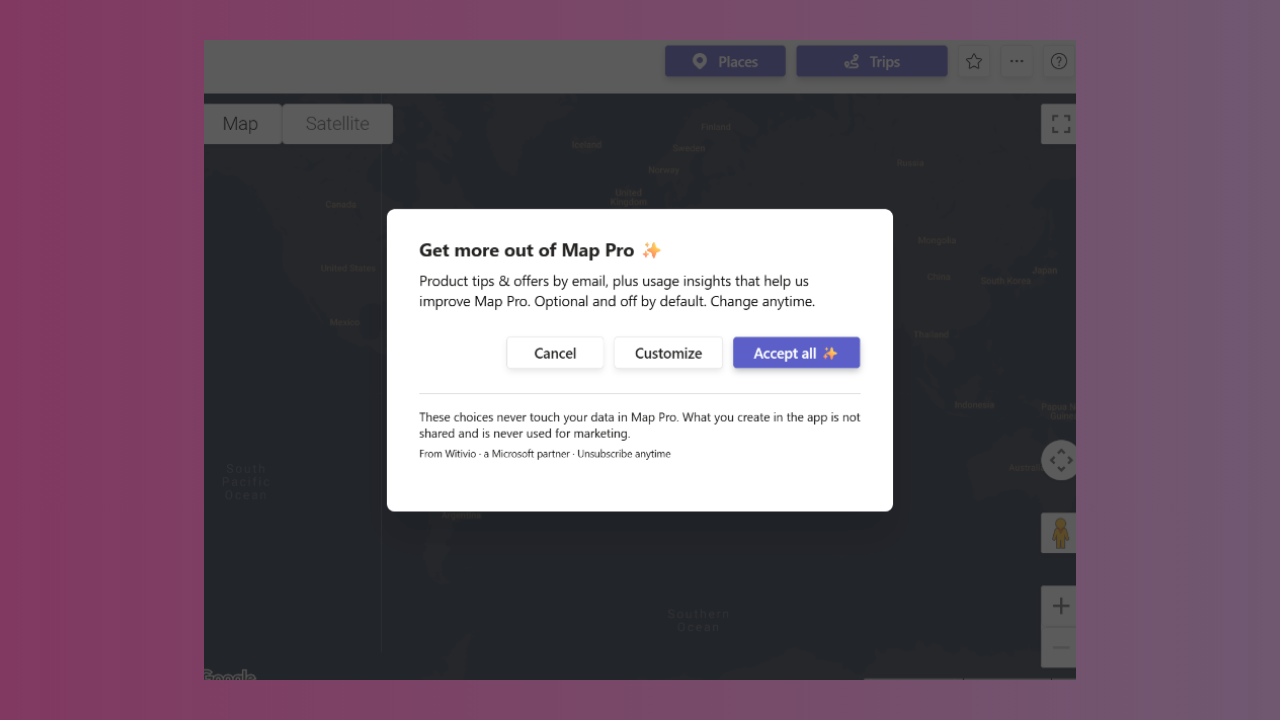
The dialog opens on a short summary view titled Get more out of Map Pro, which explains both options in one sentence and offers three actions.
| Action | What it does |
|---|---|
| Accept all | Turns on both options at once. |
| Customize | Opens the detailed view so you can decide option by option. |
| Cancel | Closes the dialog without saving anything. Nothing is turned on, and you are not recorded as having answered. |
Below the buttons, the dialog states that these choices never touch your data in Map Pro: what you create in the app is not shared and is never used for marketing.
# The Customize view
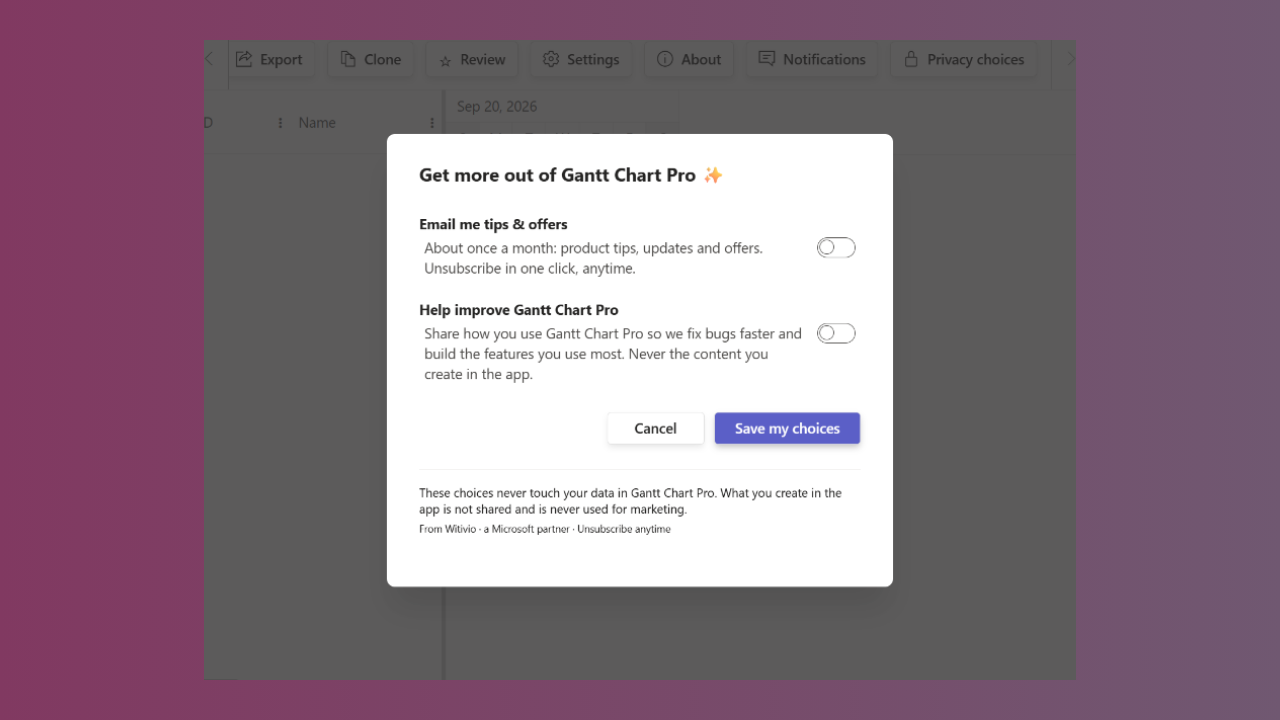
Customize replaces the summary with one toggle per purpose. Both toggles are off by default, and the only thing that is ever pre-filled is an answer you saved yourself.
- 1
In the consent dialog, click Customize.
- 2
Review Email me tips & offers, the marketing option.
It reads: About once a month: product tips, updates and offers. Unsubscribe in one click, anytime.
- 3
Review Help improve Map Pro, the product-improvement option.
It reads: Share how you use Map Pro so we fix bugs faster and build the features you use most. Never the content you create in the app.
- 4
Turn on only the toggles you want. Both start in the off position.
- 5
Click Save my choices to confirm.
# What happens after you save
The dialog confirms what you actually turned on. If you turned on nothing, it confirms that nothing is shared. When the dialog had opened by itself, the confirmation also reminds you where to change your answer later.
Your choice is saved for your own user account in Map Pro, so you are not asked again the next time you open the tab.
# Declining does not limit the app
Turning everything down, or closing the dialog without answering, does not disable or restrict any part of Map Pro. Places, trips, satellite view, connected apps, and every other feature work exactly the same way. The two options only control marketing email and product-improvement insights.
# Change your choice at any time
Withdrawing is as easy as granting. The Privacy choices entry is always in the More options menu, whether or not you have answered.
- 1
Open your Map Pro tab in Microsoft Teams.
- 2
Click the More options button (the three dots) in the toolbar above the map.
- 3
Select Privacy choices. The dialog opens directly on the detailed view, with your saved answers already filled in.
- 4
Turn any toggle on or off, then click Save my choices.
# Common questions
# What is shared if I turn on the product-improvement option?
How you use the app, so bugs are fixed faster and the most-used features are prioritized. The content you create in the app is never shared.
# Can I unsubscribe from the emails later?
Yes. The marketing emails arrive about once a month and can be unsubscribed from in one click. You can also turn the option back off from Privacy choices at any time.
# I clicked Cancel. Did that count as declining?
No. Cancel saves nothing at all and leaves the question open, so you can still answer later from the menu.
# Do my teammates see my answer?
No. The answer belongs to your user account, not to the map or the team.
# Related pages
- Make the same choices in Gantt Chart Pro.
- Find the version of your Map Pro
- Read how Witivio handles personal data in the trust center privacy and compliance section.
- New to the app? Start with how to set up a tab for Map Pro.