
# Install Booking Room Pro in your Microsoft Teams app
Booking Room Pro is installed from the Microsoft Teams app store and added to a team or channel as a tab. Once it is in place, the shared room calendar is available to everyone in that channel, with no separate download or admin package required for standard use. Follow these steps the first time you set up Booking Room Pro for your team.
# Install and add the tab
- 1
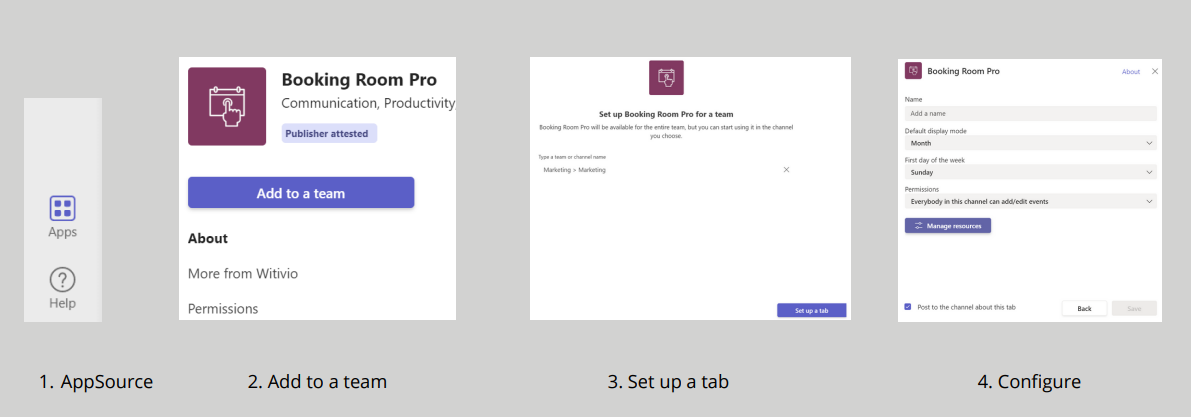
Open the Teams app store from the bottom of the left navigation panel: click Apps.
- 2
Search for Booking Room Pro and select it.
- 3
Click Add to a team.
- 4
Click Type a team or channel name and search for the team you want to add it to.
- 5
Select the team, then click Set up a tab.
- 6
Choose the settings you want, then click Save.
If you do not see the app in the store, your Microsoft Teams administrator may need to approve or publish it for your organization. Contact your tenant admin if the app is blocked.