
# Admin Center fundamentals
The Teams Pro Admin Center, at admin.teams-pro.com (opens new window), is where you decide who in your organization uses each Teams Pro app, and where you follow your plans and invoices. This page walks through each page of the Admin Center so you know where to find things. If you have never signed in, start with Get started with the Admin Center.
A few terms used on this page:
- Access (also called a seat or license): one person allowed to use one app. A plan includes a number of accesses that you give to colleagues.
- Plan: the level of an app you subscribe to, such as Free, Premium or Platinum.
- Administrator: a person who manages the Teams Pro account of your organization in the Admin Center.
The Admin Center itself is available on every plan. The pages are My apps, People, Billing and, for administrators, Administrators.
# My apps
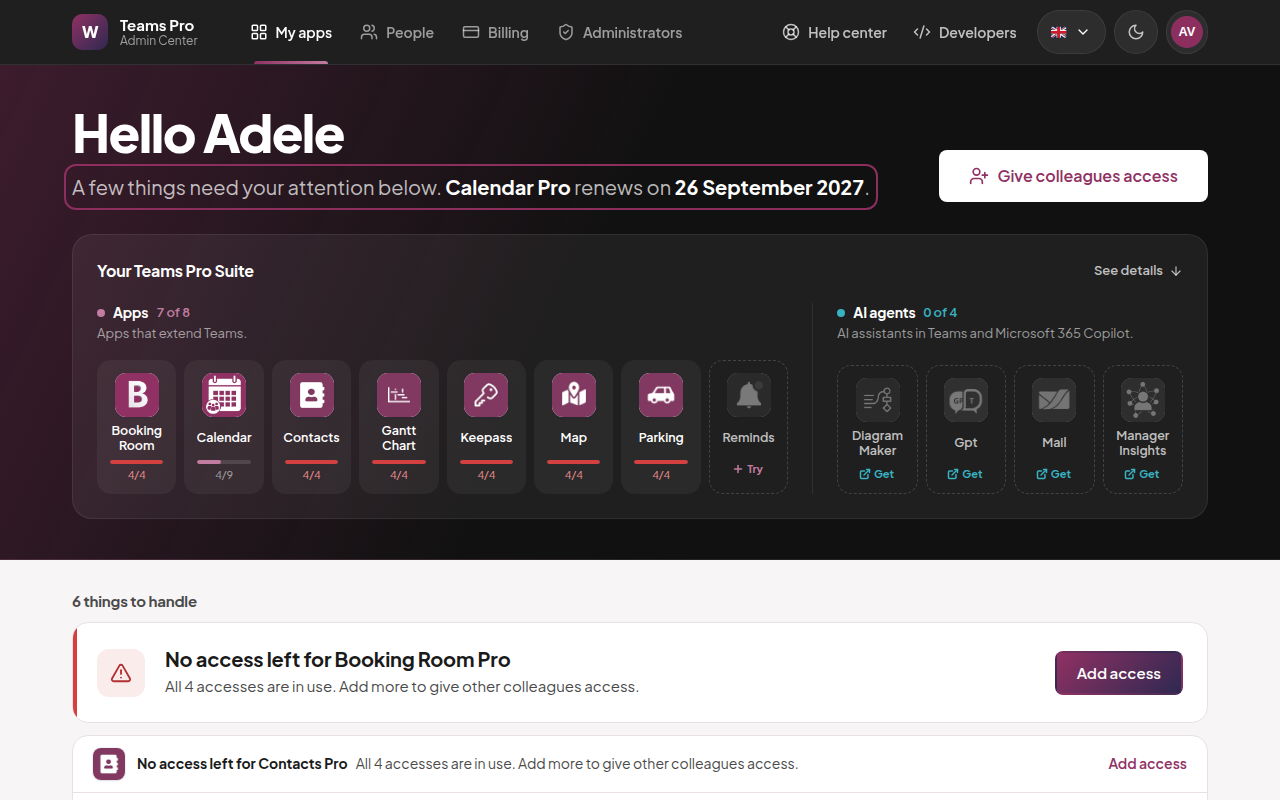
My apps is the home page. The line at the top tells you at a glance whether anything needs you: it reads Everything's running smoothly. or A few things need your attention below., followed by the next date that matters, such as a renewal or the end of a trial.
# Things to handle
When something needs an action, a list titled {count} things to handle appears, for example "2 things to handle". Each item comes with the button that fixes it:
- A trial about to end, such as Your {app} trial ends in {days} days, with Keep {app}.
- An app with no access left, No access left for {app}, with Add access.
- A subscription that will not renew, {app} will stop on {date}, with Keep {app}.
- An ownership transfer offered to you, with See the transfer. You add your billing details, then accept on the Administrators page.
# Access requests
Colleagues can ask you for an app. Their requests appear under Access requests (Colleagues waiting for your answer.). Accepting a request uses one access of the plan you choose.
- 1
Open My apps and find Access requests
The section only shows when a colleague is waiting for an answer.
- 2
Click Accept or Decline next to the request
- 3
If you accept, choose the plan under Give the access on
If every access of that plan is taken, add some first, then accept.
- 4
Optionally, write a message in A word for {name} (optional)
Your colleague receives your answer and your message by e-mail.
- 5
Confirm your answer
# Your Teams Pro Suite
This shelf shows every Teams Pro product in two groups: Apps (Apps that extend Teams.) and AI agents (AI assistants in Teams and Microsoft 365 Copilot.).
- An app you do not have yet shows Try, to start a free trial.
- An AI agent sold only on Microsoft Marketplace, such as Diagram Maker Pro, shows Get. It opens the agent's Microsoft Marketplace page in a new tab.
# Your apps
Your apps (Manage access and plans for each app.) lists each app you subscribe to, with the number of accesses in use, shown as {assigned} of {bought} people, for example "12 of 20 people".
Click See who has access to open Who has access to {app}. It lists each person by name and e-mail. Use Search the list to find someone, and Remove access to take the app back from a person. Removing access frees that access for someone else.
If one of your subscriptions has ended, it appears under Ended subscriptions.
# Go further with Teams Pro
At the bottom of the page, Go further with Teams Pro shows the apps you do not use yet. The Suite card, Every Teams Pro app, one subscription, has a Discover the Suite button that opens the Teams Pro website in a new tab.
The Teams Pro Suite is a Platinum subscription that covers every app of the Suite. See the Teams Pro pricing page (opens new window) for prices.
# People
People (See and change who uses each app.) lists the colleagues who use at least one of your apps. For each person you see their apps and the plan of each access. Use Search a person to find someone, or Filter by app to see only the people of one app.
To change which apps a person can use:
- 1
Open People
- 2
Find the person with Search a person or Filter by app
- 3
Click Manage next to their name
A panel opens with the apps this person can use.
- 4
Tick the apps this person can use, and untick the ones they no longer need
- 5
Click Save
# Billing
Billing (Plans, renewal dates and invoices.) brings your plans and payments together.
At the top, Monthly cost shows what you pay per month across your plans. Trials are not counted. Access shows how many accesses are in use out of the number you bought.
Under Your plans, each app shows:
- Plan: the plan of the app.
- Access: accesses in use out of the number bought.
- Next deadline: Renews on {date}, Trial ends on {date} or Stops on {date}. Every date shows its year.
- Price: what the app costs you. An app bought on Microsoft Marketplace shows Paid through Microsoft instead, and an app offered by Witivio shows Granted by Witivio.
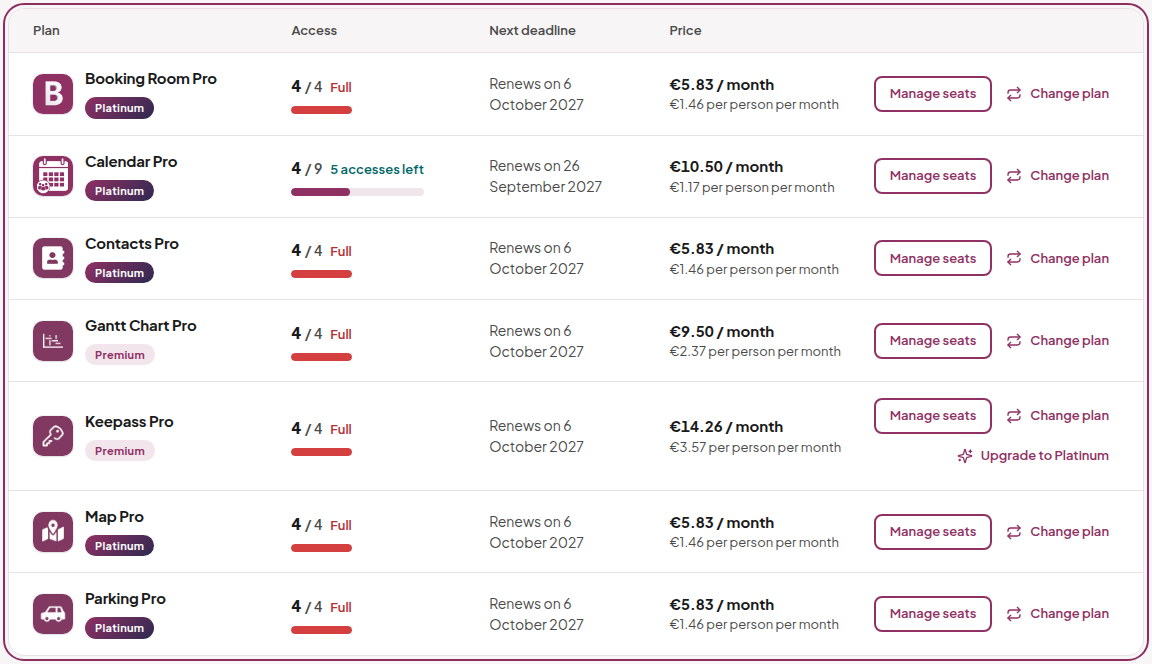
Each row has the actions that apply to it:
- Manage seats: add or remove accesses. See How to change the number of licenses of your subscription.
- Change plan: switch to another plan of the same app. See How to change your plan.
- Upgrade to {tier}: move the app to a higher plan, for example Upgrade to Platinum.
- Keep {app}: turn renewal back on for an app that is set to stop.
- Open Microsoft 365: for an app bought on Microsoft Marketplace, changes are made in the Microsoft 365 admin center.
Below the plans, Billing account gives access to your invoices, payment method and billing details. If you bought apps on Microsoft Marketplace, Microsoft billing links to the matching pages of the Microsoft 365 admin center. See How to download your invoices and How to cancel your subscription.
# Administrators
Administrators (Manage apps, access and billing.) lists the people who manage your Teams Pro account. Each one has a role:
- Account owner (previously Super Admin): the person who holds the account and manages billing.
- Administrator: can give access to apps and accept access requests. Only the account owner can add administrators.
From this page you can:
- Add an administrator: make a colleague an administrator. Only the account owner sees this button.
- Transfer ownership: offer the owner role to another administrator. They enter their billing details, then accept, and you stay an administrator.
- Leave the account: stop managing the account. Your own access to the apps stays as it is.
The account owner also sees a Danger zone with Delete the account. This cannot be undone. It is possible only once every subscription has ended, all access is removed and the other administrators have left.
For the full list of what each role can do, see Account owner and administrator roles.
# Language and display
The flag button in the header changes the language of the Admin Center. You can choose English, Français, Deutsch or Español. Your choice is remembered in this browser. E-mails sent by the Admin Center do not follow this choice.
Next to it, the theme button switches between the light and dark theme.
Your picture, at the top right, opens your account menu. It shows your name, your e-mail and your role, and has Guided tour, to replay the tour of the Admin Center, and Sign out.
# Help
The header has two links that open in a new tab:
- Help center opens this documentation site.
- Developers opens the Teams Pro Graph developer portal, where developers create API keys to connect Teams Pro apps to other tools.