
# Account owner and administrator rights
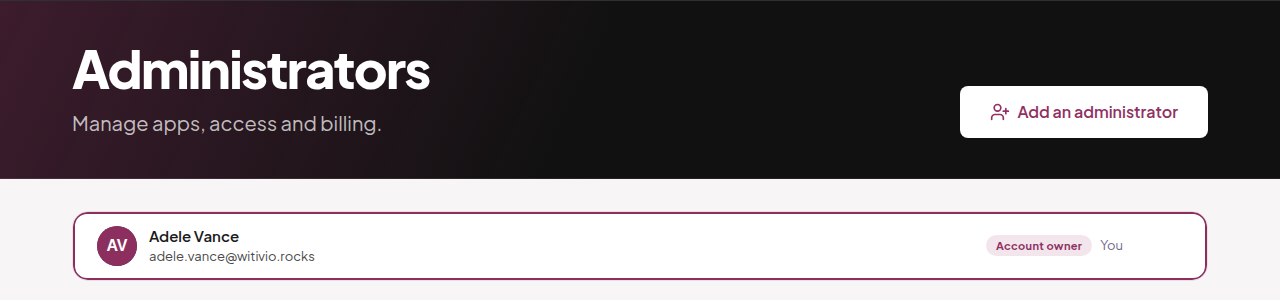
The Teams Pro Admin Center is the website where your organization manages its Teams Pro apps, the people who can use them, and billing. Each account has two roles, shown on the Administrators page: one Account owner, who holds the account and its billing, and the Administrators, who help manage the apps and the people using them.
The roles are available on every plan. The table below shows who can do what.
# Who can do what
| Action | Account owner | Administrator |
|---|---|---|
| Give or remove access to an app | Yes | Yes |
| Accept or decline access requests from colleagues (Access requests on My apps) | Yes | Yes |
| Add an administrator (Add an administrator) | Yes | No |
| Remove another administrator | Yes | No |
| Leave the account (Leave the account) | No, they transfer ownership or delete the account | Yes |
| Buy an app | Yes | No |
| Add or reduce seats | Yes | No |
| Change or upgrade a plan | Yes | No |
| Turn back on the renewal of a subscription set to stop (Keep the app, then Turn renewal back on) | Yes | No |
| Invoices, payment method and billing details | Yes | No |
| Transfer ownership | Yes | No |
| Delete the account (Danger zone) | Yes | No |
When an administrator opens an action reserved to the owner, the Admin Center tells them that only the account owner can do it and asks them to have the owner do it.
The account owner can delete the account with Delete the account, in the Danger zone of the Administrators page. Only the owner sees this section. Deleting is possible only once every subscription has ended, all access is removed and the other administrators have left. It cannot be undone.
# Transfer ownership
Hand the account to another administrator, for example when you change roles or leave your organization. When the transfer is accepted, the subscriptions paid by card move to the name of the new owner, and you stay an administrator. Only the account owner can start a transfer.
- 1
In the Admin Center, open the Administrators page.
- 2
On the row of the administrator who will become the owner, select Transfer ownership.
Only an administrator already on the list can receive the account. The account owner can add them first with Add an administrator.
- 3
In the confirmation dialog, select Offer the transfer.
The page now shows that the transfer is waiting for them to accept. Until they accept, you can select Cancel the transfer.
- 4
The other administrator opens the Administrators page, enters their billing address and payment method with Enter, then selects Accept.
They can also select Decline. Once they accept, they own the account and you stay an administrator.
# Related pages
Follow a transfer from start to finish, with the e-mails each person gets, in how to transfer ownership of the Admin Center account.
Fix a blocked transfer in why a transfer cannot be started.
Check every rule that applies to roles and seats in Admin Center limits.
Start with the Admin Center in get started with the Admin Center.