
# Managing Permissions in Parking Pro
Permissions control who can add and edit bookings in a shared Parking Pro calendar. Choose one mode for the whole channel so the right people manage parking places while everyone else can still view the schedule. This page shows how to open the permission settings and what each mode does.
# Permission modes
Parking Pro offers the following modes. One mode is always selected, and by default every member of the channel can add and edit bookings.
# Set the parking permissions
- 1
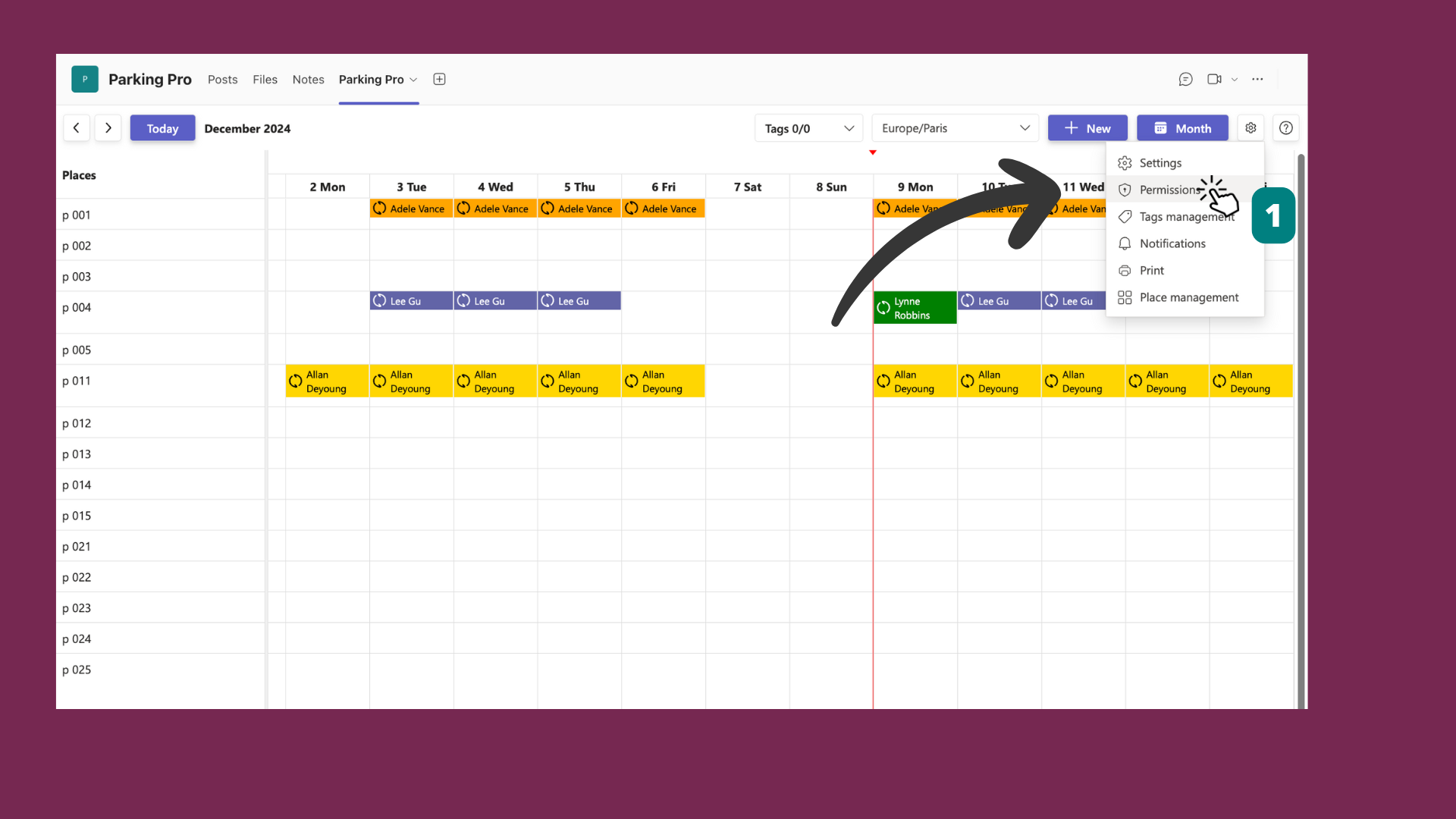
Open Parking Pro and click the Settings gear at the top right, next to the view buttons.
- 2
Select Permissions from the menu.
- 3
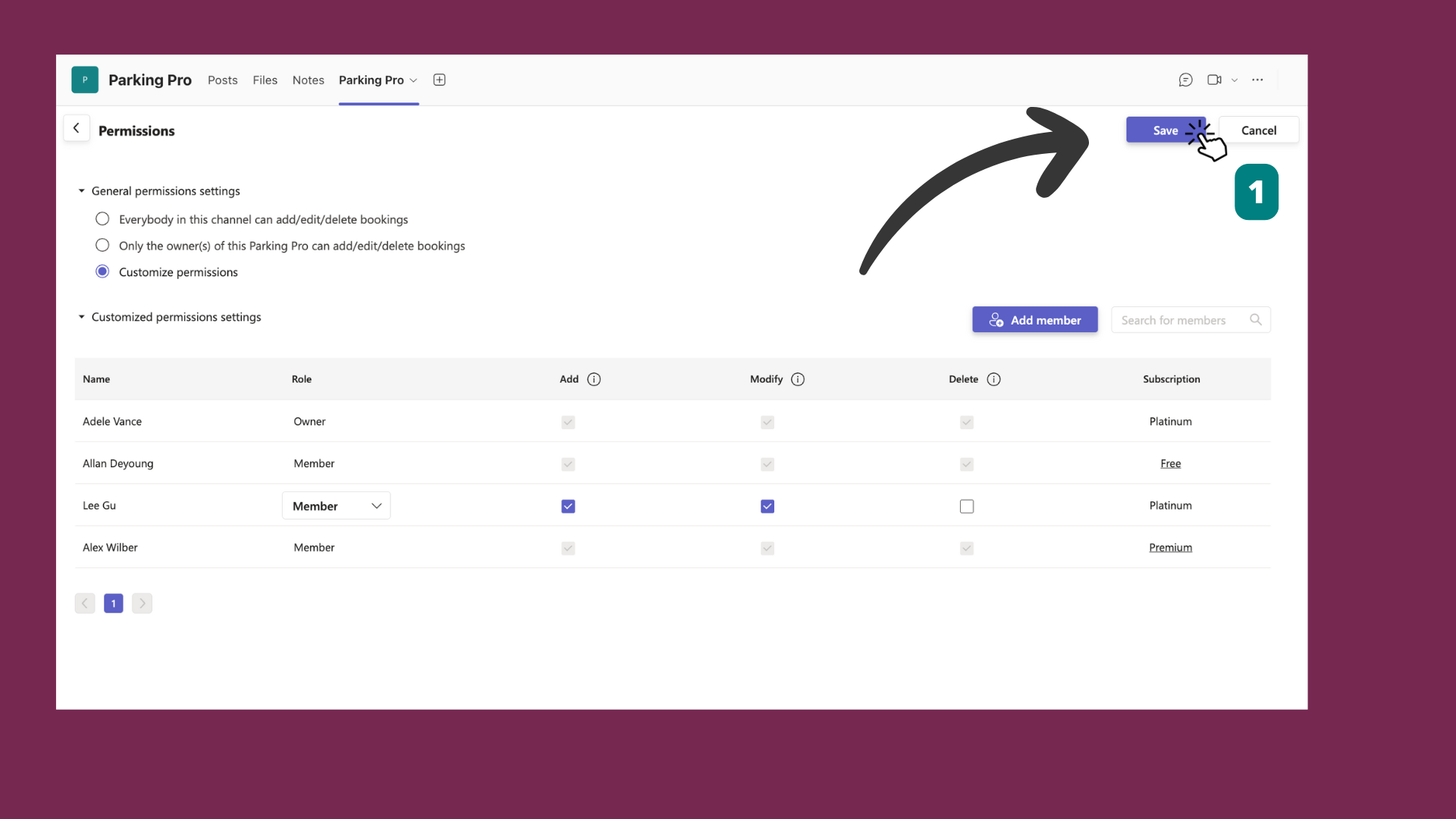
Choose who can manage bookings: Everybody in this channel can add/edit bookings, Only the creator of this Parking Pro can add/edit bookings, or Only owners can add/edit bookings.
One mode is always selected. By default, everybody in the channel can add and edit bookings.
- 4
Click Save to apply the change.
# Good practices
- Review regularly: Check permissions often so they match current team roles and responsibilities.
- Limit access: Restrict booking rights to the people who manage the parking so the schedule stays under control.
- Clear roles: Define who owns the parking calendar and share that with your team to avoid confusion.
# Related pages
- Unlock owners-only permissions by comparing plans on the difference between Free and Premium Parking Pro.
- New to the app? Start with the Parking Pro basic set up.
- Organize places with tags in Parking Pro.