
# GPT Pro Fundamentals
GPT Pro is built around natural-language conversation in Microsoft Teams. You type a request the way you would ask a colleague, and GPT Pro replies right in the chat. This page explains how to guide the assistant with built-in suggestions, freeform prompts, and a few habits that get you better results.
# Built-in prompt suggestions
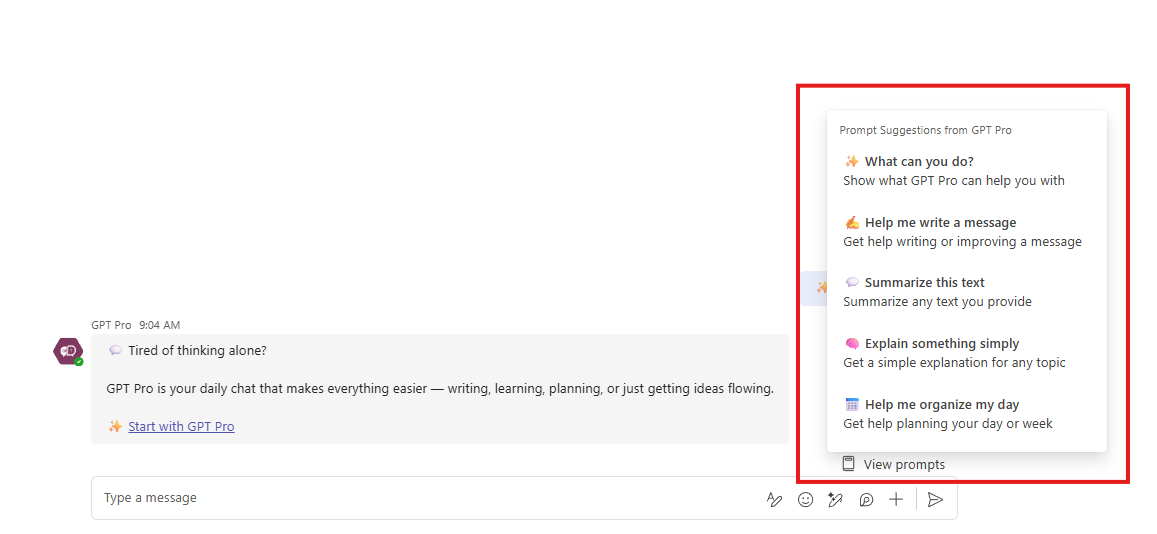
GPT Pro shows one-click suggestions so you can get value right away without writing a prompt from scratch. Select any suggestion to start, then refine the result in the same conversation.
# Prompt ideas for everyday use
Freeform prompts give you full control. Here are practical examples grouped by task.
# Writing and rewriting
- Rewrite this professionally: ...
- Make this clearer and more concise: ...
- Draft a Microsoft Teams message (120 to 150 characters) announcing the update.
# Translation
- Translate to English in a friendly tone: ...
- Translate this into Spanish in a professional tone.
# Summaries
- Summarize this text in four bullet points with action items.
# Explanations
- Explain this simply: ...
- Give me a beginner-friendly definition of ...
# Planning and organization
- Help me plan my day with these tasks: ...
- Suggest priorities based on this list: ...
# Prompting tips
Small adjustments to how you ask make a big difference to what you get back.
- Be clear about the tone, the recipient, and the goal.
- Mention the length you want, such as short, concise, or detailed.
- Ask for alternatives when the first draft is close but not perfect.
- Iterate in the same chat with quick follow-ups like "shorter" or "more friendly."
- Paste your own draft directly and ask GPT Pro to improve it.
# Best practices
- Always review the generated text before you send or share it.
- Provide context when the message matters, so the reply fits the situation.
- Use GPT Pro to speed up repetitive writing rather than to replace your judgment.
- Ask for adjustments whenever the result is not quite right.
# Privacy choices
GPT Pro asks once whether you want to share anything beyond the conversation itself. The consent card is posted in the chat after the assistant has answered, so it never blocks your question or delays a reply.
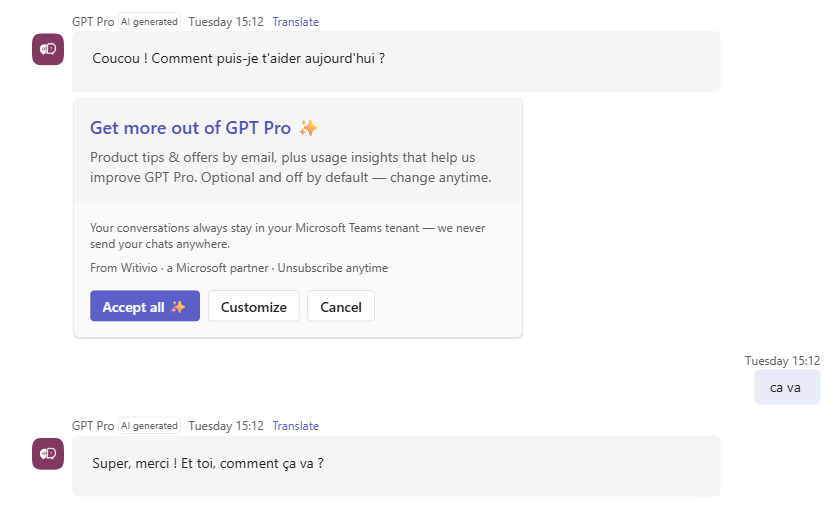
The card opens collapsed, with three options:
- Accept all turns both options on at once.
- Customize reveals the individual switches and a Save my choices button.
- Cancel closes the card without sharing anything.
Both options are off by default, so nothing is shared unless you turn it on yourself:
| Option | What it covers |
|---|---|
| Email me tips & offers | Product tips, updates, and offers by email, about once a month. You can unsubscribe at any time. |
| Help improve GPT Pro | Usage insights that help Witivio fix bugs and prioritize the features people use most. Your chat content is never included. |
If you close the card without answering, GPT Pro brings it back at most once more, with a cooldown of several days in between. Once you have saved a choice, it stops asking.
# Change or withdraw a choice
Type /privacy in the chat with GPT Pro at any time. The card reopens with the switches already expanded and set to your current choices, so you can turn an option on, turn it off, and select Save my choices. Turning an option off withdraws that consent. Reopening the card yourself does not count toward the automatic prompts.
# Related pages
- New to the app? Start with the GPT Pro Get Started guide.
- See how Witivio handles personal data in the trust center privacy and compliance section.
- Find quick answers in the GPT Pro Q&A.
- Learn how GPT Pro keeps replies safe in content filtering.
- Check plans and message allowances on the pricing and subscription page.