
# Switch between Map and Satellite view in Map Pro
Map Pro lets you choose the background style of your map. Use the standard Map view for clear street names and labels, or switch to Satellite view for real aerial imagery when you want to see the terrain, buildings, and surroundings around a place or trip. The switch only changes how the map looks. It does not move or remove any of your saved places or trips.
# Change the view mode
- 1
Open the Map Pro tab in Microsoft Teams.
- 2
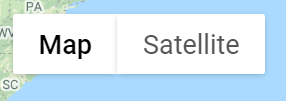
Find the view switch in the top left corner of the map.
- 3
Click Map for the standard street map, or Satellite for aerial imagery.
The map redraws right away. Your places and trips stay in place on either background.
Use Satellite view when you present locations to your team. Aerial imagery makes it easier to recognize a site, a venue, or the route of a trip.