
# How can I change Parking Pro time zone?
Parking Pro shows booking times in a time zone so your team reads the schedule in the right local time. By default it uses the time zone of your device. You can change it for the whole parking view, or set the time zone on a single booking when you work across locations.
# Change the time zone for the parking view
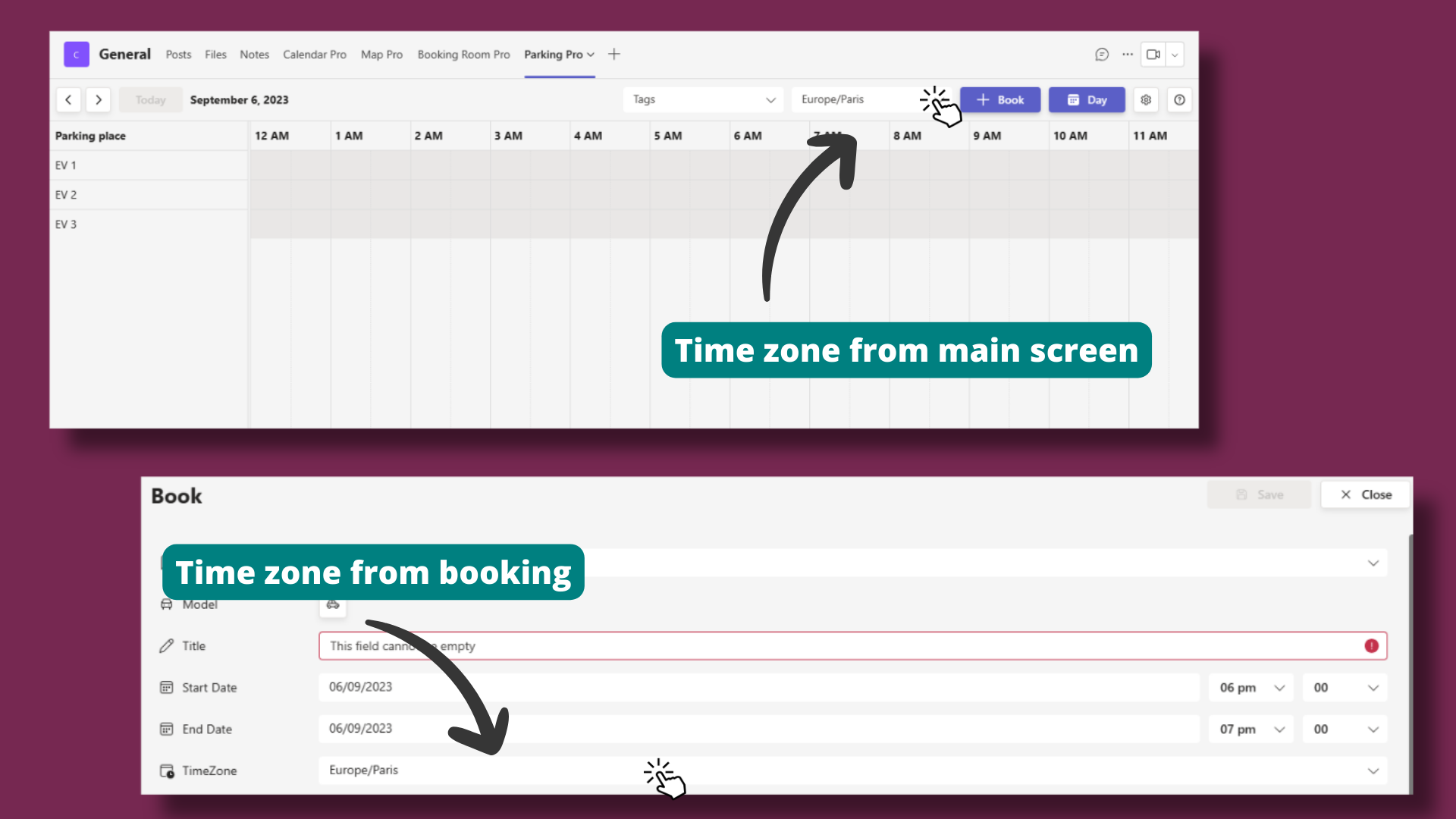
Use the view drop-down to switch the time zone applied to the whole parking schedule.
- 1
Open Parking Pro and click the drop-down arrow at the top of the parking view.
- 2
Select the time zone you want from the list. Use the search box to find a time zone quickly.
The whole parking view refreshes so booking times match the time zone you pick.
# Set the time zone on a booking
You can also adjust the time zone from the booking options when a reservation belongs to a different location.
- 1
Open a booking, or start a new one, to show the booking options.
- 2
Set the Timezone for that booking from the time zone field.
- 3
Save the booking so its start and end times use the chosen time zone.
# Related pages
- Print the schedule for a chosen time zone in printing the Parking Pro reservation schedule.
- Organize places with tags in Parking Pro.
- New to the app? Start with the Parking Pro basic set up.