
# Edit your image in Image Pro
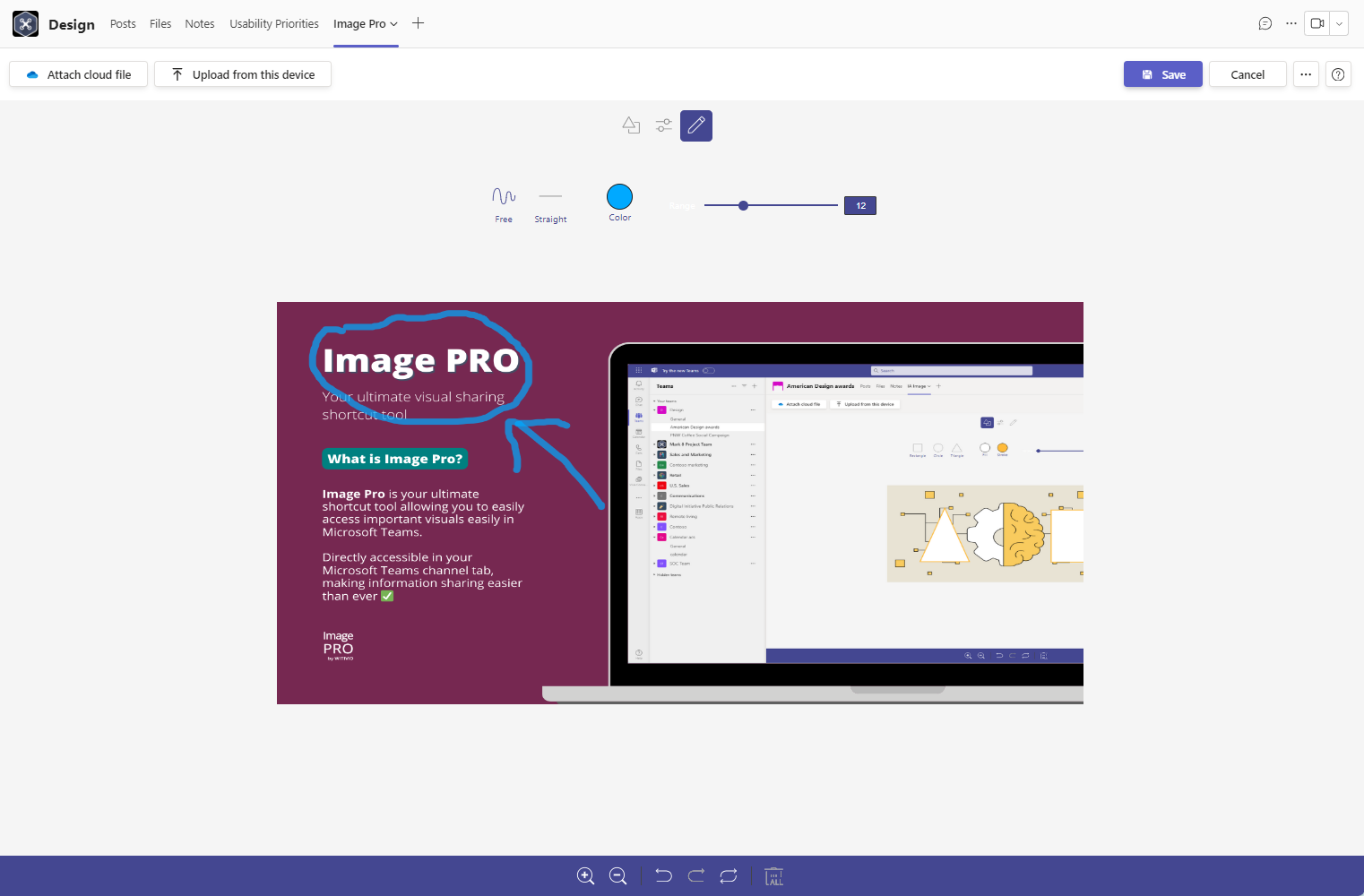
Once an image is loaded in Image Pro, you can edit it directly inside Microsoft Teams. The built-in editor gives you shape, filter, and draw tools so you can annotate a screenshot, highlight a detail, or adjust how a picture looks. When you are happy with the result, save it and Image Pro keeps the edited version for your team.
# Edit your image
- 1
Open your image in the editor
- Upload or select an image so it loads in the Image Pro editor. See how to upload an image.
- 2
Edit with the built-in tools
- Use Shape to add and style shapes on the image.
- Use Filter to change the look with image filters.
- Use Draw to draw freehand on the image.
Use the undo control to revert your last change if you make a mistake.
- 3
Save or discard your work
- Click Save to keep your changes.
- Click Cancel to discard them. Image Pro asks you to confirm before any changes are lost.
Need help while editing? Open the Help menu in the toolbar for About, Help Center, and Suggest a Feature.