# Add places in Map Pro
A place is a single pinned location on your shared Map Pro map in Microsoft Teams, such as a customer site, an office, or a store. This page shows you how to add one so it appears for everyone who can open the tab. Adding a place takes a title, an address you search for, and an optional description.
# Add a place
- 1
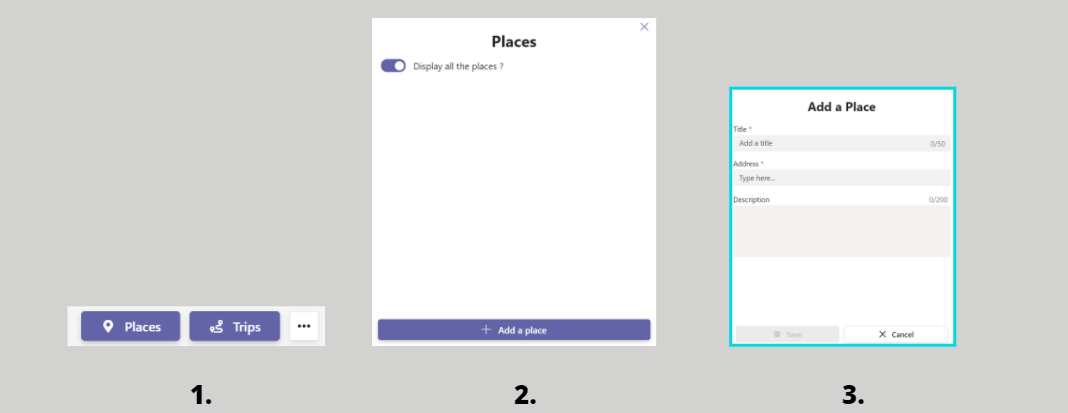
Open your Map Pro tab in Microsoft Teams, then click the Places icon at the top right to open the Places panel.
- 2
Click Add a place at the bottom of the panel.
- 3
Enter a Title for the place. This field is required and accepts up to 50 characters.
- 4
In the Address field, start typing and select the matching result from the suggestions. Map Pro pins the location on the map.
- 5
Add an optional Description (up to 200 characters) with any useful detail, such as a contact or opening hours.
- 6
Click Save. The new pin appears on the map for everyone who can open the tab.